
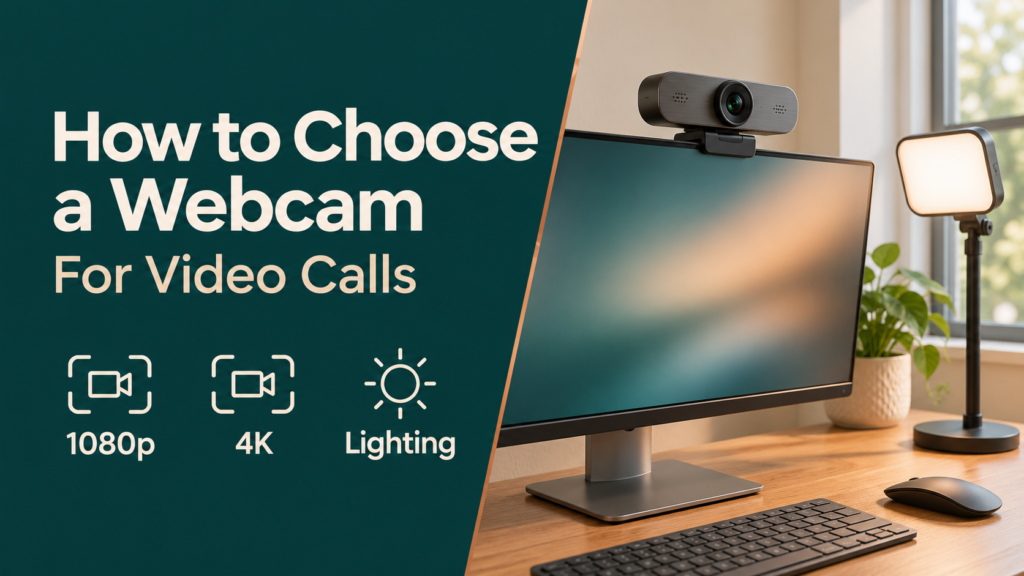

If you’re deciding how to choose a webcam for video calls, start by checking your existing picture in the room where you work. Sit facing a window or soft light, put the camera near eye level, and make a short recording. If your face looks clear after those changes, you may already have enough camera for routine meetings.
For a new purchase, a good 1080p webcam is a sensible starting point for everyday calls. Consider 4K if you also record videos, want room to crop the picture, or need to show more detail in a supported workflow. Check your meeting app before paying for extra resolution. Zoom’s HD settings depend on your account and other conditions, and Google Meet’s 1080p sending option has device and browser requirements. Zoom video settings · Google Meet video quality settings
1080p vs. 4K for video calls
| Resolution | Typical dimensions | When to consider it |
|---|---|---|
| 1080p | 1,920 × 1,080 pixels | Routine meetings, interviews, and individual client calls |
| 4K UHD | 3,840 × 2,160 pixels | Local recordings, supported higher-detail workflows, or cropping while retaining useful detail |
A 4K image contains four times as many pixels as 1080p at those dimensions. Your meeting software, connection, computer, and the other participant’s viewing layout affect how much detail reaches the screen. A camera capable of capturing 4K may send a lower-resolution stream in your call.
Read the resolution and frame rate together. A camera may support 4K at 30 frames per second and 1080p at 60 frames per second. Logitech’s Brio 4K is one published example of that combination. For a seated conversation, 30 fps is a reasonable starting point. Consider higher frame rates when smooth movement matters and your recording or conferencing setup supports them. Logitech Brio specifications
Check your meeting app before choosing a camera
Open the app’s video settings and confirm which camera and resolution it uses. If your organization manages the account, ask whether HD settings are restricted.
Google Meet documents a 1080p option on computers with a suitable camera and enough processing power, with availability subject to its requirements. Its help page currently says 1080p is unsupported in Firefox and Safari. Zoom lets eligible users enable 720p or 1080p according to their plan and applicable settings. Verify the current requirements for your account before buying around a particular call resolution. Google Meet quality settings · Zoom HD guidance
A local recording can help you judge the camera’s picture independently of a call. Follow that with an actual meeting test to see what a remote participant receives.
Improve lighting before paying for more pixels
Put the light in front of you
Try facing a window, with the screen between you and the window. Use a curtain or blind if direct sunlight creates bright patches. At night, place a soft desk light near and slightly to one side of the screen. Adjust its position until your face is evenly visible.
A bright window behind you can leave your face dark or force the camera to brighten the picture aggressively. Move the desk or change the light before judging whether the webcam is good enough.
Check exposure and reflections
Watch whether the camera repeatedly brightens and darkens as you move. If the webcam’s software supports manual exposure, test whether a fixed setting improves consistency in a room with stable light. Check glasses for reflections and move the light to the side or slightly higher if needed.
Compare camera samples recorded in lighting like yours. A demonstration made under strong studio lighting tells you less about how the model will perform in a dim office.
Which webcam features matter at a desk?
| Feature | What to check |
|---|---|
| Field of view | Can it show your head and shoulders at your normal sitting distance without including too much of the room? |
| Focus | Does it hold focus on your face? If you show objects, can it refocus at that distance? |
| Mount and tilt | Will the clip fit your screen securely, and can you aim it at eye level? |
| Connection | Does the supplied cable fit your computer, and does the port support the camera’s intended mode? |
| Camera software | Are the controls you need available on your operating system, and can you install them on a work computer? |
| Privacy cover | Can you cover the lens conveniently between calls? |
| Microphone | Is your voice clear at your usual distance? Include a headset or separate microphone in the budget if needed. |
A wider field of view can suit two people sharing a desk, while a narrower view can suit an individual call. For example, Logitech publishes adjustable diagonal views of 65°, 78°, and 90° for the Brio 4K. Check whether a manufacturer quotes diagonal, horizontal, or vertical field of view when comparing specifications. Logitech Brio field-of-view specifications
Autofocus is useful when you move or hold something up, but look for samples that show whether it hunts back and forth. A fixed-focus camera can suit someone who sits at a consistent distance. With any model, test focus at the distance you actually use.
Worked example for a small business owner
A bookkeeper takes client calls from a desk by a window. The built-in laptop camera sits below eye level, and afternoon light comes from behind. Before buying, the owner raises the laptop and changes the desk position so the window lights their face.
If the resulting image is still soft, the owner can compare 1080p webcams with a secure mount and suitable framing. A separate light may be useful for evening calls. Paying for 4K becomes easier to justify if the bookkeeper also records training videos and wants to crop them afterward.
Price the whole setup. A webcam that fits the monitor, a light that works in the room, and clear audio may solve more problems than a higher-resolution camera alone.
Test a new webcam while you can still return it
- Select it in your meeting app and check the available resolution settings.
- Make a short recording in both daytime and evening conditions.
- Move naturally and watch for focus changes or repeated exposure adjustments.
- Test a real call and ask the other person to check your picture and sound.
- Restart the computer and reconnect the camera to confirm that the setup is easy to use.
Use this test to decide whether the camera improves the calls you make. If the recording looks clear but the remote picture breaks up, investigate the connection and meeting settings before changing cameras again.
Frequently asked questions
1. Is a 1080p webcam enough for professional calls?
It is a reasonable starting point for routine individual meetings. Check how clearly it shows your face in your room and how the picture looks to another participant. Lighting, focus, and framing all affect the result.
2. Does a 4K webcam automatically make Zoom calls 4K?
Zoom’s published meeting HD settings cover 720p and 1080p subject to eligibility and other conditions. Check the current settings for your account. A 4K webcam may still be useful for local recording or cropping. Zoom HD guidance
3. Should I buy a ring light?
A ring light is one option. A soft light near the screen or a window in front of you can also work. Choose a light you can position comfortably and dim to suit the room. If you wear glasses, check reflections before deciding.
4. Do I need 60 fps?
For a seated conversation, 30 fps is generally a practical choice. Higher frame rates can make motion look smoother when your software and lighting support them. Check the camera’s resolution at that frame rate before buying.
5. Is the webcam’s built-in microphone good enough?
Test it at your normal distance, including the background noise in your room. If others hear keyboard noise, echo, or unclear speech, try a headset or another microphone positioned closer to you.
Conclusion
Start with your room and meeting app. Improve the light and camera position, then decide whether 1080p meets your needs or whether recording and cropping justify 4K. Compare focus, framing, mounting, and software support alongside resolution, and test the complete setup on a real call.