
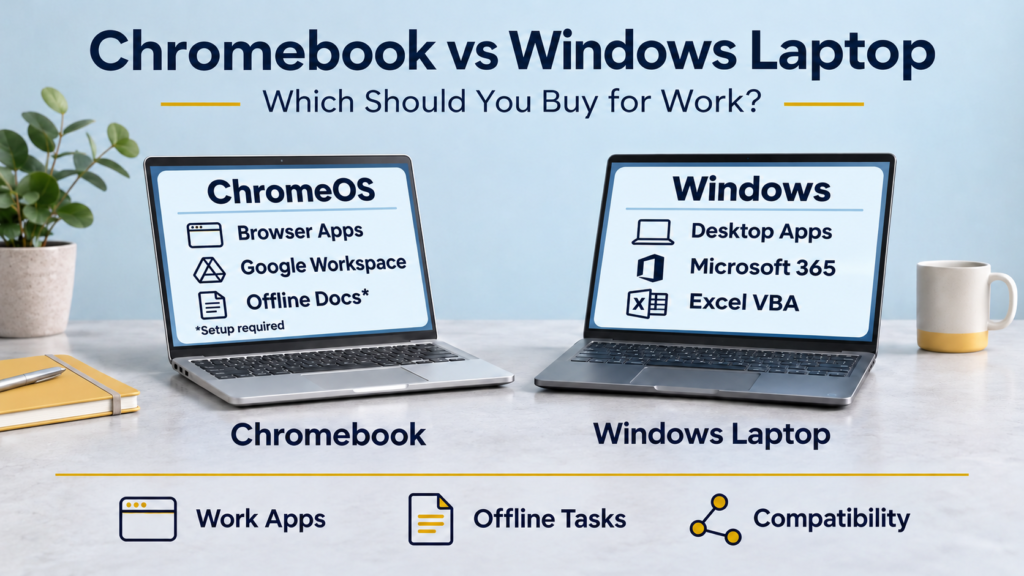

Choose a Chromebook if your work fits the browser apps you already use and you have tested the tasks you need offline. Choose a Windows laptop if you need Windows desktop software, specialized peripherals, or full desktop Excel features. For example, Microsoft supports web access to Microsoft 365 on a Chromebook, but the Windows and Mac desktop Office apps cannot be installed there. Microsoft’s Chromebook guidance
The Chromebook vs Windows laptop decision gets easier when you list your actual tasks. “Email and spreadsheets” could mean a browser inbox and simple tracking sheets. It could also mean desktop Outlook add-ins and an Excel workbook that runs VBA macros. The second workflow needs a different compatibility check.
Chromebook vs Windows laptop at a glance
| Work requirement | Chromebook | Windows laptop |
|---|---|---|
| Browser email, web dashboards, and cloud documents | A practical fit when your apps support ChromeOS and your browser | Also supports browser workflows alongside compatible desktop apps |
| Microsoft 365 | Use supported web apps. Check each file and feature you rely on. | Can run licensed desktop Office apps and web apps on a supported system |
| Excel VBA macros | Excel for the web can open macro-enabled workbooks, but cannot run, create, or edit VBA macros. | Desktop Excel supports VBA. Check required add-ins and hardware compatibility. |
| Offline work | Supported apps and files need preparation and testing. | Installed software can support offline work, subject to its licensing and service requirements. |
| Specialized software and accessories | Confirm ChromeOS support with the vendor. | Confirm support for the Windows version and processor architecture. |
| Hardware quality and battery life | Compare the individual model. | Compare the individual model. |
Microsoft 365 on Chromebook · Excel web VBA limitations · Chromebook offline guidance · Windows on Arm compatibility guidance
Start with your required software
A Chromebook can suit work done mainly in a browser
A Chromebook is worth considering if most of your day involves browser email, shared documents, a web CRM, online bookkeeping, and video meetings. Before buying, use the exact apps and file types you normally handle. Open a client document, edit it, export it, and check the result.
For Google Docs, Sheets, and Slides, test the formatting and features you use. If colleagues send Office files, check comments, formulas, charts, and exports with a representative file. Web versions can handle many tasks, but compatibility depends on what the file needs.
A Windows laptop can suit desktop workflows
Choose a supported Windows configuration when your job depends on an installed Windows application. That might include a desktop accounting package, design software, reporting tool, or a required Excel add-in.
If you are comparing a Windows laptop with an Arm processor against one with Intel or AMD hardware, check the vendor’s compatibility information. App emulation broadens compatibility, but drivers and some peripherals still need specific support. Microsoft’s Windows on Arm guidance
A browser edition of a creative app may cover your tasks, while another job requires its desktop edition. Adobe publishes separate requirements for Photoshop on desktop and on the web. Check the edition and features you need before deciding that either laptop can handle your workflow. Adobe desktop Photoshop requirements · Adobe Photoshop on the web requirements
Test offline work if your connection is unreliable
A Chromebook can work offline for supported tasks. Google documents how to prepare Drive files and use Docs, Sheets, and Slides offline. Make the files available while you still have a connection, then disconnect and try the workflow yourself. Microsoft 365 web access should be evaluated separately from Google’s offline document tools. Chromebook offline files · Google Docs offline setup · Microsoft’s Chromebook access guidance
A Windows laptop with installed software and local files can be useful for longer periods without internet. Check the app’s activation requirements, cloud dependencies, and sync behavior. Both laptops still need a connection for work such as live meetings or an online-only business system.
Before buying either option, disconnect a test device and complete a task that matters. Save a document, reopen it, and reconnect to confirm that changes sync correctly.
Compare the hardware you will use every day
Use these as shopping targets, then check the requirements for your actual workload.
| Component | What to look for |
|---|---|
| RAM | For browser-based work, compare models with at least 8 GB. Consider 16 GB for frequent calls alongside many tabs or heavier apps. |
| Storage | Allow room for offline files and downloads. A 256 GB SSD is a useful starting point on Windows. Chromebook needs depend on how much you keep locally. |
| Display and keyboard | Check text readability, brightness, key feel, and whether the screen size suits your spreadsheets. |
| Webcam and microphone | Test a real call in the room where you work. |
| Ports and monitors | Confirm that your dock, charger, external display, printer, and scanner work with the exact device. |
| Battery | Compare reviews or tests for the specific model under a workload similar to yours. |
These are practical buying suggestions. More demanding apps can need substantially more memory, storage, or graphics capability. A low-cost model of either type may make tradeoffs in screen quality, memory, or performance.
Check support life and total cost
Before buying a Chromebook, look up the exact model’s Auto Update Expiration date. Google’s policy provides updates for 10 years from the platform’s release, so a purchase today does not automatically start a new 10-year period. Older eligible devices may have extended-update conditions, including changes to Android app support. Google’s automatic update policy · Extended update conditions
For Windows, check that the device supports the current operating system and that the manufacturer supplies drivers for it. Ask your employer about its device management, security, or Windows edition requirements before ordering. Windows 11 requirements
Compare the purchase price plus the subscriptions, adapters, support, and replacement plans your setup needs. If a Chromebook requires you to pay for remote access to a Windows machine for daily work, include that service and its connection requirements in the comparison.
Three practical work examples
An online service business owner
The owner uses browser email, a web booking system, Google Docs, and video calls. A Chromebook may fit if the booking app and meetings work well on the model, and the owner can prepare any documents needed offline. Compare it with a similarly equipped Windows laptop for screen, keyboard, price, and support life.
A field data officer using complex Excel templates
The officer travels with limited connectivity and receives Excel files containing VBA routines or required desktop add-ins. A compatible Windows laptop is the more direct choice for that workflow. Test a copy of the actual reporting template and any data collection or analysis tools before buying. Microsoft’s guidance on VBA in Excel for the web
A designer delivering client files
The designer needs the desktop version of a creative application and specific plugins. Start with the software’s supported systems, then choose a Windows model with enough memory, graphics capability, and storage. If the designer’s work fits a browser tool instead, a Chromebook can be considered after testing exports and client file requirements. Adobe’s desktop Photoshop requirements
Frequently asked questions
1. Can I use Microsoft Word and Excel on a Chromebook?
Yes, through supported Microsoft 365 web apps. Check the features and subscription you need. You cannot install the Windows or Mac desktop Office apps on a Chromebook. Microsoft Chromebook guidance
2. Can I work offline on a Chromebook?
Yes, for supported tasks with the appropriate apps and files prepared in advance. Test your exact workflow, including saving and reopening files, before relying on it while traveling. Google Chromebook offline guidance
3. Which is cheaper for work?
Compare models that meet the same requirements. Include software, accessories, and any service needed to access a required app. A lower purchase price can be worthwhile when the device handles your daily work comfortably.
4. Can a Chromebook run Windows software?
For a conventional Windows desktop program, plan on a supported Windows device or a supported remote access service. If your employer offers remote Windows access, confirm ChromeOS support and test the connection before making it your main workflow.
5. Which is better for video calls?
Either can work well with supported meeting software and adequate hardware. Test the camera, microphone, lighting, connection, and performance while your normal work tabs are open. Choose based on the device and app combination you will actually use.
Conclusion
Make a short list of required apps, representative files, accessories, and offline tasks. If that workflow fits the browser and passes on ChromeOS, compare a Chromebook on price and hardware quality. If it relies on desktop Windows software, choose a compatible Windows laptop and verify the exact apps and peripherals before buying.