

A shared spreadsheet may seem manageable when only two people need a login. As a team grows, it becomes harder to know who has access, which password is current, and what should happen when someone leaves.
A team password manager can help organize credentials and control access. Choosing one requires more than comparing password generators or subscription prices.
Understanding how to choose a password manager for a small team means checking how the product handles daily work, business ownership, account recovery, and offboarding. This guide provides a selection process and a trial checklist you can use before committing.
What Does a Team Password Manager Do?
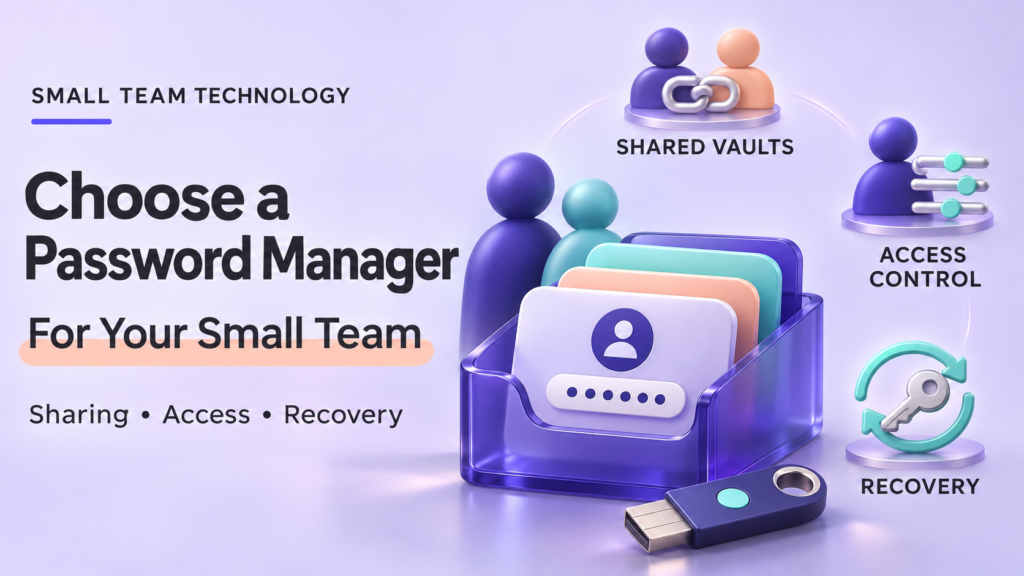
A password manager stores login details in a protected vault and helps users generate and retrieve passwords. Team-oriented plans add features such as shared vaults, access permissions, administrative controls, and business recovery processes.
A useful setup gives each person their own account, with access to the work credentials they need. The team should not share one password-manager account or one master password.
Where a service supports individual user accounts or delegated access, use those features. A password manager is useful for unavoidable shared credentials, but named accounts provide clearer responsibility.
Personal, Team, and Browser-Based Password Management
| Approach | Typical use | What to examine |
|---|---|---|
| Personal password manager | An individual’s own credentials | Business sharing, ownership, and recovery may be limited |
| Browser password storage | Convenient access within a browser ecosystem | Central administration, sharing, and cross-platform workflows |
| Team or business password manager | Work credentials managed across people | Permissions, recovery, offboarding, and plan-specific controls |
Some browser ecosystems provide business controls. Compare the actual configuration available to your organization rather than assuming every browser-based option has the same capabilities.
How to Choose a Password Manager for a Small Team: 8 Steps
1. List Your People, Devices, and Workflows
Start with a brief inventory:
- Current employees and likely additions.
- Contractors who require temporary access.
- Operating systems, browsers, and mobile devices.
- Critical accounts such as email, hosting, finance, and cloud storage.
- Credentials that genuinely need sharing.
- Existing identity and access-management tools.
Also record who owns each business account. A shared login tied to a former employee’s personal email can create a problem that a new vault alone will not fix.
Use this inventory to define a shortlist. A product that does not support a key device or workflow is a poor fit regardless of its other features.
2. Check Security Evidence and Account Protection
Review the vendor’s security documentation, not just its homepage.
Ask:
- How is vault data encrypted, and who controls decryption?
- What can the provider and your administrators access?
- How does recovery affect those permissions?
- Are independent security assessments available?
- What dates, products, and scope do those assessments cover?
- How does the vendor communicate and address security incidents?
Terms such as “zero knowledge” need an explanation of the architecture and recovery model. They do not establish that every part of a service has identical protection.
Enable strong authentication for the password manager itself. NIST’s small-business guidance recommends phishing-resistant MFA where available, including on password-manager and business-critical accounts.
Check support for security keys or other appropriate authentication methods, along with the exact plan required.
3. Test Shared Vaults and Permissions
Organize access around work responsibilities.
For example:
| Vault or collection | Intended access |
|---|---|
| Marketing | Staff managing campaigns and approved social accounts |
| Operations | Staff responsible for scheduling and routine business tools |
| Finance | A restricted group handling payment and accounting systems |
| Administration | Authorized people managing critical infrastructure |
Avoid placing every credential in a company-wide vault.
Check whether the quoted plan supports groups, restricted sharing, and the administrative controls you need. Test permissions from an ordinary member’s account.
Also investigate what “hidden password” or “view-only” permissions actually restrict. Someone authorized to use a credential may still be able to obtain or retain it through other means. Such settings should not be treated as a guarantee against copying.
4. Verify Ownership of Business Credentials
Find out where items belong and what happens when their creator leaves.
A product may distinguish between personal items, employee-only work items, and organization-owned shared items. Those categories can have different rules.
Bitwarden’s offboarding documentation illustrates why this matters: access to personally owned items and organization-controlled items is handled differently, with behavior also affected by organizational policies.
For your chosen plan, establish:
- Where business-critical credentials must be stored.
- Who can move or transfer them.
- Who retains access when a member is removed.
- Whether deleting an account can delete needed information.
Explain employee privacy clearly. Do not assume an employee-only work vault is equivalent to a separate personal account outside company control.
5. Examine Recovery Before an Emergency
A secure product can still disrupt work if the only administrator loses access.
Ask who can recover a user, what must be configured in advance, and which recovery materials are needed. Test how recovery works for administrators as well as ordinary members.
1Password’s recovery-planning guidance recommends arranging another owner because an owner cannot recover their own account through that process. Other vendors have different models.
Keep recovery materials in a controlled location accessible to authorized people. Avoid making the only recovery route depend on an account that itself requires the locked vault.
Choose backup administrators carefully. Their access needs strong authentication and a documented purpose.
6. Test Everyday Usability
A feature-rich product can fail operationally if staff find it difficult to use.
During a trial, test:
- Saving and updating login details.
- Generating unique passwords.
- Autofill on your actual business websites.
- Switching between work and personal accounts.
- Searching for the correct item.
- Mobile access.
- Locking and unlocking the vault.
- Offline behavior and later synchronization.
Offline access deserves special attention for teams with unreliable connections. Check what remains available locally and how permission changes affect disconnected devices.
Passkeys may also matter. Confirm whether the product can store and use passkeys on your devices, and investigate transfer or recovery limitations. Password-manager sign-in with a passkey and storing website passkeys are separate capabilities.
7. Compare Plans and the Full Cost
Check the exact plan name and billing terms. Important controls may appear only in a higher tier.
Ask about:
- Minimum seat counts.
- Monthly versus annual billing.
- Contractor or guest restrictions.
- Recovery and policy features.
- Event logs and retention.
- Single sign-on and provisioning.
- Support availability.
- Renewal and cancellation terms.
- Export options and limitations.
Illustrative Cost Example
Suppose a fictional plan costs $5 per user per month, billed annually.
For six users:
6 × $5 × 12 = $360 per year
For eight users:
8 × $5 × 12 = $480 per year
These are assumed prices, not a vendor quote. Taxes, minimum commitments, training, security keys, and administration may add costs.
If your required recovery or access policy needs a different tier, compare that tier’s price from the start.
8. Run a Small Pilot Before Migrating Everything
Choose a representative group: an administrator, a regular staff member, and a temporary contractor where relevant.
Use test credentials first, then a limited set of approved work accounts.
Ask participants to complete the same tasks in each shortlisted product. Record problems and the time or support needed to resolve them.
Do not migrate the full business until sharing, recovery, and access removal work as expected.
A Practical Trial Checklist
| Test | What a satisfactory result looks like |
|---|---|
| Invite a member | They can enroll with an individual account and required authentication |
| Apply permissions | They see only the intended vaults and items |
| Update a shared login | Authorized colleagues receive the current credential |
| Recover a test account | The documented process works for authorized participants |
| Remove a contractor | Access changes as documented, with limitations understood |
| Check business ownership | Critical items remain available to the organization |
| Export test data | Supported formats and missing item types are understood |
| Test devices | Required browsers, computers, and phones work reliably |
Choose essential requirements before trying products. A recovery failure should not be outweighed by attractive interface design or unrelated features.
Worked Example: A Six-Person Agency
Consider a fictional agency with two owners, three employees, and one contractor.
The agency manages its own software accounts and several client marketing tools. It needs separate access groups because the contractor should not see billing credentials or unrelated client accounts.
Its initial requirements are:
- Individual accounts with strong authentication.
- Separate vaults for internal operations and each client.
- Two appropriately protected administrators.
- A documented recovery process.
- A way to remove temporary access and preserve work credentials.
The agency pilots two products using dummy accounts. It tests sharing, mobile use, recovery, and contractor removal.
One option is cheaper but lacks a required control in the quoted plan. The agency compares the correct tier, checks export limitations, and chooses based on the verified workflow and total cost.
The example shows a selection method. It does not establish that a particular brand is best for every agency.
Plan Offboarding Beyond the Vault
Removing someone from the password manager is only part of offboarding.
They may have previously copied a password or still hold an active session in the underlying service.
A practical process includes:
- Preserving business-owned information.
- Removing password-manager access.
- Disabling their individual service accounts.
- Revoking relevant sessions and tokens.
- Changing shared credentials they knew or could access.
- Reviewing recovery contacts and MFA registrations.
1Password’s offboarding guidance explicitly includes transferring needed work items and changing shared passwords. Follow the chosen vendor’s process and your organization’s access policy.
Migration and Security Limitations
Password exports can create readable files containing sensitive credentials. If migration requires one, use an approved location, restrict access, and remove temporary copies after verifying the transfer. Check whether backups or synchronization created additional copies.
A password manager also cannot make an infected or unattended unlocked device trustworthy. Maintain device security, updates, and appropriate vault-lock settings.
Storing one-time codes beside passwords can improve convenience, but it concentrates those secrets in the same vault. For critical accounts, consider a separate phishing-resistant factor supported by the service.
Keep a separate, controlled recovery method for the password manager itself.
Frequently Asked Questions
1. Can a small team share one password-manager account?
Each person should have an individual account. A single shared account makes access management, authentication, recovery, and accountability harder.
2. Is a free plan enough for a small team?
Possibly, if its current limits and business-use terms meet your needs. Verify member counts, sharing, ownership, recovery, and administration rather than assuming a personal free plan provides team controls.
3. Should contractors get access to every company password?
Grant only the access required for their work and define when it ends. Use individual accounts in the underlying service where possible, and review access when the assignment changes.
4. Can an administrator see every employee’s passwords?
It depends on the product, vault type, permissions, and recovery model. Review the documentation and explain the policy to employees before adoption.
5. Do passkeys make a password manager unnecessary?
Not automatically. Your team may still need to manage passwords, shared credentials, recovery information, and other account details. Assess how your tools handle both passwords and passkeys.
Conclusion
Choose a password manager around your team’s actual access needs. Verify business ownership, recovery, permissions, and offboarding before comparing optional extras.
Use a controlled pilot, document the rules, and train staff on everyday tasks. The strongest fit is a product your team can use consistently and your administrators can manage reliably.