
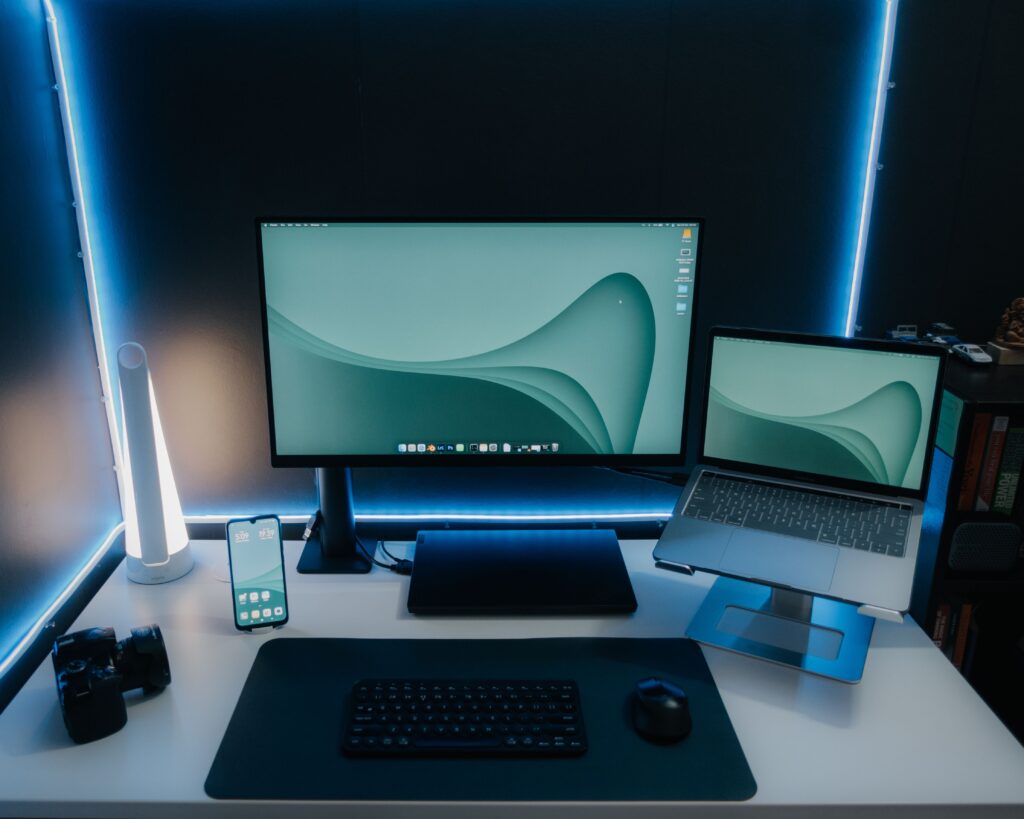

A portable monitor can make working on a laptop much easier. Whether you work remotely, travel frequently, study, manage a business, or need more screen space for everyday tasks, an additional display can improve productivity and reduce the need to switch constantly between windows.
However, choosing the right portable monitor involves more than selecting a screen with a suitable size. You also need to consider connection ports, power requirements, screen resolution, brightness, weight, compatibility, and how you intend to use it.
Some portable monitors connect through a single USB-C cable, while others require HDMI for video and a separate USB connection or power adapter. Understanding these differences before buying can help you avoid compatibility problems and unnecessary expenses.
This guide explains how to choose a portable monitor for your laptop, focusing on the three most important considerations: ports, power, and size.
1. What Is a Portable Monitor?
A portable monitor is a lightweight, external display designed to work with laptops, tablets, smartphones, and other compatible devices. Unlike traditional desktop monitors, portable displays are generally thinner, lighter, and easier to carry.
Most models have screen sizes between 13 and 17.3 inches, although larger and smaller options are available.
Portable monitors are commonly used for:
- Remote work and business travel.
- Office productivity and multitasking.
- Online learning and research.
- Presentations and client meetings.
- Programming and software development.
- Extending a laptop display when working away from the office.
- Gaming with compatible laptops and consoles.
For example, you could keep a video meeting open on your laptop while using the portable monitor to review documents, prepare reports, or manage spreadsheets.
2. Choose the Right Screen Size
Screen size is one of the first things to consider when buying a portable monitor. A larger display provides more workspace, but it can also increase the weight and space required in your laptop bag.
The best size depends on your laptop, working environment, and portability requirements.
Common portable monitor sizes
| Screen size | Best suited for | Main consideration |
|---|---|---|
| 13.3 inches | Frequent travel and compact setups | Limited workspace |
| 14 inches | Students and mobile professionals | Good balance of size and portability |
| 15.6 inches | General productivity and multitasking | Popular all-purpose size |
| 16 inches | Spreadsheets, documents, and creative work | Requires more carrying space |
| 17.3 inches | Larger workspace and entertainment | Less convenient for frequent travel |
13.3–14 inches: Best for frequent travel
Smaller portable monitors are useful when portability is your highest priority. They can fit comfortably into many laptop bags and are suitable for checking emails, reading documents, and handling basic office tasks.
However, the smaller display may feel restrictive when working with large spreadsheets or multiple windows.
15.6 inches: Best for everyday productivity
A 15.6-inch portable monitor is a practical choice for many laptop users. It offers a reasonable balance between screen space and portability.
It is suitable for:
- Microsoft Excel and Word.
- Web browsing and research.
- Online meetings.
- Business applications.
- General office productivity.
If you are unsure which size to choose, 15.6 inches is a useful starting point.
16–17.3 inches: Best for additional workspace
Larger portable monitors provide more screen space for complex spreadsheets, programming, presentations, and creative applications.
The trade-off is that they may be heavier and less convenient to carry. Check the monitor’s actual dimensions and weight, including its protective cover or stand.
3. Understand the Connection Ports
Connection ports determine whether a portable monitor can communicate with your laptop and receive power.
This is one of the most important purchasing considerations because not every USB-C port supports video output.
USB-C: The most convenient connection
USB-C is commonly used on modern portable monitors because a compatible connection can carry video, audio, and power through one cable.
However, the USB-C connector alone does not guarantee that your laptop supports display output.
Look for these capabilities:
- DisplayPort Alt Mode over USB-C.
- USB-C video output supported by the laptop.
- Sufficient power delivery for the monitor.
- A compatible USB-C cable that supports video.
If your laptop has a USB-C port that supports DisplayPort Alt Mode, you may be able to connect the monitor using one USB-C cable.
Before purchasing, check your laptop manufacturer’s specifications to confirm that the particular port supports video output.
HDMI: Useful for wider compatibility
HDMI is another common connection option. It allows a laptop to send video to the portable monitor.
HDMI is especially useful when your laptop does not support video output through USB-C.
However, HDMI normally carries video and audio rather than supplying the monitor’s operating power. You may therefore need a separate USB power connection or power adapter.
Some portable monitors use a full-size HDMI port, while others use Mini HDMI. Check the connector type before ordering a cable.
USB-A: Useful for additional power
Some portable monitors include USB-A connections or support USB-A-based power arrangements.
A USB-A port generally does not provide native video output to a portable monitor. If a display uses USB-A for video, it may rely on a specific DisplayLink-based solution, which requires compatible software and drivers.
Do not assume that connecting a USB-A cable will automatically transmit video.
Which ports should you look for?
| Port | Main purpose | What to check |
|---|---|---|
| USB-C | Video and potentially power | DisplayPort Alt Mode and power requirements |
| HDMI | Video connection | Full-size or Mini HDMI |
| USB-A | Power or supported USB display technology | Whether special software is required |
| 3.5mm audio | Headphone connection | Whether audio output is supported |
Practical advice: For a modern laptop, a portable monitor with USB-C video input and HDMI support provides useful flexibility. Confirm that the ports on both devices perform the functions you need.
4. Check the Power Requirements
Power is another important consideration, particularly if you want to use your portable monitor while travelling.
Some portable monitors can receive power directly from a compatible laptop through USB-C. Others require an additional power source.
Single-cable USB-C power
A compatible USB-C connection can carry both video and electrical power.
This arrangement reduces cable clutter and makes your workspace easier to set up.
However, the laptop must provide enough power for the monitor, and the monitor must support the required USB-C connection.
If the laptop cannot supply sufficient power, the display may flicker, fail to start, or operate unreliably.
Separate USB power
Some portable monitors use one cable for video and another for power.
For example:
- HDMI cable sends the video signal.
- USB-C or USB-A cable supplies power.
This arrangement is useful when your laptop supports HDMI but does not support USB-C video output.
External power adapter
Certain larger or brighter portable monitors may need an external power adapter for reliable operation.
This can be useful when you work at a desk, but it may reduce convenience when travelling.
Check power consumption before buying
Look for the monitor’s rated power requirements in its technical specifications.
For example, if a portable monitor requires 10W of power, a power source must be capable of supplying that requirement under the manufacturer’s specified conditions.
Also consider whether the monitor draws power from your laptop battery. Using an external display can reduce battery life, particularly when the screen brightness is high.
Buying tip: If you frequently work away from electrical outlets, prioritize a monitor that supports reliable USB-C power and check whether your laptop can supply enough power.
5. Choose the Right Resolution
Resolution determines how many pixels a monitor displays. Higher resolution generally provides sharper images and more detailed text, although the benefit also depends on screen size and scaling settings.
Common portable monitor resolutions include:
| Resolution | Typical use | Consideration |
|---|---|---|
| 1920 × 1080 (Full HD) | Office work, browsing, and video | Practical for most everyday tasks |
| 1920 × 1200 (WUXGA) | Documents and productivity | Extra vertical workspace |
| 2560 × 1600 (QHD-class) | Detailed work and creative applications | Requires more graphics capability |
| 3840 × 2160 (4K UHD) | High-detail images and professional work | Higher cost and potential power demands |
Is Full HD enough?
For many people, Full HD is sufficient for a 15.6-inch portable monitor.
It works well for:
- Microsoft Office applications.
- Web browsing.
- Email and communication.
- Online meetings.
- General business tasks.
When should you consider a higher resolution?
A higher-resolution monitor may be useful if you regularly work with detailed images, video editing, design applications, or large documents.
However, consider your laptop’s graphics capabilities and the scaling requirements of the operating system.
Do not pay extra for 4K simply because it sounds more advanced. Choose a resolution that provides a meaningful benefit for your actual workload.
6. Consider Screen Brightness and Panel Type
A portable monitor should be comfortable to use in the environments where you normally work.
Brightness
Brightness is measured in nits (cd/m²).
A display with approximately 250–300 nits can be suitable for many indoor environments, depending on room lighting and screen reflections.
If you frequently work near windows or in brighter environments, a brighter display may be more practical.
Remember that brightness specifications do not guarantee good outdoor visibility. Glossy reflections, sunlight, and viewing angles also matter.
IPS panels
IPS (In-Plane Switching) panels are common in portable monitors.
They generally offer:
- Wide viewing angles.
- Consistent colour reproduction.
- Good performance for office work.
- Suitable image quality for everyday use.
OLED panels
Some portable monitors use OLED technology, which can provide deep blacks, strong contrast, and vibrant colours.
They may be attractive for entertainment and creative applications, but they can cost more. Check brightness, warranty conditions, and suitability for your intended workload.
7. Check Weight, Thickness, and Portability
A portable monitor should be easy to carry and quick to set up.
Before purchasing, consider the following:
- Monitor weight without accessories.
- Total weight with the protective cover.
- Screen dimensions.
- Thickness.
- Stand or kickstand design.
- Cable storage and included accessories.
A lightweight monitor may be convenient for commuting, but a poorly designed stand can make it difficult to use comfortably.
If you travel frequently, choose a model that fits your laptop bag without requiring a separate carrying case.
8. Look for a Good Stand and Adjustable Viewing Angle
A portable monitor should remain stable while you work.
Some models include a folding protective cover that doubles as a stand. Others have an integrated kickstand.
Check whether the stand supports a comfortable viewing angle and whether it remains stable on a desk.
An adjustable stand is particularly useful when:
- You work for several hours.
- You use the monitor alongside a laptop stand.
- You need to share the screen during meetings.
- You frequently change your working position.
For a more comfortable setup, position the external display at a suitable height and angle rather than placing it too low or too far away.
9. Consider Refresh Rate and Response Time
Refresh rate measures how many times the display updates per second. It is measured in hertz (Hz).
Common options include:
- 60Hz: Suitable for everyday productivity.
- 75Hz: Offers a modest increase in refresh rate.
- 120Hz: Provides smoother movement.
- 144Hz or higher: Often marketed toward gaming users.
For office work, spreadsheets, research, and presentations, 60Hz is generally sufficient.
If you intend to use the portable monitor for gaming, check the refresh rate, response time, resolution, and whether your laptop can deliver the required performance.
A monitor’s advertised refresh rate may also depend on the input port and resolution being used.
10. Check Compatibility With Your Laptop
Before purchasing, verify that the monitor is compatible with your laptop.
A portable monitor may have excellent specifications but still fail to work correctly if your laptop does not support the required connection.
Use this checklist:
- Identify the available ports on your laptop.
- Check whether USB-C supports DisplayPort Alt Mode.
- Confirm whether HDMI is available.
- Check the monitor’s required power input.
- Verify the supported resolution and refresh rate.
- Check operating system compatibility.
- Confirm whether additional drivers or software are required.
Example: Laptop with USB-C video output
If your laptop supports DisplayPort Alt Mode through USB-C and the portable monitor supports USB-C video and power, a single compatible cable may be sufficient.
Example: Laptop with HDMI but no USB-C video output
You can connect the laptop to the monitor through HDMI, provided the monitor supports the appropriate HDMI connection.
You will normally need a separate power source for the portable monitor.
Example: Laptop with USB-C but no video support
A USB-C connector without video output will not automatically transmit a display signal.
You may need an alternative HDMI connection or a compatible DisplayLink-based solution. Check the required software, drivers, and operating system support before purchasing.
11. Compare Portable Monitors Before Buying
The following table illustrates how different portable monitor configurations may suit different users. These are example specifications, not verified specifications of particular products.
| Feature | Basic portable monitor | Balanced productivity monitor | Premium portable monitor |
|---|---|---|---|
| Screen size | 14 inches | 15.6 inches | 16 inches |
| Resolution | Full HD | Full HD | 2560 × 1600 |
| Refresh rate | 60Hz | 60Hz | 120Hz |
| Connection | USB-C | USB-C and HDMI | USB-C and HDMI |
| Power | USB-C | USB-C or external power | Depends on model |
| Panel | IPS | IPS | IPS or OLED |
| Best for | Travel | Office and study | Creative work and entertainment |
The most expensive option is not necessarily the best. Choose a configuration that matches your laptop’s capabilities and your daily activities.
12. Worked Example: Choosing a Portable Monitor for Office Work
Imagine that you use a laptop for business reporting, Excel spreadsheets, online meetings, and internet research.
You want an additional display that you can carry when travelling.
Your requirements are:
- Screen size: 15.6 inches.
- Resolution: Full HD (1920 × 1080).
- Panel: IPS.
- Refresh rate: 60Hz.
- Connection: USB-C video and HDMI.
- Power: USB-C power support.
- Weight: Lightweight enough for regular travel.
Why is this configuration practical?
Screen size: A 15.6-inch display offers enough space for common office applications without being excessively large.
Resolution: Full HD provides sufficient detail for reports, spreadsheets, and web browsing.
Ports: USB-C supports a convenient connection when compatible, while HDMI offers another way to connect.
Power: USB-C power support can reduce cable clutter, provided your laptop supplies enough power.
Refresh rate: 60Hz is sufficient for everyday productivity.
This example demonstrates why matching specifications to your actual needs is more useful than simply purchasing the monitor with the highest resolution or refresh rate.
13. Common Mistakes to Avoid
Before purchasing a portable monitor, avoid these common mistakes:
1. Assuming every USB-C port supports video
USB-C describes the connector type, not every feature it supports. Confirm DisplayPort Alt Mode or another compatible display solution.
2. Ignoring power requirements
A monitor may need more power than your laptop can provide. Check the manufacturer’s recommended power input.
3. Choosing a screen that is too large
A large display can provide more workspace, but it may be inconvenient to carry every day.
4. Paying extra for unnecessary resolution
If you mainly work with documents and spreadsheets, Full HD may be sufficient.
5. Forgetting about cables and adapters
Check whether the monitor includes the necessary cables and whether your laptop needs an adapter.
6. Ignoring the stand
A monitor with a weak or inconvenient stand can make long working sessions uncomfortable.
7. Overlooking return and warranty policies
Check the seller’s return conditions, warranty coverage, and support arrangements before buying.
14. Final Portable Monitor Buying Checklist
Use this checklist before making your purchase:
- Screen size matches your travel and workspace needs.
- Resolution is suitable for your daily tasks.
- Laptop supports the monitor’s video connection.
- USB-C video support is confirmed where required.
- Power requirements are compatible with your laptop or power adapter.
- HDMI or other backup connection is available if needed.
- Screen brightness is suitable for your working environment.
- Monitor weight is comfortable for regular travel.
- Stand provides a stable and useful viewing angle.
- Refresh rate meets your intended use.
- Required cables and adapters are included or available.
- Warranty and return policies are acceptable.
Frequently Asked Questions
1. What is the best size for a portable monitor?
A 15.6-inch monitor is a practical all-purpose option for many laptop users. Smaller 13.3- or 14-inch models are useful for frequent travel, while 16- and 17.3-inch displays offer more workspace.
2. Can I connect a portable monitor using USB-C?
Yes, if both the laptop and monitor support compatible USB-C video functionality. For many models, this means DisplayPort Alt Mode. A USB-C connector alone does not guarantee video output.
3. Does a portable monitor need its own power supply?
Not always. Some monitors can receive power through USB-C from a compatible laptop. Others require a separate USB power source or external adapter.
4. Is a portable monitor worth buying for office work?
It can be useful if you regularly work with multiple applications, spreadsheets, documents, or online meetings. An additional display reduces the need to switch repeatedly between open windows.
5. Is Full HD enough for a portable monitor?
For everyday office work, browsing, and online meetings, Full HD is generally sufficient for many 14- to 15.6-inch portable monitors. Higher resolutions may benefit users who work with detailed graphics or creative applications.
6. Can I use a portable monitor with a laptop that has only HDMI?
Yes, provided the monitor has a compatible HDMI input. You will usually need a separate power connection because HDMI does not normally supply the monitor’s operating power.
7. Can I use a portable monitor with a smartphone?
Some portable monitors support compatible smartphones through USB-C video output. However, smartphone compatibility depends on the phone’s hardware and software. Check the manufacturer’s supported-device list before purchasing.
8. Are portable monitors suitable for gaming?
Yes. Some models support high refresh rates and low response times. However, check the laptop or console’s video output, the monitor’s supported resolution and refresh rate, and the connection requirements.
Conclusion
Choosing the right portable monitor for your laptop requires balancing screen size, connection ports, power requirements, and display quality.
For most everyday users, a 15.6-inch Full HD IPS monitor with compatible USB-C video support and HDMI connectivity offers a practical starting point. Frequent travellers may prefer a smaller and lighter display, while professionals working with detailed graphics may benefit from higher-resolution options.
Most importantly, check your laptop’s specifications before purchasing. Confirm that the video connection and power requirements are supported, and choose a monitor that fits your actual working habits.
A well-chosen portable monitor can make your laptop setup more flexible, improve multitasking, and provide additional workspace wherever you need it.