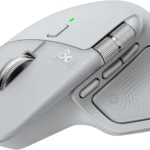
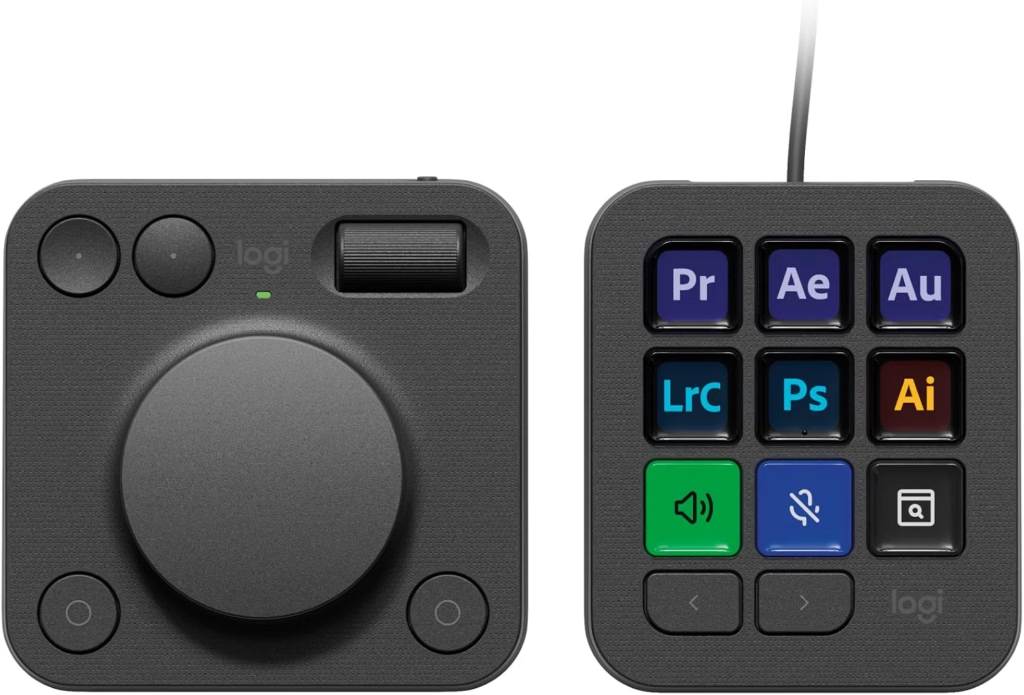

The Logitech MX Creative Console combines a nine-key LCD keypad with a separate wireless dialpad. It is worth considering for creators who repeatedly switch tools, navigate projects, or adjust settings and want dedicated physical controls.
Its biggest strength is flexibility: you can position the two controllers separately and configure them around your applications. Its biggest weakness is the work required to turn that flexibility into a useful routine. Nine visible shortcuts also impose a practical limit, even with additional pages.
Our recommendation: Shortlist it if you can already identify several repetitive tasks you want to assign. Compare it carefully with a Stream Deck if your priority is launching actions rather than adjusting editing parameters.

- 3-months of Adobe Creative Cloud on us: Pair two of the world’s top creative tools. Buy one MX Creative Console and clai…
- Speed Up Your Creative Workflow: The Logitech MX Creative Console lets you quickly access tools and actions on your favo…
- App Integrations: Adobe Photoshop, Premiere Pro, Illustrator, Lightroom and Lr Classic, Final Cut Pro, Figma, Davinci Re…
Introduction: Will it improve your workflow?
Editing often involves small interruptions: finding a command, dragging a slider, changing tools, and returning to the image or timeline.
A dedicated controller can make those actions easier to reach. However, adding more buttons does not automatically make someone faster. The controller must support your software, expose useful actions, and fit habits you are willing to develop.
That is the main buying question here. The MX Creative Console makes the most sense when its dial and display keys solve specific frustrations in your existing workflow.
Product overview
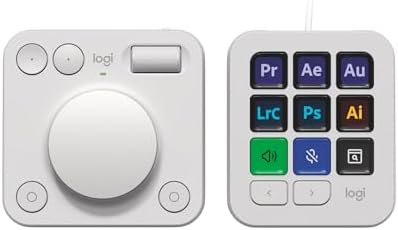
This is a two-piece control system:
- Creative Keypad: Nine customizable LCD keys, plus paging buttons.
- Creative Dialpad: A large dial, a roller, and four buttons.
The keypad connects through USB; the dialpad connects wirelessly. Logitech’s software manages customization and application profiles. Logitech’s documentation confirms this division between the two devices. Logitech Support + Download
The console supplements your keyboard and mouse. Think of it as a place to move selected commands and adjustments, rather than a replacement for your main input devices.
Its distinguishing feature is the separate dialpad. You can arrange the controls around your keyboard, mouse, or drawing tablet instead of accepting one fixed layout.


Key features and why they matter
LCD keys make assignments visible
Logitech supports custom icons and up to 15 keypad pages per application through Logi Options+. It also provides recommended profiles. Logitech
Visible labels can help when you use commands too infrequently to memorize their keyboard shortcuts.
However, nine keys per page create a trade-off. Additional pages increase capacity, but introduce navigation. A productive layout should keep everyday commands on the first page and reserve later pages for occasional tasks.
A dial and roller for repeated adjustments
Logitech describes an aluminum, low-friction dial and a separate roller for navigation and adjustment. Logitech
Buyer analysis: Physical rotation is most appealing when you repeatedly adjust a supported parameter. It is less compelling when your work mainly consists of typing, selecting objects, or issuing commands you already know by touch.
Before buying, identify the exact adjustment you want to control. “I want a dial” is a weaker reason than “I adjust this setting hundreds of times each week.”
Plugins offer more than basic shortcuts
Logitech distinguishes application plugins from manually configured shortcuts. Through Options+, supported plugins expose application actions; unsupported applications can still receive custom keyboard-shortcut assignments. Logitech Support + Download
That distinction matters. Being able to assign a shortcut does not guarantee deep control of every tool or setting in an application.
Check whether your desired action is available—not merely whether your application’s name appears in a compatibility list.
Application support has expanded
Logitech’s current product page lists applications including Photoshop, Premiere Pro, Illustrator, Lightroom, Lightroom Classic, Final Cut Pro, DaVinci Resolve, and Figma. Logitech
Older launch reviews may therefore understate today’s application coverage. Nevertheless, current plugin support should be checked against your operating system, application version, and required commands.
Actions Ring is useful, but no longer exclusive
Actions Ring provides an on-screen shortcut overlay. Logitech now supports it on compatible mice and keyboards as well as the Creative Console. Logitech
If you already own compatible Logitech hardware, try its available shortcut features first. The reason to buy this console should be its dedicated physical controls and visible keys—not access to an overlay you may already have.
Verified specifications
| Specification | Verified information |
| Brand / product | Logitech MX Creative Console |
| Keypad controls | Nine LCD keys and two additional buttons |
| Dialpad controls | Dial, roller, and four buttons |
| Keypad connection | USB 2.0 High Speed |
| Dialpad connection | Bluetooth Low Energy 5.1; Logi Bolt compatibility |
| Keypad dimensions | 91.7 × 77.8 × 25.5 mm |
| Keypad weight | 96 g |
| Dialpad dimensions | 92.1 × 93.7 × 33.8 mm |
| Dialpad weight | 128.7 g including two AAA batteries |
| Dialpad power | Two replaceable AAA alkaline batteries |
| Claimed battery life | 18 months; manufacturer claim |
| Included items | Keypad, dialpad, two AAA batteries, USB-C cable, stand, documentation |
Hardware specifications and package contents are from Logitech’s support documentation. Battery life is not independently verified here. Logitech Support + Download
Current software: Logitech’s download page specifies Windows 10 or later and macOS 14 or later. Its older hardware documentation lists macOS 13, so buyers should follow current software requirements rather than rely solely on launch specifications. logitech.com
Warranty: The checked Logitech support page lists a one-year limited hardware warranty. Confirm the applicable regional terms and seller eligibility before purchasing. Logitech Support + Download
Design, build quality, and ease of use
Separate controls offer placement flexibility
The two-piece design lets you experiment with where each controller belongs.
A sensible starting arrangement is to place the dialpad beside your non-mouse hand and keep the keypad within easy reach. If either device requires frequent reaching or disrupts your tablet placement, the theoretical convenience becomes less useful.
This flexibility also creates a compromise: two components require two deliberate positions on your desk.
The keypad still needs a cable
This is not a completely wireless setup. The keypad requires USB, while the dialpad runs on batteries.
Check your available ports and cable route before buying, particularly if your laptop already connects to several accessories.
Logitech’s package list does not include a Bolt receiver. Its standard contents should not be interpreted as including one simply because the dialpad supports Bolt connectivity. Logitech Support + Download
Published handling impressions are mixed
Digital Camera World praised the construction and tactile controls, but found creating profiles time-consuming. GamesRadar also liked the physical controls while criticizing aspects of the two-piece workflow and stand grip. These are those reviewers’ observations, not our testing results. Digital Camera World
The useful takeaway is that good hardware does not remove the need to evaluate placement and configuration.
Performance and realistic use
There are no original speed measurements, latency tests, or productivity benchmarks in this review. The following are workflow assessments based on the documented controls.
Photo editing
The strongest potential use case is a repeated sequence of tool selection and parameter adjustment.
For example, a photographer could build a focused layout around frequently used editing commands, then assign supported adjustments to the dialpad.
The likely benefit is easier access and less reliance on remembering shortcuts. Whether it saves time depends on the available actions and how efficiently the photographer already works.
Video editing
Video editors should inspect supported timeline and adjustment commands before committing.
A useful test is to list ten actions from a normal project. Check how many the plugin supports directly, how many require shortcuts, and how often you would need to change pages.
If the majority remain easier on the keyboard, the console may add desk equipment without improving the process.
General office work
Application launchers and repeated shortcuts can be useful, but they do not necessarily justify buying a separate dialpad.
Office users should first try existing keyboard shortcuts, mouse-button assignments, or supported Actions Ring features. The console becomes more convincing when physical adjustment controls serve a recurring need.
Setup is part of the performance equation
Begin with one application and a small set of assignments. Keep them consistent long enough to establish habits.
Building many elaborate pages immediately can create a new memorization problem. The best layout is the one you can use confidently while concentrating on your work.
Pros
- LCD labels make assigned commands easier to recognize.
- Separate controllers allow flexible positioning.
- Dial and roller provide alternatives to repeated on-screen adjustments.
- Application profiles support specialized layouts.
- Shortcut mapping extends usefulness beyond dedicated plugins.
- Replaceable dialpad batteries avoid a charging routine.
Cons
- Only nine LCD shortcuts are visible at once.
- Useful customization requires time and experimentation.
- Plugin coverage does not guarantee every desired command.
- The keypad requires a USB connection.
- Two components can complicate a crowded desk.
- Existing shortcuts or compatible Logitech hardware may already meet simpler needs.
Value for money
The console offers the strongest value when you want both visual shortcuts and a dedicated adjustment dial.
If you only need buttons, a keypad-focused alternative deserves consideration. If you only want easier access to several commands, your current input devices may be enough.
There is also an important current promotion issue: Logitech’s product page still advertises an Adobe membership, but the linked offer terms specify an expiration date of October 31, 2026. That date has passed as of this review. Do not include the Adobe offer in your value calculation unless Logitech confirms renewed eligibility. Terms and Conditions
Judge the purchase on the hardware and usable software features first.
Current price and Amazon link
On November 20, 2026, Logitech’s US product page displayed $159.99, alongside a $199.99 reference price. This is a verified manufacturer-site observation, not a verified Amazon price. Logitech
Current Amazon price, customer rating, and review count: Not verified.
Check Amazon for the latest price and available offers.
The supplied short link’s destination could not be verified during this research. Confirm that it opens the complete MX Creative Console kit, with both controllers, before publishing it as the article’s purchase link.
Best alternatives
Elgato Stream Deck MK.2: More visible shortcuts
The Stream Deck MK.2 provides 15 customizable keys, compared with nine on Logitech’s keypad. Device Comparison – Elgato
What it does better: It accommodates more commands on one visible page.
What it does worse for this use case: It does not provide the Creative Console’s separate dial-and-roller arrangement.
Choose it instead: Your workflow centers on triggering commands, launching tools, or accessing shortcuts.
Stay with Logitech: Physical adjustment controls matter more than additional visible buttons.
Explore Elgato Stream Deck models
Elgato Stream Deck +: More dedicated rotary controls
Stream Deck + combines eight LCD keys, four push-function rotary encoders, and an LCD touch strip in one unit. Technical Specifications – Elgato
What it does better: Multiple dials provide more dedicated physical adjustment positions.
What it does worse for this use case: Its controls occupy one fixed layout, and it has one fewer LCD key.
Choose it instead: You want several rotary controls together and have checked the relevant plugins.
Stay with Logitech: You prefer independently positioned controls and its available application profiles.
Existing compatible Logitech hardware: Try software first
Actions Ring supports compatible Logitech mice and keyboards. Logitech
What it does better: It may let you solve basic shortcut problems without buying another controller.
What it does worse: It does not supply a separate bank of LCD keys and an independently positioned dialpad.
Choose this approach: You need only a few shortcuts or remain unsure about dedicated hardware.
Choose the console: You have identified a recurring need for its physical controls.
Comparison table
| Option | Visible LCD keys | Adjustment controls | Main buying reason | Main compromise |
| MX Creative Console | 9 | Separate dial and roller | Flexible editing setup | Configuration and two-piece placement |
| Stream Deck MK.2 | 15 | No dedicated rotary controls | More visible commands | Less suited to rotary adjustment |
| Stream Deck + | 8 | Four push encoders | Multiple physical adjustments | Fixed combined layout |
| Existing compatible Logitech devices | No separate LCD keypad | Device-dependent | Try available software features first | Less dedicated hardware |
Who should buy it?
Consider the MX Creative Console if:
- You regularly repeat editing actions in supported applications.
- You want visible labels instead of memorizing additional shortcuts.
- You value a physical dial for supported adjustments.
- You can spend time refining a focused layout.
- Your desk accommodates both controllers comfortably.
The clearest candidate is an established creator who can name the problems the console would solve.
Who should not buy it?
Look elsewhere if:
- You expect effortless productivity improvements immediately.
- You need more than nine commands visible simultaneously.
- Your essential application actions are unsupported.
- Your computer prevents installation of customization software.
- You want a completely wireless setup.
- Existing shortcuts already handle your work efficiently.
A controller should follow a workflow need, rather than create a reason to invent one.
Buying considerations
Check commands, not just application names
Verify your most important actions in the current plugin. Shortcut compatibility and deeper integration are different capabilities.
Confirm software installation permissions
Mac users may need to grant Bluetooth and Accessibility permissions to Logitech’s plugin service for relevant functions. Managed work computers deserve particular attention before purchase. Logitech Support + Download
Check keyboard language and command settings
Logitech documents that keyboard layouts and application languages can affect shortcut-based plugins. Some integrations provide configuration options to address this. Logitech Support + Download
Verify the complete package
Check that the listing includes both controllers, cable, stand, and batteries. Also examine the seller, return policy, warranty coverage, and any separately priced receiver.
Treat advertised extras cautiously
The Adobe offer’s published expiration date makes confirmation necessary. Avoid purchasing primarily for a subscription promotion whose current eligibility remains unverified.
Frequently asked questions
1. Does the Logitech MX Creative Console have nine keys in total?
It has nine customizable LCD keys on the keypad, plus two additional keypad buttons. The separate dialpad adds four buttons and rotary controls. Logitech Support + Download
2. Is the entire console wireless?
No. The dialpad is wireless; the keypad uses USB.
3. Does it work without an Adobe subscription?
It is not limited to Adobe applications. Logitech lists other supported software, and custom shortcut profiles can extend its use. Paid applications still require their own appropriate licenses. Logitech
4. Will it make editing faster?
That is not guaranteed. Results depend on supported commands, layout quality, existing shortcut skills, and practice. This review includes no measured time-saving claim.
5. Can it replace my keyboard and mouse?
Plan to use it alongside them. It is best treated as an additional control surface for selected tasks.
6. Is the three-month Adobe offer still available?
Not confirmed. The published terms checked for this review expired October 31, 2026, although promotional wording remains elsewhere on Logitech’s site. Ask Logitech to confirm eligibility. Terms and Conditions
7. Is it better than a Stream Deck?
For someone who values a separate editing dialpad, it may be the better fit. For more visible shortcuts, the 15-key Stream Deck MK.2 has an advantage. Stream Deck + warrants comparison when multiple dials are the priority.
8. Do I need this console to use Actions Ring?
No. Logitech also supports Actions Ring on compatible mice and keyboards. Check your existing device before buying additional hardware. Logitech
Final verdict
The Logitech MX Creative Console earns its place through visible shortcuts, flexible placement, and dedicated physical adjustment controls. Its limitations are equally relevant: nine visible LCD keys, configuration effort, software dependencies, and uneven usefulness across different workflows.
At the observed manufacturer price, it deserves consideration from regular editors who need both halves. Buyers who mainly want shortcut buttons should compare the Stream Deck MK.2; those seeking several rotary controls should examine Stream Deck +.
Buy it because you have useful assignments ready for it. That is the strongest indicator that it will become a working tool on your desk.