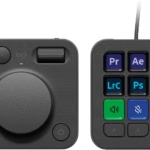
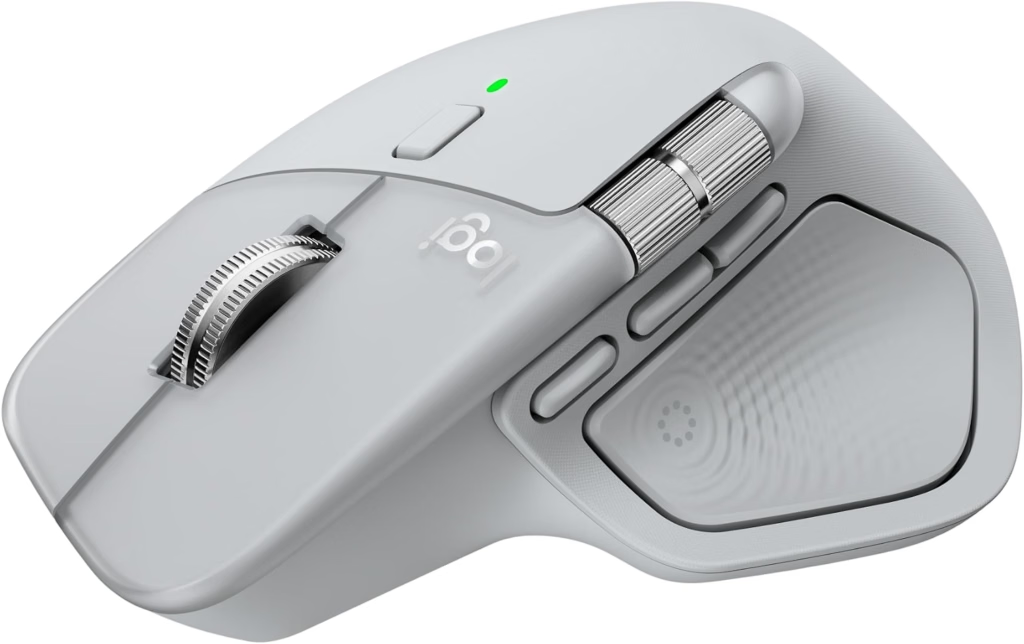

The Logitech MX Master 4 Ergonomic Wireless Mouse with Haptics is worth considering if you want a substantial right-handed productivity mouse with two scroll wheels, configurable controls, and tactile feedback for supported actions.
Its biggest strength is the combination of physical controls and configurable workflows. Its biggest weakness is that much of the extra value depends on compatible software, applications, and a willingness to set it up. At 150 g, it is also a substantial mouse rather than a lightweight gaming option.
For a first premium work mouse, it belongs on the shortlist. For a satisfied MX Master 3S owner, the upgrade is optional: Actions Ring is no longer exclusive to the MX Master 4. Check what your existing mouse can do before paying for another. [1][2][3]

- Precision you can feel with the Haptic Sense Panel; customizable (1) haptic feedback on specific actions, shortcuts, not…
- Effortlessly access favorite tools with Actions Ring (2) on this MX Series mouse—a dynamic, customizable overlay adapts …
- Scroll 1,000 lines per second and stop on a pixel with the MagSpeed scroll wheel—Logitech’s fastest (3), quietest, and m…
Introduction: choose the workflow before the mouse
If your work involves long documents, wide spreadsheets, and repeated application commands, a basic mouse can leave you moving between the pointer, keyboard, and menus all day.
The MX Master 4 offers more ways to control those tasks from your hand. That does not make it automatically better for everyone. A large right-handed shape can be the wrong fit, and a work computer that blocks customization software can remove much of the reason to buy it.
The best starting question is simple: which actions would you assign to it, and can your computer run the features you want?
Product overview
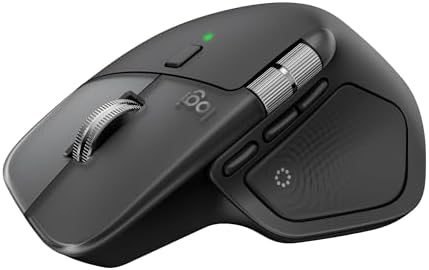
The MX Master 4 is a wireless productivity mouse with a shaped thumb support, a main MagSpeed scroll wheel, a horizontal thumb wheel, and configurable controls that include a Haptic Sense Panel.
It connects through Bluetooth Low Energy or a compatible Logi Bolt receiver. Easy-Switch supports moving among paired computers or devices; it is not a way to send pointer input to all of them at once. The USB-C port is used for charging. [1][4]
The standard consumer mouse, the Mac edition, and the Business edition should be treated as separate purchase configurations. Receiver inclusion, warranty terms, and part numbers can differ.


Key features
Haptics provide feedback for supported actions
The Haptic Sense Panel can provide tactile feedback for supported shortcuts, notifications, and application interactions. Feedback can help confirm an action without requiring a visual check, but it is not evidence that every task becomes faster. [5]
Logitech’s advertised productivity percentages come from a limited company study of 37 users performing eight desktop actions. They are not a promise about the time you will save during an ordinary workday. [2]
Treat haptics as a feature to evaluate in your own applications, not the sole reason to replace a working mouse.
Native Windows haptics and Options+ customization are different
Current Logitech documentation describes native Advanced Haptics support on updated Windows 11 systems, with compatible OS updates from late March 2026 onward and the required mouse firmware. Logitech says this native integration does not require additional software after the firmware requirement is met. [5]
Actions Ring and app-specific customization are a separate layer. Do not assume that native Windows feedback makes every Options+ feature available without the app.
On a managed office laptop, ask IT whether the required firmware updates, software, and permissions are allowed.
Actions Ring is useful, but no longer an exclusive upgrade reason
Actions Ring brings a configurable shortcut overlay near the pointer. You can organize tools and actions around the application in use rather than repeatedly opening menus.
However, Logitech now publishes an MX Master 3S Actions Ring guide and lists compatible older devices. An older launch review that presents Actions Ring as exclusive to MX Master 4 is incomplete for a November 2026 buying decision. [3]
If you already own a 3S, check its compatibility and current Options+ features first. The hardware haptics and control changes are a more defensible upgrade reason than access to the overlay alone.
Two scroll wheels suit different kinds of work
The main wheel supports precise, notched scrolling and fast free-scrolling. The separate thumb wheel gives you a horizontal control that can be useful for wide spreadsheets and supported creative workflows. [4][6]
For a marketer, that could mean moving through a long report with the top wheel and across columns with the thumb wheel. Actual behavior depends on the application and configuration.
If your work rarely involves long pages or wide documents, these controls may matter less than size, weight, and basic pointer comfort.
The sensor supports high-resolution desktop setups
Logitech specifies a Darkfield sensor range of 200–8,000 DPI. The manufacturer also documents glass tracking with a minimum 4 mm glass thickness condition. [1][2]
DPI describes pointer sensitivity, not an overall quality score. Choose a setting that feels controlled on your display rather than assuming the maximum is best.
The mouse’s 125 Hz report rate is also separate from DPI. High sensitivity does not make it a high-polling-rate gaming mouse. [1]
Battery life is a manufacturer rating
Logitech rates a full charge for up to 70 days and a one-minute charge for up to three hours of use. These are conditional claims, not measured results from GobsoorMarketing. [6]
USB-C quick charging is convenient if you already keep a suitable cable nearby. Logitech’s consumer launch announcement says a charging cable is not included, so verify the exact box contents instead of relying on a generic support guide that mentions a supplied cable.
Verified specifications
| Specification | Logitech MX Master 4 |
| Type | Right-handed wireless productivity mouse |
| Dimensions | 128.15 × 88.35 × 50.8 mm |
| Manufacturer weight | 150 g |
| Sensor range | 200–8,000 DPI |
| Report rate | 125 Hz for the connections listed in Logitech’s specification table |
| Controls | Main clicks, wheel controls, back/forward, gesture control, Haptic Sense Panel |
| Scrolling | Main MagSpeed wheel and horizontal thumb wheel |
| Connections | Bluetooth Low Energy and Logi Bolt |
| Charging | USB-C |
| Battery | 650 mAh rechargeable; not user-replaceable according to the specification page |
| Rated battery life | Up to 70 days, depending on conditions |
| Rated quick charge | Up to three hours from one minute |
| Current Options+ download requirements | Windows 10 or later; macOS 14 or later on the current U.S. download page |
| U.S. consumer warranty | One-year limited hardware warranty |
Sources: Logitech consumer specifications, launch announcement, current software download page, and U.S. warranty page. Business-model warranty terms should not be substituted. [1][6][7][8]
Design, build quality, and ease of use
The MX Master 4 is designed around the right hand, with a pronounced thumb area and several controls within reach. That gives it a different feel from a compact travel mouse or a symmetrical gaming mouse.
RTINGS’ independently purchased unit weighed 151.8 g. The publication found its shape less suitable for smaller hands and described updated hard-plastic and silicone surfaces compared with the 3S. Those observations do not establish how comfortable the mouse will be for your hand or how its finish will wear over years. [9]
Try the mouse long enough to check thumb reach, side-button access, and whether you lift it frequently. “Ergonomic” describes the design approach; it does not guarantee a comfortable fit.
Basic connection is straightforward through Bluetooth or a compatible receiver. Customization takes longer because you need to decide which controls deserve permanent positions.
Performance and realistic use
Spreadsheets and reporting
The two wheels are the strongest practical reason to consider this mouse for reports and spreadsheets. A useful starting configuration would assign horizontal movement, a frequently used navigation command, and a small set of shortcuts.
That is a suggested setup, not a tested demonstration. Verify how your spreadsheet app handles the thumb wheel before assigning other controls around it.
Marketing, content, and creative tools
Actions Ring can put selected commands near the pointer. For a content workflow, possible uses include opening a tool, changing a supported editing parameter, or invoking a common command.
Start with a few repeated actions. An elaborate menu that you must inspect every time can be less useful than a familiar keyboard shortcut.
Application support and plugin behavior matter more than the total number of shortcuts that could theoretically be configured. [3][4]
Working across computers
Easy-Switch changes the active paired device. Logitech Flow is a separate, software-dependent approach to working across compatible computers. Do not confuse pairing several devices with automatically transferring control or files between them. [4]
A practical test is to try your actual laptop-and-desktop combination during the return period, including any company restrictions.
Locked-down office computers
This is a major buying consideration. RTINGS found that customized features depend on background software and reported no onboard memory for carrying a complete customized configuration independently of that software. [9]
Native Windows haptics are a current exception to an overly broad “all haptics require Options+” claim. However, they do not solve Actions Ring or application-customization restrictions. [5]
If your employer prohibits Options+, decide whether the shape and standard controls alone justify the price.
Gaming and high-refresh-rate displays
The 125 Hz specification and 150 g weight make this a productivity-first choice. A dedicated gaming mouse is the more appropriate starting point when fast competitive play or very low weight is the priority. [1]
This review does not provide measured latency, tracking-error, or click-response results.
Pros
- Two dedicated scroll wheels suit long and wide workspaces.
- Haptic feedback adds another form of confirmation in supported workflows.
- Actions Ring and application profiles support useful customization.
- Bluetooth and Logi Bolt provide connection options.
- Long manufacturer-rated battery life and quick charging.
- Current native Windows 11 haptics broaden supported uses beyond older launch coverage.
Cons
- Large, right-handed design may not suit smaller hands or left-handed users.
- Substantial weight compared with lightweight alternatives.
- Advanced customization depends on compatible software and applications.
- No onboard memory for a complete portable custom configuration, according to independent testing.
- 125 Hz report rate is not aimed at competitive gaming.
- Consumer packaging may omit a charging cable.
- Existing 3S owners should not upgrade solely to obtain Actions Ring.
Value for money
The MX Master 4 makes most sense as a first premium work mouse or a replacement for a mouse that no longer fits your workflow.
It is a harder purchase to justify when an existing 3S is comfortable, reliable, and already supports the shortcuts you need. Before upgrading, check the current software available for that device.
A good discount cannot fix poor hand fit or a company policy that blocks customization software. Those two checks should come before choosing a color or comparing promotional percentages.
Current Amazon price
Amazon’s live checkout price was not verified.
Check Amazon for the latest price and available offers.
During November 20 research, Logitech’s U.S. store showed the Graphite MX Master 4 at $109.99 and marked it in stock. Separately, November 19 reporting listed a Pale Gray Amazon offer at $104.49. These are different colors, sellers, and observations; neither should be presented as a guaranteed current Amazon checkout price. [2][10]
Current Amazon rating and review count: Not verified.
Matching Pale Gray MX Master 4 listing on Amazon.
The supplied short link’s destination remained unverified.
Best alternatives
Logitech MX Master 3S: keep it or buy it when the saving matters
The 3S remains the closest comparison for buyers who want the familiar right-handed shape, dual-wheel layout, and configurable work controls. Manufacturer material lists a weight of approximately 141 g, and current Logitech pages document Actions Ring support for compatible 3S models. [3][11]
Its advantage is avoiding an unnecessary replacement or choosing an older model at a meaningful discount. Its compromise is missing the MX Master 4’s dedicated haptic hardware and updated control arrangement.
Choose the 4 when you specifically value those changes. Keep a satisfactory 3S when the main argument is simply that the 4 is newer.
Logitech Lift: consider it for a different hand position
Logitech positions Lift for small-to-medium hands and offers a left-handed option. It is a different shape rather than a smaller version of MX Master 4. [12]
Choose Lift when hand fit or a vertical design matters more than the MX Master controls. Its compromise is that it does not reproduce the same dual-wheel and Haptic Sense Panel arrangement.
Stay with MX Master 4 when you have tried its shape and specifically want the horizontal thumb wheel and supported haptic workflows.
Comparison table
| Product | Best reason to choose it | Main compromise |
| MX Master 4 | Haptic hardware, dual wheels, configurable controls | Size, weight, and software dependence |
| MX Master 3S | Keep a familiar mouse or buy at a lower verified price | No MX Master 4 haptic hardware |
| Logitech Lift | Smaller-hand fit or a left-handed vertical option | Different controls and no equivalent thumb-wheel/haptic setup |
Compare current prices, edition, and included receiver separately. A Mac edition or Business package is not automatically the same offer as the standard consumer model.
Who should buy the MX Master 4?
It suits right-handed professionals working with long documents, wide spreadsheets, or supported creative apps. It is particularly appealing if you can install Options+, will configure a useful layout, and prefer a substantial mouse.
It can also suit a 3S owner who wants haptic hardware for specific supported applications and has tested the updated shape.
Who should not buy it?
Look elsewhere if you need a left-handed design, a very light mouse, competitive gaming performance, or a complete custom configuration that works on every computer without software.
If your existing 3S already does what you need, there is no automatic upgrade requirement.
Buying considerations
- Confirm standard, Mac, or Business edition and exact receiver inclusion.
- Check your operating system against the current Options+ download requirements.
- Check company software and firmware-update policies.
- Confirm the application-specific actions or plugins you need.
- Test hand fit, button reach, and weight.
- Confirm the charging cable situation before ordering.
- Compare warranty terms for the actual region and edition.
- For Windows native haptics, check the required OS and firmware updates.
- If upgrading from 3S, test its current Actions Ring support first.
Frequently asked questions
Is the MX Master 4 worth upgrading to from the 3S?
Sometimes. Upgrade for haptic hardware, the changed controls, or a better fit for your needs. Actions Ring alone is not sufficient justification because Logitech now supports it on compatible older devices. [3]
Does Actions Ring require Options+?
Yes. Logitech’s setup guide identifies Options+ as necessary for Actions Ring. Native Windows haptics are a different feature path. [4][5]
Does every haptic feature require Options+ running?
No. Updated Windows 11 systems can support native haptics after the required firmware update. App-specific customization still has its own software and compatibility requirements. [5]
Is the charging cable included?
Do not assume so. Logitech’s consumer launch announcement says a charging cable is not included. Confirm the exact package because some general support pages use different wording. [6]
Can I connect it to several computers?
Yes, it supports paired-device switching. That is different from simultaneously controlling all computers or using Flow between them. [4]
Does it work on Mac?
Yes, but distinguish basic connection from full customization. The current U.S. Options+ download page specifies macOS 14 or later, while some older compatibility pages list earlier versions. [7]
Is it suitable for left-handed users?
The MX Master 4 is shaped for the right hand. Logitech Lift has a left-handed option worth comparing. [12]
Is the battery life really 70 days?
That is Logitech’s rated maximum, subject to usage and conditions. GobsoorMarketing did not measure battery life. [6]
Final verdict:
The Logitech MX Master 4 earns an editorial 8.4/10 for buyers who want a capable productivity mouse and will use its extra controls.
Its haptic hardware, dual wheels, and configurable workflows offer a credible reason to choose it. Its size, weight, software dependence, and the expanding feature support on older devices limit the upgrade case.
For a first premium work mouse, shortlist it and test the fit. For a satisfied 3S owner, verify your current software features before spending more. The score is an editorial assessment, not an Amazon rating or hands-on benchmark.