
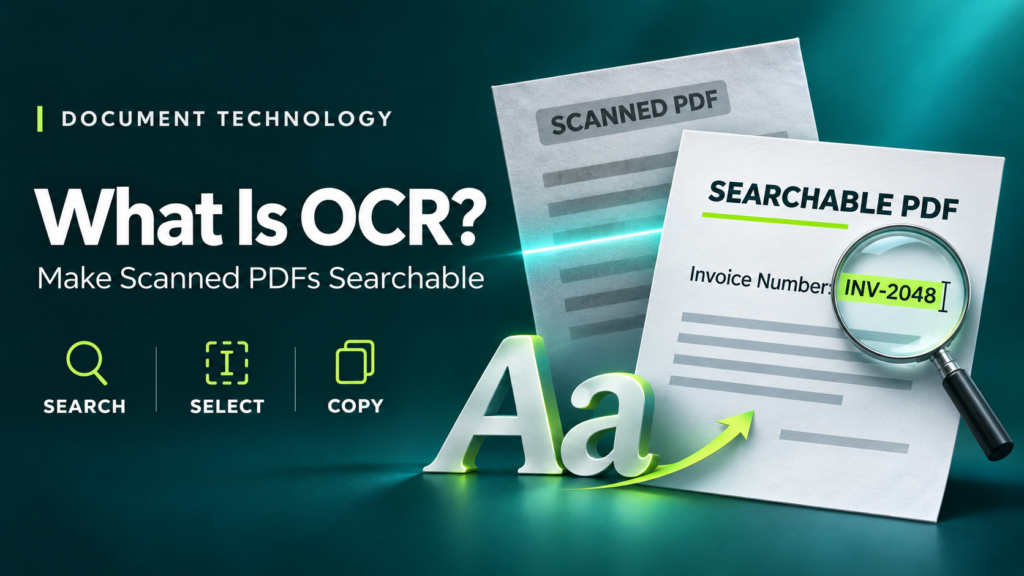

You open a scanned document, search for a word you can clearly see, and get no results. Copying a paragraph does not work either. The PDF may contain pictures of pages without any searchable text.
Optical character recognition, or OCR, recognizes characters within those images and converts them into machine-readable text. Applied to a scanned PDF, it can make words searchable and selectable.
This guide explains what optical character recognition (OCR) is and how to make scanned PDFs searchable, including tool options, practical steps, and checks that help you catch recognition errors.
What Is Optical Character Recognition?
OCR is technology that identifies written characters in an image and produces a digital text representation.
For example, a scanned invoice might display:
Invoice Number: INV-2048
To an image-only PDF viewer, that line is a pattern of pixels. OCR attempts to identify the letters, numbers, and punctuation so software can search or copy them.
A common searchable-PDF workflow keeps the scanned page visible and adds an invisible text layer aligned with the image. OCRmyPDF, for example, describes this text-layer approach in its documentation. ocrmypdf 17.14.2 documentation
Recognition can contain mistakes. The page may look correct while the underlying text has an incorrect character.
Scanned, Searchable, and Editable PDFs
| PDF type | What it contains | Typical behavior |
|---|---|---|
| Image-only scanned PDF | Pictures of document pages | Words are visible but may not be searchable or selectable |
| Searchable scanned PDF | Page images plus recognized text | Search and copying work where recognition succeeded |
| Digitally created PDF | Text and other elements exported from an application | Usually supports text search without OCR |
| Editable conversion | Recognized content reconstructed for editing | Text can be changed, but layout may shift |
A searchable PDF does not automatically become a neatly formatted Word document. Preserving a page’s appearance and reconstructing an editable layout are different tasks.
How to Check Whether Your PDF Needs OCR
Open the document in a PDF reader and try three checks:
- Search for a distinctive word visible on the page.
- Select a sentence rather than the entire page image.
- Copy the selection into a plain-text editor and inspect it.
Repeat this on several pages. Some PDFs combine digitally generated pages, scans, and pages with existing OCR.
If text is selectable but searches fail, the existing text layer may be inaccurate or incorrectly encoded. Avoid repeatedly processing the whole file without checking what is already there.
How to Make Scanned PDFs Searchable: A Practical Workflow
1. Preserve the Original
Save the processed version under a new name, such as:
supplier-invoices-original.pdfsupplier-invoices-searchable.pdf
Keep the original available for comparison, particularly when the document contains important figures or signatures.
2. Inspect the Scan
Check for:
- Sideways or upside-down pages.
- Cropped words near the edges.
- Blur, shadows, and glare.
- Faint printing.
- Missing pages.
- Heavy compression that makes characters difficult to distinguish.
If the source is unreadable, rescanning may be more useful than changing OCR settings.
As a practical starting point for ordinary printed documents, try scanning at around 300 dpi and inspect the result. Small print or damaged originals may need different settings. Increasing an existing image’s resolution cannot recover detail that was never captured.
3. Choose the Correct Language
Select the document’s language when the tool requires it. For multilingual documents, check whether it supports the relevant combination.
Language settings affect character recognition. OCRmyPDF’s documentation specifically notes that using the wrong language can reduce recognition quality. ocrmypdf 17.14.2 documentation
4. Select a Searchable-PDF Output
Look for an option such as:
- Searchable PDF.
- Recognize text.
- Add text layer.
- Image with searchable text.
A tool that exports only plain text will not produce a searchable copy of the original PDF.
5. Process and Verify
Start with a representative sample before processing a large collection.
Choose pages containing ordinary text, small print, tables, and any unusual layouts. Once the settings work reasonably well, apply them to the remaining files and review the results.
Option 1: Use Adobe Acrobat
For users who prefer a graphical interface, Adobe documents this workflow:
- Open the scanned PDF in Acrobat.
- Select All tools → Scan & OCR.
- Select In this file.
- Choose the page range and recognition language.
- Review optional settings.
- Select Recognize Text.
- Save the result as a separate file.
Acrobat creates a searchable text layer. Adobe also recommends checking the recognized content for accuracy and completeness. Feature access can depend on your edition or subscription. Adobe Acrobat
Use the current interface and documentation for your installed version, since menu labels can change.
Option 2: Use OCRmyPDF Locally
OCRmyPDF is an option for users comfortable with command-line software. Installation requires its dependencies; follow the project’s instructions for your operating system.
After installation, this command adds OCR and requests standard PDF output:
ocrmypdf --output-type pdf input.pdf searchable.pdfFor English pages that need orientation correction and straightening:
ocrmypdf --output-type pdf -l eng --rotate-pages --deskew input.pdf searchable.pdfHere:
-l engselects English.--rotate-pagesattempts to correct page orientation.--deskewstraightens slightly crooked scans.
Required language packs must be installed. Review the processed pages because image-processing settings can affect their appearance. These commands follow the project’s documented options. ocrmypdf 17.14.2 documentation
Local processing can suit an offline workflow, but it still requires installation, computing resources, updates, and quality checks.
Option 3: Use Google Drive to Extract Text
Google Drive can convert supported PDFs and images into text through Google Docs:
- Upload the file to an approved Google Drive account.
- Right-click it.
- Choose Open with → Google Docs.
- Review and correct the recognized text.
Google recommends files of 2 MB or smaller and notes that tables, columns, lists, and footnotes may not transfer reliably. Google Drive Help
This approach is useful when you want text for editing. It should not be treated as an equivalent replacement for adding a text layer while preserving the original PDF layout.
Which OCR Method Should You Choose?
| Need | Approach to consider | Main trade-off |
|---|---|---|
| Occasional processing with a visual interface | Desktop PDF application with OCR | Relevant features may require payment |
| Repeated local processing | OCRmyPDF or another local OCR workflow | Installation and technical maintenance |
| Text extraction for editing | Google Drive conversion | Layout reconstruction can be unreliable |
| Quick processing of non-sensitive documents | Reputable online OCR service | Upload policies, usage limits, and privacy terms |
| Sensitive business records | Organization-approved local or managed service | Requires appropriate access and handling controls |
For an online service, review file limits, deletion policies, retention, and whether uploaded content is used for other purposes. Confirm that uploading the document is permitted under your organization’s rules.
Worked Example: Making Supplier Invoices Searchable
Suppose a fictional small business has a 24-page PDF containing scanned supplier invoices.
The owner wants to find invoice references without opening every page manually.
A practical process would be:
- Preserve the original PDF.
- Check that all pages are present and upright.
- Process a few representative pages using the correct language.
- Search for several invoice references.
- Compare copied references and totals against the visible scans.
- Process the remaining pages using the verified settings.
- Save the searchable version and record any pages needing correction.
Imagine the visible reference is INV-2048, but OCR produces INV-2O48, substituting the letter O for zero. A search using the correct reference may miss that invoice.
The useful result is easier document retrieval, supported by checks. OCR output should not become an unchecked source for entering payment amounts or account details.
How to Check OCR Accuracy
A PDF can pass a basic search test and still contain errors.
Use a repeatable review:
| Check | What to examine |
|---|---|
| Search | Distinctive words from different parts of the document |
| Copy and paste | Sentences, punctuation, and reading order |
| Identifiers | Invoice numbers, reference codes, and dates |
| Numbers | Totals, decimal points, minus signs, and percentages |
| Layout | Page order, cropping, rotation, and visual changes |
| Coverage | Whether difficult or image-heavy pages were processed |
Review critical fields individually when errors could affect a business decision. For lower-risk material, sample varied page types and investigate any recurring mistakes.
Common OCR Problems
Confused characters: O and 0, I and 1, or rn and m can be mistaken for each other.
Broken reading order: Columns may be copied in an unexpected sequence.
Table errors: Values can lose their association with row labels or headings.
Handwriting: Results vary substantially by writing style, image quality, and tool capability.
Faint or damaged text: Improving the original capture may help more than rerunning recognition.
Important Limitations
Searchability Does Not Guarantee Accessibility
OCR can provide text for assistive technology, but a fully accessible PDF may also need document tags, correct reading order, headings, table structure, and other checks.
Treat OCR as one stage of accessibility work.
OCR Can Affect Signed Documents
Preserve a digitally signed original before considering a derivative OCR copy. OCRmyPDF explicitly states that adding OCR cannot preserve existing PDF digital signatures and normally refuses to modify signed files. ocrmypdf 17.14.2 documentation
Searchable Files Need Proper Redaction
A black rectangle placed over visible text may leave underlying content available. Use a proper redaction workflow and verify the final document before sharing it.
Check both the visible page and any searchable text layer.
File Size Can Change
OCR, image cleanup, compression, and output settings can increase or decrease file size. Check readability and completeness before accepting a smaller result.
Frequently Asked Questions
1. Does saving an image as a PDF make it searchable?
Usually, wrapping an image in a PDF does not create recognized text. You need OCR or another process that adds machine-readable text.
2. Can I make a scanned PDF searchable for free?
Free options exist, including local open-source workflows. Check installation requirements, usage limits, and whether the tool produces searchable PDFs rather than only extracted text.
3. Why can I search some pages but not others?
The file may contain a mixture of digital text, scanned images, and pages with unsuccessful OCR. Inspect several pages and process the ones that need recognition.
4. Can OCR preserve the original page appearance?
A text-layer workflow can keep the scan visible while adding searchable content. Cleanup, compression, and conversion settings may still change the output, so compare it with the original.
5. Does OCR recognize text perfectly?
No. Accuracy depends on the document and the tool. Verify important names, references, dates, and numbers against the original.
Conclusion
OCR makes scanned documents easier to search and reuse by turning visible characters into machine-readable text.
Preserve the original, choose an appropriate tool, select the correct language, and verify the output. That gives you a searchable document whose limitations you understand—and a reliable original to consult when accuracy matters.