
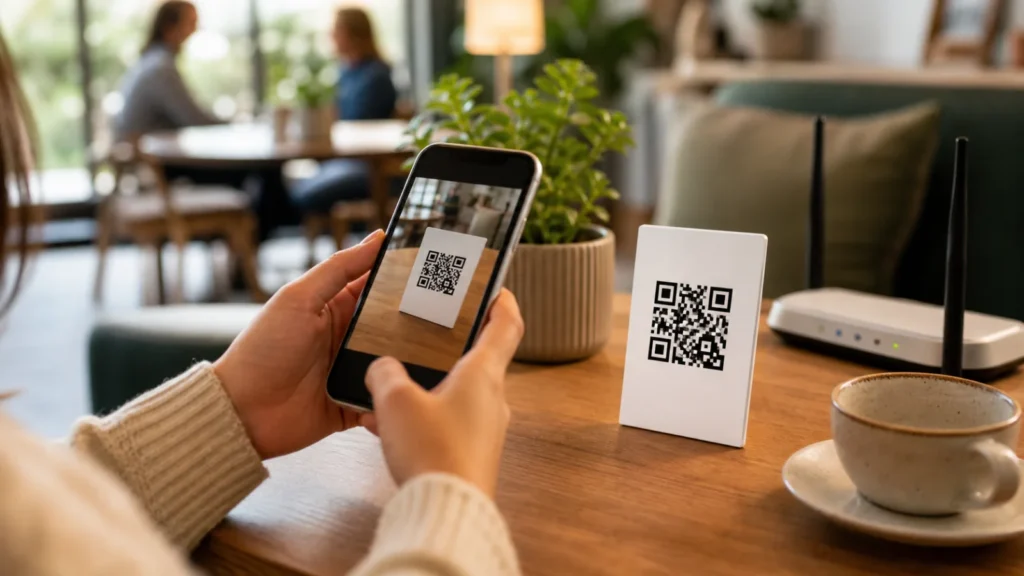

Sharing your Wi-Fi password with visitors can sometimes be inconvenient. You may need to repeat a long password, spell out complicated characters, or help guests connect when they accidentally enter the wrong information. For homes, offices, restaurants, hotels, and other businesses, this small task can become a regular interruption.
A simple solution is to use a Wi-Fi QR code. Instead of manually entering a network name and password, visitors can scan a QR code with a compatible smartphone and connect to the network more conveniently.
Learning how to use a Wi-Fi QR code generator to share guest Wi-Fi can help you make internet access easier for visitors while keeping your main network separate from your guest network.
In this guide, you will learn what Wi-Fi QR codes are, how they work, how to generate one, how to share it with guests, and which security precautions to consider before displaying it.
What Is a Wi-Fi QR Code?
A Wi-Fi QR code is a scannable image that contains the information a compatible device needs to connect to a wireless network.
Instead of asking visitors to type the network name and password manually, you can provide a QR code that their smartphones can scan.
Depending on the QR code format and device compatibility, the encoded information may include:
- Wi-Fi network name (SSID).
- Network security type.
- Wi-Fi password.
- Whether the network is hidden.
When a visitor scans the code using a supported camera or QR scanner, their device may display an option to join the network.
The process is designed to make connecting easier, particularly when the password contains numbers, symbols, and uppercase and lowercase letters.
Why Use a Wi-Fi QR Code Generator to Share Guest Wi-Fi?
A Wi-Fi QR code generator makes it possible to create a scannable code using your network information.
This approach offers several practical advantages.
1. Makes Connecting Easier
Guests do not have to type a complicated password or ask you to repeat it.
They simply scan the code and follow the connection prompt displayed on their device.
2. Saves Time
For businesses that regularly welcome visitors, a printed Wi-Fi QR code can reduce the time employees spend explaining how to connect.
Restaurants, hotels, offices, and waiting rooms can place the code somewhere convenient for visitors.
3. Reduces Password Entry Mistakes
Manually entering passwords can result in typing errors.
A properly generated Wi-Fi QR code helps avoid many of these mistakes by providing the connection information in a scannable format.
4. Provides a More Organized Guest Experience
A clearly displayed Wi-Fi QR code makes internet access easier to understand.
Businesses can include a short instruction such as “Scan to Connect to Guest Wi-Fi” next to the code.
5. Supports Different Types of Locations
Wi-Fi QR codes can be useful in many environments, including:
- Homes and apartments.
- Hotels and guesthouses.
- Restaurants and cafes.
- Offices and meeting rooms.
- Retail stores.
- Schools and educational facilities.
- Waiting areas and reception spaces.
However, convenience should not replace proper network security. A guest network with appropriate access restrictions is generally preferable to sharing the password for your main private network.
How to Use a Wi-Fi QR Code Generator to Share Guest Wi-Fi
Creating a Wi-Fi QR code is usually straightforward. You need your wireless network information and a generator that supports the appropriate Wi-Fi QR code format.
Follow these steps to create your own code.
Step 1: Find Your Wi-Fi Network Information
Before using a generator, identify the details of the guest network you want visitors to access.
You will generally need three pieces of information.
Network Name (SSID): This is the name that appears when someone searches for available Wi-Fi networks.
Password: This is the password required to join the network.
Security Type: This identifies the network’s security configuration, such as WPA/WPA2 or WPA3, depending on the supported format and generator.
Make sure you are using the guest network information rather than the credentials for your primary home or business network.
If you are unsure about the security type, check your router’s administration settings or contact your internet service provider.
Step 2: Choose a Wi-Fi QR Code Generator
Next, select a Wi-Fi QR code generator.
A suitable generator should allow you to enter your network name, password, and security type.
Some tools create a basic QR code, while others provide customization options such as colors, logos, and downloadable image formats.
When selecting a tool, consider:
- Whether it supports standard Wi-Fi QR codes.
- Whether it supports your network security type.
- Whether it explains how your information is processed.
- Whether it allows you to download the QR code.
- Whether it requires unnecessary personal information.
- Whether the generated code works with your intended devices.
For better privacy, consider an offline generator or a trusted tool that creates the QR code directly in your browser without transmitting your Wi-Fi credentials to a remote server.
Step 3: Enter Your Guest Wi-Fi Details
Once you have selected a generator, enter the required network information.
A typical form may include:
Wi-Fi Network Name: Enter the exact SSID, including spaces and uppercase or lowercase letters.
Password: Enter the correct guest Wi-Fi password.
Encryption Type: Select the security type used by your network.
Hidden Network: Enable this option only if your wireless network does not broadcast its name.
Double-check all information before generating the code.
An incorrect network name, password, or security selection can prevent guests from connecting successfully.
Step 4: Generate Your Wi-Fi QR Code
After entering the required information, select the generator’s create or generate option.
The tool should produce a QR code containing the network connection information.
Depending on the service, you may be able to:
- Download the QR code as a PNG image.
- Save it as an SVG file.
- Customize its appearance.
- Print it directly.
- Copy the image for use in another document.
Choose a high-quality image that remains clear when printed.
Avoid making excessive visual changes that could interfere with the QR code’s readability.
Step 5: Test the QR Code Before Sharing It
Testing is an important step that should not be skipped.
Before displaying the QR code, scan it using a compatible smartphone that is not already connected to the guest network.
Check whether the device recognizes the network and displays the correct connection option.
If possible, test with both an Android device and an iPhone.
If the code does not work, check:
- Whether the SSID is correct.
- Whether the password is accurate.
- Whether the security type matches the router.
- Whether the guest network is active.
- Whether the device supports the network’s security configuration.
Testing helps identify errors before visitors try to use the code.
Step 6: Share or Display the Guest Wi-Fi QR Code
Once the QR code has been tested, you can share it with visitors.
There are several convenient options.
Print the QR Code
You can print the code on a small card and place it somewhere visible.
For example, a restaurant could display it on tables, while a hotel could place it near the reception desk.
Display It on a Screen
You can show the QR code on a tablet, computer monitor, or digital display.
This option is useful for offices, waiting areas, and reception spaces.
Include It in Guest Instructions
Hotels, rental properties, and guesthouses can include the QR code in their digital welcome guides or printed information sheets.
Share It Digitally
You can send the QR code image through an appropriate messaging platform or email.
Only share it with people who should have access to the guest network.
How to Scan a Wi-Fi QR Code With a Smartphone
After generating and sharing your code, visitors need to know how to use it.
Fortunately, many modern smartphones support QR scanning through their built-in cameras.
How to Scan a Wi-Fi QR Code on Android
The exact process depends on the Android version and device manufacturer.
Generally:
- Open the Camera application.
- Point the camera toward the Wi-Fi QR code.
- Wait for the device to recognize the code.
- Select the Wi-Fi connection notification.
- Follow the on-screen instructions to join the network.
Some Android devices also provide QR scanning through Quick Settings or Google Lens.
If the camera does not recognize the code, check whether QR scanning is enabled in the camera settings.
How to Scan a Wi-Fi QR Code on iPhone
On compatible iPhones:
- Open the Camera application.
- Point the camera toward the QR code.
- Wait for the Wi-Fi notification to appear.
- Tap the notification.
- Follow the connection prompt.
If the code is not recognized, make sure QR code scanning is enabled in the Camera settings and that the image is clear.
The exact experience may vary depending on the operating system version and network configuration.
Understanding the Information Inside a Wi-Fi QR Code
A standard Wi-Fi QR code uses a structured text format to describe the wireless network.
A common example looks like this:
WIFI:T:WPA;S:GuestNetwork;P:ExamplePassword123;;
Here is what each part means:
| Code element | Meaning |
|---|---|
| WIFI: | Identifies the Wi-Fi connection format |
| T: | Specifies the security type |
| S: | Contains the network name |
| P: | Contains the network password |
| H: | Can indicate whether the network is hidden |
For example, the following section:
S:GuestNetwork
represents the wireless network name.
The section:
P:ExamplePassword123
represents the password.
The example is illustrative and should not be used as an actual password.
Some QR code generators also support additional formatting options. Special characters in network names and passwords may need to be escaped according to the format’s rules.
The generated code should always be tested with the devices your guests are likely to use.
Guest Wi-Fi Security: Important Things to Know
Although Wi-Fi QR codes are convenient, they should be used responsibly.
A QR code is not an encryption method. It is simply a visual representation of information that compatible devices can read.
If someone can access or photograph a QR code containing your guest Wi-Fi credentials, they may be able to retrieve the network information.
Consider the following security practices.
1. Use a Separate Guest Network
If your router supports a guest network, use it instead of sharing your main Wi-Fi credentials.
A properly configured guest network can help separate visitors’ devices from your private devices.
2. Enable Guest Network Isolation
Some routers provide a setting called guest isolation, client isolation, or a similar name.
Depending on the router, this feature can restrict communication between guest devices or prevent them from accessing devices on your main local network.
Check your router documentation to understand exactly what the setting does.
3. Use a Strong Guest Wi-Fi Password
Choose a password that is difficult to guess.
Avoid using simple combinations such as your business name, phone number, or common words.
You can also change the password periodically, particularly when access should no longer be available to previous visitors.
4. Limit Guest Network Access
If your router supports access schedules, bandwidth limits, or device restrictions, consider using these features according to your requirements.
These options can help manage the network when many visitors connect.
5. Be Careful Where You Display the QR Code
A QR code displayed in a public location may be scanned by people you did not intend to give access to.
Place it where legitimate guests can access it without exposing it unnecessarily.
6. Change the Password When Necessary
If you believe the guest password has been shared too widely, change it through your router settings.
Remember that changing the password usually means generating and distributing a new QR code.
Common Problems With Wi-Fi QR Codes and How to Fix Them
Sometimes a QR code may fail to connect a visitor to the wireless network.
Understanding common problems can help you troubleshoot the issue.
The QR Code Does Not Scan
Possible causes:
- The printed image is too small.
- The image is blurry.
- Lighting conditions make scanning difficult.
- The code has been damaged.
- The QR code design has reduced its contrast.
Possible solutions:
Print a higher-resolution image, use a dark code on a light background, and make sure there is enough empty space around the code.
The Phone Scans the Code but Does Not Connect
Possible causes:
- The password is incorrect.
- The network name has changed.
- The security type is incorrect.
- The router is not broadcasting the network.
- The phone does not support the configured security method.
Possible solutions:
Check the guest network settings, regenerate the code using the correct details, and test again.
The QR Code Works on One Phone but Not Another
Different smartphones may handle QR codes and wireless security differently.
Check whether both devices have updated software and support the network configuration.
If necessary, provide guests with the network name and password as an alternative connection method.
Guests Connect but Cannot Access the Internet
A successful Wi-Fi connection does not always mean that internet access is working.
Possible causes include an internet service outage, router configuration problems, or guest network restrictions.
Check the router’s internet connection and confirm that the guest network has permission to access the internet.
Best Practices for Businesses Sharing Guest Wi-Fi
Businesses that welcome customers can make guest internet access more convenient by combining a Wi-Fi QR code with clear instructions.
Consider these recommendations:
Restaurants and Cafes: Place a small Wi-Fi QR code card on tables or near the counter.
Hotels and Guesthouses: Include the code in guest welcome materials and provide the network name as a backup.
Offices: Display the code in meeting rooms and reception areas.
Retail Stores: Provide guest Wi-Fi access in designated customer areas when appropriate.
Educational Facilities: Display network instructions in approved visitor areas while following the institution’s network policies.
For public-facing businesses, review the guest network configuration regularly and avoid giving visitors unnecessary access to internal business systems.
Frequently Asked Questions About Wi-Fi QR Code Generators
1. Is a Wi-Fi QR code generator free to use?
Many Wi-Fi QR code generators offer free basic functionality. Some provide additional options such as custom designs, branding, or downloadable formats through paid plans.
Check the tool’s pricing and privacy information before entering your network credentials.
2. Can guests connect to Wi-Fi without knowing the password?
Yes. A compatible smartphone can scan a Wi-Fi QR code containing the required network information and display a connection prompt.
The password does not usually need to be typed manually, although the QR code itself contains the connection credentials.
3. Do Wi-Fi QR codes work on both Android and iPhone?
Many modern Android devices and iPhones can recognize standard Wi-Fi QR codes through their camera applications.
However, compatibility can depend on the device, operating system version, QR code format, and wireless security configuration.
4. Can I create a Wi-Fi QR code without sharing my password with an online website?
Yes. You can use a trusted offline generator or a browser-based tool that creates the code locally on your device.
Before using any online generator, review its privacy practices and determine whether your network information is transmitted to an external server.
5. Is it safe to display a guest Wi-Fi QR code in public?
It can be appropriate when the network is specifically configured for guests.
However, anyone who can scan a publicly displayed code may obtain its encoded connection information. Use a separate guest network, enable suitable access restrictions, and change the password when necessary.
Conclusion
Using a Wi-Fi QR code generator to share guest Wi-Fi is a practical way to simplify wireless internet access for visitors.
Instead of asking guests to type a long password, you can provide a scannable code that compatible smartphones recognize and use to display a connection option.
The process involves finding your guest network details, selecting a suitable generator, entering the correct information, creating the QR code, and testing it before sharing.
For homes and businesses, security should remain an important consideration. Use a separate guest network, protect your primary network, and remember that a QR code containing a Wi-Fi password can be read by anyone who obtains it.
With the right setup and a few simple precautions, a Wi-Fi QR code can make guest internet access more convenient, organized, and easier to manage.