

Remote work becomes difficult when information is scattered. Tasks disappear inside conversations, employees edit different copies of a document, and customers wait while staff search for the person responsible.
The right tools can help, but adding more software does not automatically improve coordination. A remote business needs clear responsibilities, consistent working practices, and systems that employees can use reliably.
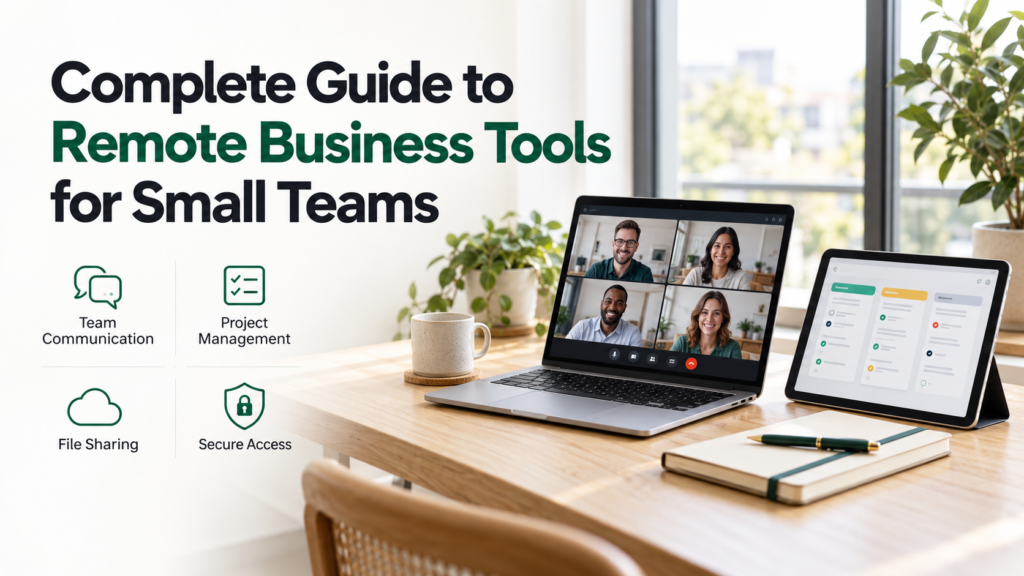
This complete guide to remote business tools explains the essential categories, how to choose suitable software, and what to consider before paying for subscriptions. It also covers security, unreliable internet connections, implementation, and ways to measure whether your tools are helping.
What Are Remote Business Tools?
Remote business tools are applications and services that help people operate a business without needing to work in the same location.
They support activities such as communication, document sharing, project coordination, customer management, and financial administration.
Some businesses use an integrated suite. Others combine separate applications for specific needs. Both approaches can work, provided employees understand where information belongs and how work moves between systems.
Tools and Working Rules Need Each Other
A messaging app cannot establish accountability by itself. A project board cannot keep deadlines realistic unless someone reviews workload.
For example, a useful task record should identify:
- What needs to be completed.
- Who is responsible.
- When it is due.
- What completion looks like.
- Where supporting information is stored.
The software makes these details visible. The team still needs to maintain them.
The Essential Categories of Remote Business Tools
1. Communication and Meetings
Communication tools support email, team messages, calls, and video meetings.
Choose based on how your team communicates. A company working across time zones may need searchable written updates more than frequent video calls.
Check meeting limits, guest access, mobile usability, and whether staff can participate with slower connections.
Practical rule: Use meetings for discussion and decisions that need interaction. Record the decisions afterward so absent colleagues can follow the work.
2. Project and Task Management
Task management tools help organize responsibilities, deadlines, priorities, and progress.
A small team may only need a shared list or simple board. More complex work may require dependencies, workload views, or approval stages.
Before choosing a platform, test whether employees can easily answer:
- What should I work on next?
- Which tasks are blocked?
- Who needs to review my work?
- What is overdue?
Avoid building a complicated system that takes more effort to maintain than the work it tracks.
3. Document Collaboration and File Storage
These tools help employees create, share, and retrieve business documents.
Important capabilities include access permissions, version history, search, and appropriate export options.
Google Workspace includes applications such as Gmail, Drive, Docs, Sheets, Calendar, and Meet. Microsoft also provides collaboration through services including Teams, SharePoint, and OneDrive. These are examples to evaluate rather than universal recommendations. Business apps and collaboration tools
Check the exact subscription before purchasing. Bundles, storage allowances, and included applications can vary.
4. Customer Relationship Management
Customer relationship management, or CRM, tools organize contacts, inquiries, follow-ups, and sales activity.
They become useful when several people handle customers or when a spreadsheet no longer provides reliable follow-up.
A practical CRM record should show the customer’s need, the responsible employee, the latest interaction, and the next action.
Limitation: A CRM cannot improve customer information if staff do not update it consistently.
5. Accounting, Invoicing, and Expenses
Financial tools can support invoicing, expense records, payment tracking, and reporting.
Evaluate whether a system fits the business’s currencies, payment methods, and relevant accounting requirements. Confirm important requirements with an appropriately qualified local professional.
Restrict financial access according to responsibilities. Preparing an invoice, approving a payment, and changing bank details may require different permissions.
6. Scheduling and Availability
Shared calendars and booking tools can help coordinate meetings and appointments.
Check time-zone handling, calendar connections, appointment buffers, and cancellation settings.
Publish availability that staff can realistically maintain. Automated booking is less useful if customers regularly receive rescheduling requests.
7. Security and Account Management
Remote teams need a reliable way to manage access to business systems.
Relevant capabilities include multifactor authentication, permission controls, account recovery, and access removal.
CISA recommends multifactor authentication because it adds identity checks beyond a password. It improves account protection, although it does not eliminate every security risk. CISA
Use individual accounts where possible so actions and permissions remain attributable to the right person.
Complete Guide to Remote Business Tools: How to Choose Your Setup
Step 1: Identify the Main Operational Problems
Start with the difficulties your team experiences.
Examples include missed inquiries, unclear task ownership, duplicate files, and slow approvals.
Rank problems by their effect on customers and daily work. This gives software selection a clear purpose.
Step 2: Review What You Already Have
List current applications, users, costs, and intended purposes.
Look for unused subscriptions and overlapping capabilities. Your existing business suite may already cover meetings, shared files, or basic task coordination.
Check whether the problem is a missing feature or inconsistent use of an available tool.
Step 3: Separate Essential Requirements From Preferences
Write a short requirements list.
| Requirement | Example |
|---|---|
| Essential | Staff can access assigned tasks on mobile devices |
| Essential | Customer records have controlled permissions |
| Essential | Important information can be exported |
| Useful | Managers can view workload |
| Optional | Advanced visual customization |
This prevents attractive extras from distracting you from operational needs.
Step 4: Test a Real Workflow
Use a trial to complete representative work.
For example, create a customer request, assign it, attach a document, request approval, and record completion.
Include employees who will use the system daily. Test on their actual devices and connection types.
Step 5: Check Administration and Exit Options
Evaluate what happens when the team grows, an employee leaves, or the business changes providers.
Check:
- Who controls the account.
- How access is granted and removed.
- What data can be exported.
- Whether exports preserve useful information.
- What cancellation and renewal terms apply.
- Whether important features require a higher-priced plan.
A low entry price can become expensive if essential administration features are restricted.
Integrated Suite or Separate Applications?
| Approach | Potential advantages | Potential disadvantages |
|---|---|---|
| Integrated suite | Fewer separate accounts and closer coordination between applications | Some included tools may not fit specialized needs |
| Separate applications | More choice for individual workflows | Additional subscriptions, integrations, and administration |
| Hybrid setup | A core suite with selected specialist tools | Requires clear rules to avoid overlap |
A practical starting approach is to use a core suite for common work and add specialist applications only when a demonstrated need remains.
How to Work With Unreliable Internet
Connectivity should influence purchasing decisions, especially when employees travel or work outside major towns.
Test Offline Access Before You Need It
Check whether staff can open and edit essential information without a connection.
Google provides offline access options for Docs, Sheets, and Slides, but setup and supported conditions matter. Prepare the required files and test the process before travel. Google Drive Help
Do not assume that every file stored in the cloud is available offline.
Reduce Dependence on Live Meetings
Use concise written updates where discussion is unnecessary. Share agendas in advance and document decisions.
For calls, provide an audio option when supported. Avoid making video participation essential if it excludes colleagues with limited bandwidth.
Plan for Synchronization Problems
Offline edits can create conflicts when devices reconnect.
Agree who owns important documents, how conflicts are resolved, and how staff verify that changes have synchronized.
Keep locally stored business information protected, particularly on shared or easily lost devices.
Understanding the Full Cost of Remote Business Tools
Subscription fees are only part of the budget.
Other costs may include:
- Setup and migration.
- Training.
- Additional storage.
- Premium integrations.
- Guest or contractor access.
- Devices and connectivity.
- Administration and support.
- Backup arrangements.
- Future migration.
An Illustrative Budget
Suppose a ten-person team uses three applications priced at $8, $6, and $5 per user each month.
The illustrative subscription cost would be:
10 × ($8 + $6 + $5) = $190 per month
That equals $2,280 per year, before taxes, setup, and other charges.
These are example figures, not current product prices. Check official pricing pages for local currency, billing commitments, user definitions, and renewal terms.
Set Simple Rules for Remote Work
Tools become more useful when employees know which system to use.
| Type of information | Agreed location |
|---|---|
| Task ownership and deadlines | Task management system |
| Final documents | Shared business file storage |
| Customer follow-ups | CRM or designated customer tracker |
| Meeting decisions | Shared notes linked to relevant tasks |
| Routine discussion | Team communication channel |
Make urgent communication rules explicit. Otherwise, employees may feel obliged to monitor every channel continuously.
Also agree on reasonable response expectations across time zones and working hours.
Introduce Tools Without Disrupting the Business
Pilot the setup with one team or workflow.
Train employees through common tasks rather than a tour of every feature. Provide short instructions covering daily work, support contacts, and common errors.
During migration, identify which system is authoritative and when the old process ends. Leaving two systems active indefinitely can produce conflicting records.
Assign an owner to review usage, permissions, and recurring problems.
Security, Backup, and Business Continuity
Maintain a list of business systems and the people with access.
Protect administrator accounts, review external sharing, and remove access promptly when someone leaves. Keep a workable recovery process so the company does not depend on one employee’s personal account or device.
Cloud synchronization and backup serve different purposes. Synchronization may also copy deletions or unwanted changes. Check retention, recovery, and backup capabilities, and test restoration of important information.
Prepare a basic outage procedure: how customers are contacted, which work can continue, and where staff find essential instructions.
How to Measure Whether the Tools Are Helping
Choose measures related to the original problems.
| Measure | What it helps assess |
|---|---|
| Missed follow-ups | Whether customer handling improves |
| Overdue tasks | Whether responsibilities and deadlines are clearer |
| Time spent finding documents | Whether file organization works |
| Approval time | Whether work moves through the process faster |
| Active usage | Whether employees adopt the system |
| Cost per active user | Whether subscriptions provide reasonable value |
Review quality alongside speed. Faster work is less useful if it causes more errors.
Ask employees which steps remain difficult. Usage reports alone may not explain why a process fails.
Common Mistakes to Avoid
The most common problems include purchasing several tools before defining requirements, duplicating information across applications, and overlooking mobile or offline needs.
Other mistakes include relying on one administrator, failing to test exports, and treating employee activity tracking as a substitute for evaluating completed work.
Prefer clear deliverables and agreed responsibilities. A tool should support coordination without adding unnecessary reporting burdens.
Frequently Asked Questions
1. What tools does a small remote business need first?
Most teams should first evaluate communication, shared documents, task coordination, and account protection. Customer and financial systems depend on the business’s activities.
2. Are free remote business tools sufficient?
They may be sufficient for a limited team or workflow. Check restrictions on administration, storage, exports, support, and commercial use before relying on them.
3. Should every employee use the same applications?
Shared workflows generally need consistent systems. However, specialist roles may require additional applications. Define where final records belong so information remains accessible.
4. Can remote tools work with slow internet?
Some can support offline files, written updates, or lower-bandwidth communication. Test the exact application and device rather than relying on a general claim.
5. How often should businesses review their tools?
Review them when costs, staffing, or requirements change. A scheduled review can also identify unused licenses, access problems, and unnecessary overlap.
Conclusion
A useful remote business toolkit makes responsibilities clear and information easy to retrieve.
Begin with your team’s actual problems, evaluate existing capabilities, and test a manageable setup. Combine suitable software with clear working rules, reliable access management, and a plan for connectivity problems. Expand when the benefits justify the additional cost and complexity.