
A meeting ends, but the follow-up work continues: writing notes, checking decisions, assigning tasks, and answering questions about what someone said.
AI meeting assistants can help with parts of this process. Depending on the product, they can transcribe conversations, draft summaries, identify action items, and make previous discussions searchable.
However, convenience is only one consideration. These tools may process customer information, internal plans, employee discussions, and other material your organization needs to handle carefully. They can also mishear a number, confuse speakers, or turn a tentative suggestion into an apparent decision.
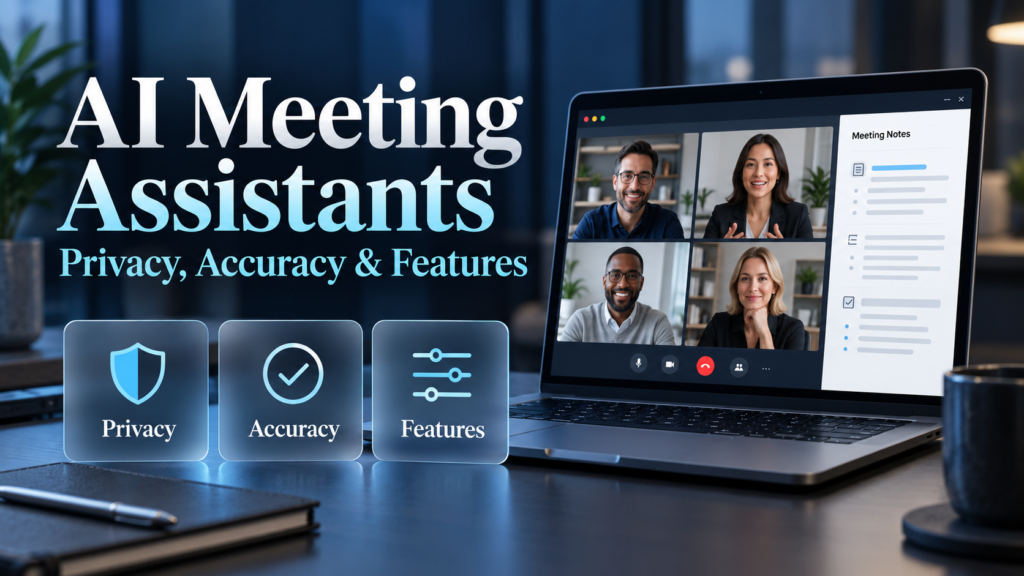
When comparing AI meeting assistants, privacy, accuracy, and features deserve equal attention. This guide explains what to check, how to run a useful trial, and how to decide whether a tool fits your team.
What Is an AI Meeting Assistant?
An AI meeting assistant is software that helps capture, organize, or retrieve information from meetings.
Some tools operate inside a video conferencing platform. Others join as a separate meeting participant, capture audio through an application, or process recordings uploaded afterward.
Common capabilities include:
- Speech-to-text transcription.
- Speaker labels.
- Meeting summaries.
- Suggested action items.
- Searchable meeting history.
- Questions and answers based on meeting content.
- Exports to documents, CRM systems, or task managers.
These capabilities are not interchangeable. A tool might produce useful summaries but have limited transcription languages, weak export options, or unsuitable sharing defaults.
Start by identifying the job you need it to perform.
AI Meeting Assistants: Privacy Questions to Ask First
What Information Does the Tool Collect?
Check exactly what the assistant accesses.
Depending on the product and enabled integrations, this could include audio, transcripts, video, meeting chat, calendar details, participant names, and connected business content.
A feature that creates notes without saving a conventional recording may still process speech and retain other meeting-derived information.
Ask the vendor:
- What information is captured?
- What is stored after the meeting?
- Which features require transcription or recording?
- Can unnecessary collection be disabled?
- What changes when integrations are connected?
Avoid judging privacy solely by whether a recording file appears in your account.
Is Meeting Content Used for Model Training?
Read the vendor’s current policy and the terms applying to your subscription.
Distinguish between:
- The meeting assistant provider’s own model training.
- Training by third-party AI providers.
- Product improvement or evaluation.
- Human review.
- Content submitted through feedback features.
A statement about one category does not necessarily cover the others.
For example, Otter’s privacy and security materials discuss its own use of de-identified data separately from the training restrictions applying to third-party AI service providers. This illustrates why the scope of a training statement matters. Otter.ai
If a policy is unclear, ask for written clarification before introducing sensitive business information.
Who Can Access Notes and Summaries?
Review the default audience for each output.
A transcript might remain private while a summary is emailed automatically. A shared workspace could also make meeting content available to more people than expected.
Test whether you can:
- Keep new notes private.
- Restrict access to selected people.
- Disable automatic sharing.
- Prevent public links.
- Remove access when someone leaves.
- Control what connected applications receive.
Generated notes can also have their own storage and permission arrangements. Microsoft documents, for example, that Teams Facilitator meeting data is stored in a Loop file in the initiating user’s OneDrive. Microsoft Learn
Check the output’s actual location and access settings rather than assuming they match the meeting invitation.
How Do Retention and Deletion Work?
Ask how long the provider keeps each type of information.
Audio, transcripts, summaries, chat history, and exported files may follow different rules.
Useful questions include:
| Question | Why it matters |
|---|---|
| Can administrators set retention periods? | Reduces dependence on individual users |
| Does deletion cover recordings and derived notes? | Different outputs may require separate action |
| How are backups handled? | Deletion from the interface may not mean immediate removal everywhere |
| What happens when an account closes? | Helps plan offboarding and service changes |
| Can records be exported first? | Preserves information the business still needs |
Remember that deleting a meeting from one application may leave copies in email, a CRM, or downloaded documents.
Can Participants Understand and Control Its Use?
Choose a tool that makes its activity clear.
Look for visible notices, understandable start-and-stop controls, and a way to exclude meetings where automated capture is inappropriate.
Before deployment, establish how your organization will inform participants and handle objections. Have the responsible privacy or legal team confirm any requirements that apply to your situation.
A meeting notification is one part of this process; it does not answer every organizational or legal question.
How to Evaluate Accuracy
Separate Transcription Accuracy From Summary Accuracy
A transcript and a summary can fail in different ways.
A transcript may mishear a customer name or amount. A summary may use correct words but misrepresent whether the team reached a decision.
Evaluate both layers:
| Accuracy area | What to check |
|---|---|
| Transcription | Words, names, dates, numbers, and terminology |
| Speaker attribution | Whether comments are assigned to the right person |
| Summary | Whether the discussion’s meaning is preserved |
| Decisions | Whether suggestions remain distinct from agreements |
| Action items | Whether owners and deadlines were actually assigned |
| Meeting search | Whether answers are supported by the source discussion |
A polished paragraph is not evidence that its contents are correct.
Test Your Team’s Actual Speaking Conditions
Do not rely only on a vendor’s demonstration or headline accuracy percentage.
Performance can vary with accents, microphones, background noise, overlapping speech, specialist vocabulary, and language settings.
Use a trial that reflects your meetings. Include remote participants, shared-room microphones, and the terminology your team normally uses.
If meetings switch between languages, test that specifically. Support for two languages separately does not establish support for switching between them during one conversation.
Microsoft’s current Facilitator documentation, for example, describes limitations for meetings where multiple languages are spoken. Zoom also publishes feature-specific language lists, so language support should be checked for the exact function you need. Microsoft Learn
Pay Special Attention to High-Impact Details
Some errors matter more than others.
A missed filler word may be harmless. A wrong deadline or reversed decision can affect the work.
For example:
What was said:
“We could launch on Thursday, but we still need approval.”
Incorrect summary:
“The team agreed to launch on Thursday.”
Check whether the assistant preserves uncertainty and conditions.
Prioritize review of:
- Amounts and quantities.
- Names and organizations.
- Deadlines.
- Commitments.
- Negations, such as “do not proceed.”
- Disagreements.
- Unresolved questions.
Look for Traceable Outputs
Useful assistants make it easy to check a statement against its source.
Compare whether summaries and answers offer timestamps, transcript references, or links to the relevant recording segment.
Then verify those references. A linked passage is helpful only if it supports the claim.
For questions that the meeting did not resolve, the assistant should make that absence clear rather than supplying a plausible answer.
Features Worth Comparing
Native Integration or Separate Meeting Participant
A native assistant works within the conferencing platform. A separate assistant may join as a visible participant or capture through another application.
| Approach | Potential advantage | What to verify |
|---|---|---|
| Native platform assistant | Fits existing meeting administration | Licensing, supported meeting types, and guest access |
| Separate meeting participant | May work across several platforms | Admission rules, participant notices, and auto-join settings |
| Desktop capture | Can support certain calls without adding a participant | Capture permissions and notice arrangements |
| Uploaded recording | Allows controlled processing after a meeting | Upload limits, storage, and additional copies |
Choose based on your workflow and governance needs. Neither a native tool nor a separate product is automatically the better privacy choice.
Editable Summaries and Action Items
Check whether users can correct notes before sharing them.
Useful controls include:
- Editing speaker names.
- Correcting transcript text.
- Separating decisions from discussion.
- Removing unsupported action items.
- Confirming owners and due dates.
- Selecting an appropriate summary format.
If a tool sends information directly to a task manager or CRM, check whether it offers a review step.
An incorrectly assigned task can create more work than an unfinished draft.
Search and Questions Across Meetings
Searchable history can help teams recover context, but it expands the information available through the assistant.
Test whether access restrictions apply consistently to cross-meeting searches.
Also check whether the tool distinguishes:
- A decision made in one meeting.
- A proposal discussed elsewhere.
- An older decision replaced by a later one.
Answers should preserve dates and context, especially when plans change.
Integrations and Exports
An integration is useful when it moves the right information to the right place.
Before connecting a CRM or project management application, check:
- Which permissions are requested.
- Whether content is shared automatically.
- Whether users can review it first.
- How duplicate entries are handled.
- What happens after access is revoked.
For exports, confirm that the formats preserve the information you need. A summary-only export may not provide timestamps, full transcripts, or speaker labels.
Administrative Controls
For a team purchase, assess controls alongside user features.
Potential requirements include single sign-on, centralized settings, user offboarding, audit logs, retention management, and restrictions on external sharing.
Check which subscription includes them. Security features advertised on a product website may be available only on certain plans.
Compare the Full Cost
The monthly subscription is only part of the expense.
Review:
- Per-user licensing.
- Meeting-minute limits.
- Per-meeting duration limits.
- Storage allowances.
- Translation or integration charges.
- Required platform subscriptions.
- Annual commitments.
- Administrative setup.
- Time spent reviewing and correcting notes.
A tool with a lower price can still be poor value if staff must rewrite its summaries.
Use this practical calculation:
Net time saved = Previous note-taking and follow-up time − Review, correction, and administration time
Measure this during a trial instead of assuming every generated summary saves time.
How to Run a Useful Pilot
1. Set Requirements Before Testing
Choose a small number of representative, approved meetings.
Define what the assistant must do well. For example:
- Capture decisions accurately.
- Keep notes private until reviewed.
- Support the team’s working language.
- Export usable records.
- Allow meeting capture to be disabled.
- Meet your organization’s data-handling requirements.
Treat essential privacy controls as pass-or-fail requirements.
2. Compare Against Human-Reviewed Notes
Use an agreed reference record to assess the output.
If testing several products on the same recording, use a non-sensitive sample that participants have approved for that purpose.
Record errors by type rather than judging only whether a summary “looks good.”
3. Measure Correction Effort
Track how long someone spends fixing transcripts, decisions, and action items.
A shorter summary that accurately captures the meeting may be more useful than a detailed output requiring extensive checks.
4. Test Sharing, Deletion, and Offboarding
Do not stop after testing note quality.
Try restricting access, deleting test content, revoking an integration, and removing a test user. Confirm that the actual behavior matches your requirements.
5. Document the Decision
A simple comparison sheet can help:
| Criterion | Evidence to collect |
|---|---|
| Privacy | Applicable terms, training policy, and sharing defaults |
| Accuracy | Errors found in representative meetings |
| Language support | Results for required languages and speaking conditions |
| Review workflow | Time and steps needed to approve notes |
| Administration | Verified controls on the proposed plan |
| Portability | Sample exports |
| Cost | Full subscription and operating estimate |
Avoid allowing an impressive feature list to outweigh a failed essential requirement.
Common Buying Mistakes
Enabling automatic attendance too broadly. Start with selected meeting types and review exclusions.
Assuming “no training” means no storage. Training, processing, retention, and access are separate questions.
Treating summaries as approved minutes. Assign someone to verify important decisions and commitments.
Buying before testing languages. Check transcription, summaries, and translation separately.
Connecting every available application. Grant access only where there is a clear business need.
Ignoring the exit process. Confirm exports and deletion arrangements before committing.
Frequently Asked Questions
1. Are AI meeting assistants private?
Privacy depends on the provider, subscription terms, enabled features, settings, and connected applications. Review collection, training use, storage, sharing, retention, and deletion separately. No product label replaces that assessment.
2. Can an AI meeting assistant work without recording video?
Some tools can process meeting audio or speech-to-text without saving a video recording. This does not necessarily mean no meeting information is processed or retained. Check the exact feature’s behavior.
3. How accurate are AI meeting notes?
Accuracy varies by product and meeting conditions. Test names, numbers, speaker attribution, decisions, and action items using representative conversations. Vendor accuracy claims do not substitute for testing your workflow.
4. Can these tools handle multilingual meetings?
Some offer multilingual features, but support differs between transcription, translation, summaries, and mixed-language conversations. Confirm the exact languages and functions in official documentation, then test them.
5. Can AI meeting assistants replace a human note-taker?
They can assist with routine drafts, but important notes still need review. Where accurate decisions, sensitive context, or formal records matter, assign a responsible person to verify and approve the output.
Conclusion
Choose an AI meeting assistant by examining how it handles information, how reliably it captures your conversations, and how much review its outputs require.
Start with privacy requirements, test realistic meetings, and verify the controls included in the proposed subscription. Compare total operating costs and export options before committing.
The most useful tool is one your team can use confidently within a clear process for reviewing, sharing, and retaining meeting records.