
Running a small business often means repeating the same administrative tasks: copying customer details, sending appointment reminders, creating project folders, and checking whether work is overdue.
Each task may take only a few minutes. Together, they can interrupt more valuable work and make it easier to miss a follow-up.
Small business automation connects a specific event to a defined action. A submitted inquiry can create a customer record. A confirmed booking can schedule a reminder. An approved project can generate a standard task list.
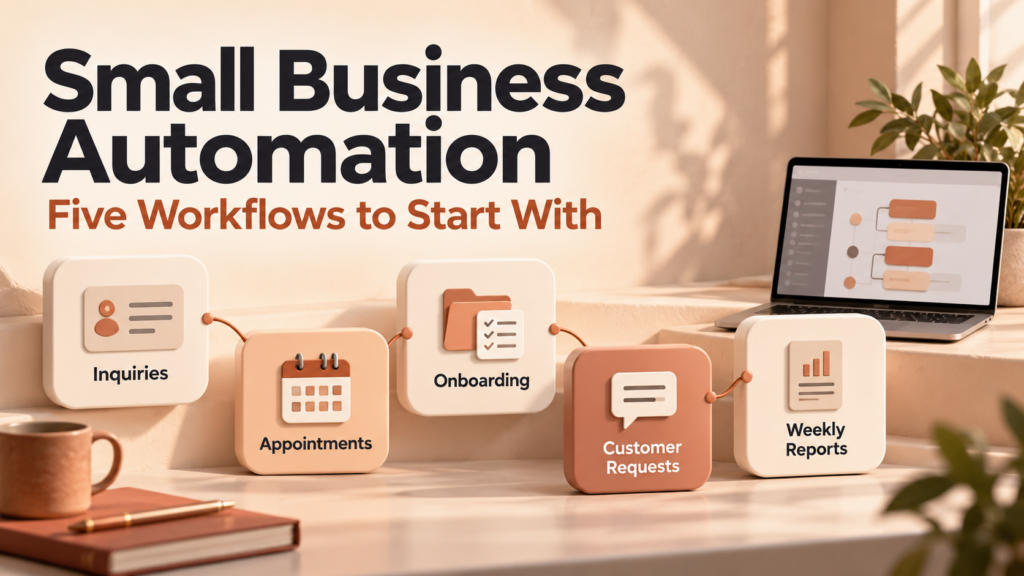
This guide to small business automation: five workflows to start with focuses on practical processes you can introduce gradually. Each workflow includes setup steps, important checks, and a way to measure whether it helps.
What Is Small Business Automation?
Small business automation uses software to carry out repeatable tasks according to rules you define.
A basic workflow has three parts:
- Trigger: The event that starts the process.
- Condition: A check that determines whether it should continue.
- Action: The task the software performs.
For example:
A customer submits an inquiry → the required details are present → a contact record and follow-up task are created.
Conditions help prevent inappropriate actions. Zapier’s documentation, for example, explains how filters and paths use defined criteria to control whether later steps run and which actions occur. Zapier
Many starter workflows use ordinary rules and templates. They do not require AI or custom programming.
Choose a First Workflow That Is Easy to Verify
Start with a process that happens regularly and follows a clear pattern.
Good candidates usually have:
- Consistent input information.
- A clearly defined outcome.
- Few exceptions.
- An identifiable owner.
- Errors that are easy to detect and correct.
Before automating, write down how the task works manually. If staff disagree about the process, resolve that first.
Use this overview to identify a suitable starting point:
| Workflow | Trigger | Main outcome | Key check |
|---|---|---|---|
| Inquiry capture | New form submission | Customer record and follow-up task | Duplicate records |
| Appointment reminders | Confirmed booking | Timely reminder | Cancellations and time zones |
| Customer onboarding | Approved project | Folder, tasks, and welcome message | Correct scope and access |
| Customer request routing | New support request | Assigned ticket | Urgent or sensitive cases |
| Weekly business reporting | Scheduled time | Internal summary | Complete, correctly defined data |
Workflow 1: Capture Inquiries and Create Follow-Up Tasks
A potential customer completes your website form. Someone then needs to copy the information into a CRM, notify the appropriate colleague, and remember to reply.
Automating this handover can make inquiries easier to track.
How the Workflow Works
- A visitor submits an inquiry.
- The workflow checks required fields.
- It searches the CRM for an existing contact.
- It creates or updates the appropriate record.
- It assigns a follow-up task.
- It sends an internal notification.
An optional acknowledgment can confirm that the inquiry was received. Keep it accurate: do not promise a response time your team cannot support.
Information to Capture
Start with the details needed to handle the request:
- Name.
- Contact information.
- Service or product of interest.
- Inquiry message.
- Submission date.
- Assigned staff member.
- Follow-up status.
Avoid collecting extra information simply because the form allows it.
Important Checks
Use a stable submission identifier to recognize a form event that has already been processed. For customer matching, use suitable CRM identifiers and review ambiguous cases.
An existing customer may submit a genuinely new inquiry. Preventing a duplicate contact should not prevent that inquiry from being logged.
Also, do not assume an automation platform prevents every duplicate action. Zapier distinguishes between deduplication at trigger steps and the behavior of action steps. Zapier
What to Measure
Track:
- Inquiries received versus inquiries recorded.
- Unassigned inquiries.
- Time until the first human response.
- Duplicate contacts.
- Failed workflow runs.
Example: A design studio uses a quote request form to create an inquiry linked to the customer’s CRM record and assign a callback task. Staff still review the request and prepare the quotation.
Workflow 2: Send Appointment Confirmations and Reminders
Appointment reminders are useful when your business relies on consultations, demonstrations, training sessions, or service bookings.
The essential challenge is keeping reminders synchronized with the current booking.
How the Workflow Works
- A booking is confirmed.
- The customer receives a confirmation.
- A reminder is scheduled.
- Before sending, the system checks that the appointment remains active.
- Changes or cancellations update the reminder schedule.
Use the booking system’s built-in reminders first if they meet your needs. An additional tool may be unnecessary.
What the Message Should Include
Keep reminders focused on practical information:
- Appointment date and time.
- Time zone where relevant.
- Location or meeting link.
- Preparation instructions.
- Rescheduling or cancellation instructions.
- A contact method for questions.
Important Checks
Test:
- A normal booking.
- A cancellation.
- A rescheduled appointment.
- A booking created shortly before the reminder time.
- A customer in another time zone.
- Duplicate booking notifications.
Give customers appropriate choices about communication channels. Avoid exposing sensitive appointment details in messages or calendar entries.
What to Measure
Review:
- Reminder delivery failures.
- Messages sent after cancellations.
- Staff time spent sending reminders.
- Attendance patterns.
- Customer complaints about messages.
Attendance changes can have several causes, so avoid attributing every improvement to reminders alone.
Example: A business consultant sends a confirmation after booking and a reminder before the call. If the client reschedules, the old reminder is canceled and replaced.
Workflow 3: Create a Consistent Customer Onboarding Process
Once a customer accepts a project, several setup tasks often follow: creating folders, assigning work, collecting information, and explaining next steps.
A standard onboarding workflow can reduce omissions.
How the Workflow Works
- An authorized staff member marks a project as ready for onboarding.
- The system checks that required information is present.
- It creates a project from the correct template.
- It creates a restricted customer folder.
- It assigns internal tasks.
- It prepares or sends an approved welcome message.
Choose the trigger carefully. A deal marked “won” may not always mean the contract, scope, or other prerequisites are complete.
Useful Onboarding Tasks
Depending on the service, the template might include:
- Confirming the main contact.
- Scheduling a kickoff meeting.
- Requesting approved project materials.
- Assigning a project owner.
- Confirming deliverables and milestones.
- Reviewing access requirements.
Create separate templates when services differ substantially.
Important Checks
Use a project identifier to avoid creating the same workspace twice.
Check folder permissions before sending links. Customers should receive access only to their own approved materials.
For account access, use an appropriate invitation or secure sharing method. Do not request passwords through an ordinary onboarding form.
What to Measure
Track:
- Time from approval to project setup.
- Missing onboarding information.
- Duplicate folders or projects.
- Incorrect permissions.
- Tasks requiring manual correction.
Example: A marketing agency starts onboarding after the account manager confirms the project is ready. The workflow creates the campaign task list and prepares a welcome email for review.
Workflow 4: Route Customer Requests to the Right Person
When customer requests arrive through several channels, staff can lose time forwarding messages and deciding who should respond.
A basic routing workflow brings requests into a shared queue and assigns ownership.
How the Workflow Works
- A request arrives through an approved form or inbox.
- The system creates a ticket.
- It checks structured information, such as the selected request category.
- It assigns the ticket to a person or team.
- It acknowledges receipt.
- Unassigned or overdue tickets are flagged for review.
Structured categories are a useful starting point because they are easier to test than interpreting every message automatically.
| Request category | Suggested destination |
|---|---|
| Product question | Sales or customer service |
| Technical problem | Support |
| Billing query | Accounts team |
| Complaint | Designated customer service lead |
| Unclear request | Manual review queue |
Important Checks
Do not rely solely on a keyword to recognize urgent or sensitive issues.
Provide a clear escalation route and ensure someone monitors requests the system cannot classify.
Prevent automated reply loops between inboxes. Messages generated by another automated system should not repeatedly trigger new acknowledgments.
Keep promises realistic. “We received your request” is safer than claiming the problem has already been reviewed.
What to Measure
Monitor:
- Time until assignment.
- Incorrect routing.
- Unassigned requests.
- Reopened tickets.
- Escalations missed by the workflow.
Example: A small software company routes structured technical requests to support while sending unclassified messages to a monitored review queue.
Workflow 5: Prepare a Weekly Business Summary
Business owners often collect the same information from several systems before a weekly review.
An automated summary can reduce that preparation work, provided the figures have clear definitions.
How the Workflow Works
- A scheduled process starts.
- It retrieves data from approved systems.
- It checks whether the information is complete and current.
- It calculates agreed measures.
- It sends a private summary with links to the source reports.
- Missing data is flagged for review.
What to Include
Choose a few measures that support decisions, such as:
- New inquiries.
- Open opportunities.
- Appointments completed.
- Projects due soon.
- Overdue tasks.
- Unresolved customer requests.
Avoid filling the report with numbers nobody uses.
Important Checks
Define reporting periods and time zones consistently.
Distinguish between similar measures. Bookings, completed appointments, and canceled appointments answer different questions.
If a source fails, label its information unavailable. A blank response should not silently become zero.
Keep detailed customer information out of broad summaries unless recipients need it and are authorized to access it.
What to Measure
Track:
- Time spent preparing the report.
- Missing or stale figures.
- Discrepancies against source systems.
- Manual corrections.
- Whether the summary supports actual decisions.
Example: A service business receives a Monday summary of new inquiries, overdue project tasks, and unassigned support requests. Each section links to the relevant working list.
Use Built-In Automation Before Adding More Software
Your existing booking system, CRM, help desk, or project application may already support the workflow.
Compare the options before connecting another service:
| Approach | Useful when | Main limitation |
|---|---|---|
| Built-in automation | The process stays mostly inside one application | May offer limited cross-application actions |
| No-code integration platform | Several applications need to exchange information | Adds usage limits, permissions, and another service to maintain |
| Custom integration | Requirements exceed available connectors | Requires technical development and ongoing support |
Check current official documentation for supported triggers, actions, limits, and plan requirements. An application appearing in an integration directory does not guarantee support for your exact task.
Test Exceptions Before Going Live
A workflow that succeeds once is not ready for every real-world situation.
Test both expected and unexpected inputs:
- Missing required information.
- A repeated event.
- A changed or canceled record.
- A disconnected account.
- An unavailable destination.
- A partially completed workflow.
Partial completion matters. If a customer record is created but the next step fails, retrying should not create another customer.
Keep a record of completed actions and use stable identifiers where the tools support them.
Error-handling features differ between platforms. Make, for example, documents error handlers and settings for incomplete executions that can help manage failed processing. Help Center
Give Every Workflow an Owner
Automation still needs maintenance.
Assign someone to:
- Monitor failures.
- Review exceptions.
- Update templates.
- Check connected account permissions.
- Respond to changes in business processes.
- Pause the workflow when necessary.
Document its trigger, conditions, actions, connected accounts, and recovery steps.
Begin with a small rollout and review outputs before expanding. For customer-facing workflows, test messages internally first.
Measure Value Without Assuming Savings
Compare the automated process with the previous manual process.
A practical calculation is:
Net time saved = Previous manual time − Remaining review, correction, and maintenance time
For example, suppose a task previously required three hours each month. After automation, checking results and handling exceptions takes one hour. The estimated net saving is two hours.
This is an illustrative calculation, not a promised result.
Also consider subscription costs, setup effort, and error frequency. A workflow may be worthwhile because it improves consistency, even if its time saving is modest.
Frequently Asked Questions
1. What should a small business automate first?
Start with a frequent, clearly defined task that is easy to verify. Inquiry capture, internal task creation, and appointment reminders are useful candidates when their rules are straightforward.
2. Do I need coding skills?
Not always. Many business applications include built-in rules, and no-code platforms can connect supported services. Complex requirements or unsupported actions may need technical help.
3. Is business automation expensive?
Costs depend on the applications, subscription plans, usage, and maintenance required. Start by checking features you already pay for, then estimate the full cost of any additional service.
4. Does small business automation require AI?
No. Fixed rules can handle many starter workflows. AI may help interpret unstructured information, but its outputs require suitable review, particularly when they affect customer communication or business records.
5. How do I stop automation from sending incorrect messages?
Validate required information, check the current record status before sending, prevent repeated actions, and test exception cases. Use a human approval step where mistakes would be difficult to reverse.
Conclusion
Small business automation works best when each workflow has a clear purpose, reliable inputs, and someone responsible for its results.
Choose one recurring problem, document the process, and test both normal events and exceptions. Measure the time and corrections it requires before adding another workflow.
A few dependable automations can make daily work more consistent while leaving your team available for customer needs and decisions that require judgment.