

Your WordPress homepage opens quickly on your laptop, but a visitor using a phone waits for the main image to appear. When the page finally loads, an advertisement pushes the text downward, and the menu takes another moment to respond.
These are different performance problems. Installing a caching plugin may help one of them, but it will not necessarily fix the others.
Understanding how to improve WordPress page speed with a practical checklist starts with measuring what visitors experience, identifying the main bottleneck, and testing targeted changes.
This guide covers images, caching, plugins, hosting, scripts, and layout stability. It also explains how to check that a faster page still works correctly.
What Does WordPress Page Speed Actually Mean?
Page speed is more than the time it takes to download a page.
Visitors also notice:
- How quickly the main content becomes visible.
- Whether buttons and menus respond promptly.
- Whether text and images move unexpectedly.
- Whether important functions remain usable during loading.
Google’s Core Web Vitals address loading performance, responsiveness, and visual stability. developers.google.com
| Metric | What it measures | Good target |
|---|---|---|
| Largest Contentful Paint, or LCP | When the largest visible image or text block renders | 2.5 seconds or less |
| Interaction to Next Paint, or INP | Responsiveness to user interactions | 200 milliseconds or less |
| Cumulative Layout Shift, or CLS | Unexpected movement of visible content | 0.1 or less |
These targets are assessed at the 75th percentile of real-world experiences, with mobile and desktop evaluated separately. They are not promises about every visit. web.dev
A performance score can help diagnose issues, but it does not replace checking how the website behaves.
Start With a Reliable Baseline
Test More Than the Homepage
Choose representative pages, such as:
- The homepage.
- A typical article.
- An article with several images or embeds.
- A category archive.
- A product or service page.
- A form, booking page, or checkout.
Shared templates can spread a problem across many URLs. Improving an article template may therefore be more useful than polishing one individual page.
Understand Lab Data and Field Data
PageSpeed Insights provides two different views:
Lab data comes from a controlled Lighthouse test. It helps identify technical problems under the test conditions.
Field data, where available, reflects real-user experiences from the Chrome UX Report. PageSpeed Insights uses a trailing 28-day period for this data, so it will not immediately reflect a change made today. developers.google.com
A small website may not have enough eligible traffic for page-level field data. Check whether the report shows the tested URL or the wider origin.
Record Comparable Results
Save:
- The URL and test date.
- Mobile or desktop mode.
- Key metrics and diagnostics.
- The reported LCP element.
- Relevant cache conditions.
- Recent website changes.
Run a few comparable lab tests and look for a consistent pattern. Avoid drawing conclusions from one unusually good or bad result.
How to Improve WordPress Page Speed With a Practical Checklist
1. Back Up Before Changing Performance Settings
Confirm that you have a current backup of the files and database.
Use staging for changes that could affect layouts, scripts, checkout, or account functions.
Record your existing settings so you can reverse a change. Enable one significant optimisation at a time.
For an active store, remember that restoring an older database can overwrite newer orders. Plan recovery around the site’s current activity.
2. Identify the Biggest Bottleneck First
Use the test results to choose your starting point.
| Main symptom | Investigate first |
|---|---|
| Long wait before the page begins appearing | Server response, caching, redirects |
| Main image appears late | Image size, discovery, and loading priority |
| Page looks loaded but reacts slowly | JavaScript and expensive interactions |
| Text moves when ads or images load | Reserved space and element dimensions |
| Only one template is slow | Template-specific widgets, scripts, or queries |
Do not assume the longest list of warnings identifies the most valuable work. Prioritise issues affecting important pages and actual visitor tasks.
3. Resize and Compress Images
Uploading a large original image and displaying it in a smaller box does not necessarily reduce the downloaded file.
For each important image:
- Use dimensions appropriate to its displayed size and screen density.
- Compare compressed versions at an acceptable visual quality.
- Consider WebP or AVIF where your workflow supports them.
- Check that mobile visitors receive a suitable image candidate.
- Preserve readability in screenshots and graphics.
There is no single ideal file size for every image. A small icon and a detailed product photograph have different requirements.
Check the actual image downloaded by the browser, not just the dimensions shown in the editor.
4. Load the Main Image Promptly
If the featured image is the LCP element, avoid lazy-loading it.
Lazy loading can delay discovery and loading of this important resource. Google’s LCP guidance recommends early discovery and appropriate priority for the LCP image. web.dev
Practical checks include:
- Confirming which element is actually reported as LCP.
- Checking the rendered image’s loading attributes.
- Avoiding unnecessary sliders above the main content.
- Ensuring optimisation tools do not apply conflicting image settings.
WordPress, themes, and plugins may already manage loading priority. Inspect the result before adding manual preloads or overrides.
Reserve lazy loading mainly for suitable images farther down the page.
5. Configure Page Caching Appropriately
Page caching can let visitors receive a stored version of a page instead of having WordPress generate it for every request.
First check what your hosting provider already supplies.
For example, WordPress.com provides built-in caching and advises against adding an unnecessary page-caching plugin. Other hosts have their own configurations. WordPress.com Support
For a self-hosted site:
- Follow the host’s recommended setup.
- Avoid competing page-cache systems.
- Confirm that updates clear relevant cached pages.
- Apply the correct exclusions for personalised content.
- Test logged-out visits as well as administrative views.
Account pages, carts, and checkout require particular care. Use the application’s documented caching rules.
6. Review Hosting Before Paying for an Upgrade
A slow server response can delay everything that follows.
Ask your host to investigate:
- Whether expected requests are reaching the page cache.
- Resource limits or throttling.
- Slow PHP requests.
- Expensive database queries.
- Errors or overloaded background tasks.
Use a supported PHP version compatible with your website, and test version changes before applying them to production.
A more expensive hosting plan will not automatically fix oversized images or excessive browser-side JavaScript. Upgrade when evidence points to a hosting limitation.
7. Audit Plugins by Their Actual Impact
Plugin count alone is a weak measure of performance.
Review what each plugin adds:
- Front-end scripts and styles.
- Database work.
- External requests.
- Widgets.
- Scheduled tasks.
- Features duplicated elsewhere.
On staging, test suspected plugins individually and compare the same pages.
Before removing anything, check dependencies. A theme companion plugin or page-builder extension may support content you still use.
Deleting unused tools can simplify maintenance, but do not assume every removed plugin will produce a measurable speed improvement.
8. Simplify Heavy Page Layouts
Review the first screen and repeated templates for unnecessary complexity.
Possible changes include:
- Replacing an autoplay video with a static preview.
- Removing an unused carousel.
- Reducing decorative animations.
- Simplifying deeply nested page-builder sections.
- Limiting repeated interactive widgets.
If you use Elementor or another builder, focus on the output of the actual page. A simple, well-configured builder layout can be more practical than a redesign undertaken without measurements.
Test changes on staging and retain the features that help visitors complete their tasks.
9. Reduce Unnecessary JavaScript and CSS
Start by removing features and assets you do not need.
Then consider targeted options such as:
- Loading assets only on relevant pages.
- Deferring appropriate scripts.
- Delaying genuinely nonessential features.
- Removing unused styles through a tested process.
JavaScript can occupy the browser’s main thread and delay responses to interactions. Reducing long tasks is an important part of improving INP. web.dev
Do not activate every optimisation toggle at once. Script delays and CSS removal can break menus, forms, consent tools, and checkout.
Combining files is also not automatically beneficial in every modern setup. Keep changes only when testing shows a useful result.
10. Review Third-Party Scripts
Advertising, chat, analytics, embedded video, and social widgets can add network and processing costs. Their impact depends on how they load and what they do. Articles
Create an inventory:
| Third-party feature | Review question |
|---|---|
| Analytics | Is the same tag installed more than once? |
| Chat | Does it need to load immediately on every page? |
| Video embeds | Could a preview load the player on demand? |
| Social widgets | Would ordinary links serve the purpose? |
| Advertising | Are supported placements and loading options configured carefully? |
For an advertising-supported website, evaluate performance alongside revenue and usability. Do not alter provider scripts in ways that conflict with their requirements.
Never bypass consent controls to improve a test score.
11. Reserve Space for Images, Ads, and Embeds
A fast page can still be frustrating when content jumps.
Use image dimensions or suitable aspect ratios so the browser can reserve space. Plan space for delayed embeds and advertising slots as well.
Google’s layout-shift guidance specifically recommends reserving space for late-loading content. Articles
For responsive ads, account for the formats expected at each viewport size. Too little reserved space can still cause movement; excessive space can create awkward gaps.
Test the page while scrolling, not just during the initial load.
12. Simplify Font Loading
Check whether your design needs every font family and weight it downloads.
Practical options include:
- Using fewer families and weights.
- Choosing an appropriate font-display strategy.
- Using suitable fallback fonts.
- Avoiding unnecessary font preloads.
- Considering system fonts where they fit the design.
Check both readability and movement during font changes. A font configuration that displays text quickly can still produce layout shifts if the fallback looks very different.
13. Review Database and Background Work When Relevant
Database work deserves investigation when evidence points to slow queries, administrative delays, or overloaded requests.
Start with supported maintenance:
- Remove confirmed spam and unnecessary stored content.
- Review failing or repetitive scheduled tasks.
- Investigate plugin data growth.
- Ask a developer to inspect expensive queries.
Back up before cleanup. Avoid deleting unfamiliar tables, settings, or scheduled actions.
Database cleanup is not a substitute for fixing a large hero image or heavy front-end scripts.
14. Use a CDN Where It Addresses a Real Need
A content delivery network can serve supported resources from locations closer to visitors.
Its value depends on your audience, origin server, cache configuration, and what content it actually delivers.
Check:
- Which resources are cached.
- Cache invalidation after updates.
- Dynamic-content exclusions.
- Image transformations.
- Compatibility with security and consent systems.
A CDN cannot remove all browser-side work. Visitors still need to process the content and scripts they receive.
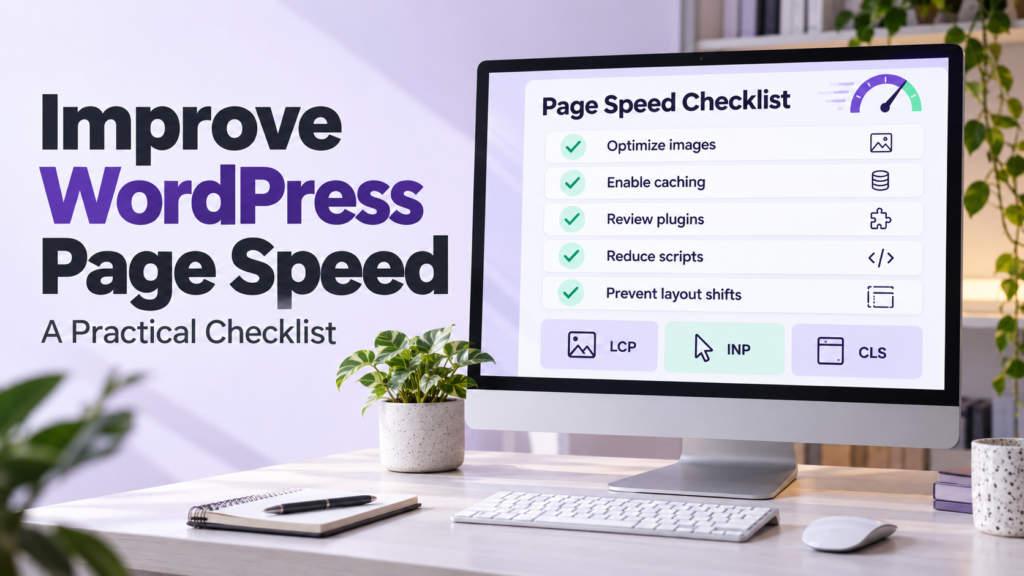
A Practical WordPress Page Speed Checklist
Use this checklist to guide the work rather than enabling every available setting.
| Check | Completion criterion |
|---|---|
| Baseline measurements | Representative mobile and desktop tests recorded |
| Backup and staging | Recovery method confirmed |
| Main bottleneck | Evidence identifies the first priority |
| Images | Appropriate dimensions, compression, and responsive delivery |
| LCP element | Discovered and loaded without unnecessary delay |
| Caching | Host-compatible configuration verified |
| Hosting | Server delays investigated where relevant |
| Plugins | Unnecessary or expensive features reviewed |
| Layout | Avoidable widgets and complexity reduced |
| Scripts and styles | Changes tested individually |
| Third parties | Duplicate and nonessential integrations reviewed |
| Layout stability | Space reserved for late-loading elements |
| Fonts | Necessary families and weights retained |
| Verification | Important features still work after changes |
Test Functionality After Every Significant Change
Check the tasks visitors actually perform:
- Open the mobile menu.
- Use search.
- Submit a form.
- Follow a product or affiliate link.
- Accept or reject consent choices.
- Play a video.
- Add a product to the cart.
- Complete a sandbox transaction where supported.
- Sign in and out.
Test as a logged-out visitor too. Caching and optimisation can behave differently for administrators.
Keep a brief record of the change, measured effect, and functional result.
A Practical Example for a Publishing Website
Suppose a publisher’s article template has:
- An oversized featured image.
- Several video embeds.
- Duplicate analytics installation.
- Advertising slots without reserved space.
A sensible improvement sequence would be:
- Resize and compress the featured image.
- Verify that the LCP image loads promptly.
- Replace suitable video embeds with previews.
- Remove the duplicate analytics installation.
- Reserve appropriate space for advertising.
- Retest performance and functionality.
This is an illustrative workflow, not a claim about measured results. The actual improvement depends on the original bottlenecks.
Common Mistakes to Avoid
Chasing a Perfect Score
A score is a diagnostic summary. Do not remove essential functions merely to improve it.
Testing With Important Features Disabled
A test without ads, consent tools, or normal integrations may not represent a typical visit.
Clearing Every Cache Before Every Test
That can measure a different condition from normal cached visits. Record whether you are testing cold or warm conditions.
Delaying Everything
Overly broad delays can make a page look loaded while leaving menus or forms unresponsive.
Expecting Immediate Field-Data Changes
Lab improvements can appear quickly. Rolling field reports need time to incorporate newer experiences.
Promising Rankings From Speed Work
Performance supports usability, but no speed score guarantees a search position or traffic increase.
Frequently Asked Questions
1. What is the fastest way to improve WordPress page speed?
Fix the largest measured bottleneck. Depending on the site, that could be an oversized image, missing page caching, a slow server response, or excessive JavaScript. There is no single first fix for every website.
2. Do I need a paid caching plugin?
Not necessarily. Your host may already provide suitable caching. Assess the existing setup and required features before paying for another tool.
3. Should all WordPress images use lazy loading?
No. An image responsible for LCP should load promptly. Lazy loading is generally more suitable for relevant images farther down the page.
4. Why is my mobile score lower than my desktop score?
Mobile tests use different device and network assumptions. Real mobile visitors also use varied hardware and connections. Investigate the specific mobile bottlenecks rather than expecting identical scores.
5. Can I improve speed without changing my theme?
Often, yes. Images, caching, scripts, embeds, and configuration may offer useful improvements. Consider a theme change when testing shows that the theme creates significant limitations you cannot reasonably address.
Conclusion
Improving WordPress page speed starts with identifying what is slow and why.
Measure representative pages, fix the most important bottleneck, and verify that each change improves the experience without breaking essential functions. Give particular attention to images, caching, JavaScript, and layout stability.
Use the checklist regularly as your website changes. Performance is easier to maintain when new features are evaluated before they become part of every page.