


The Anker 553 (A8380) is an eight-port USB-C hub for connecting a laptop to monitors, wired networking, and desk accessories. Its biggest strength is that a compatible Windows laptop can run two independent HDMI displays through one host cable. Its biggest weakness is that the two HDMI outputs show the same image on a Mac. It is worth considering for a Windows office setup after checking the laptop’s video and power requirements. If you need two independent external displays on macOS, choose a different connection method.
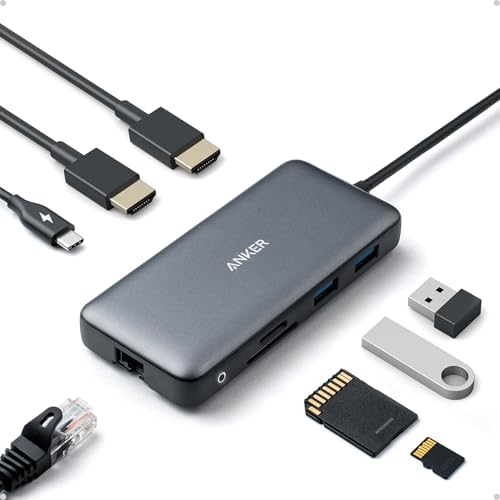
- The Anker Advantage: Join the 50 million+ powered by our leading technology.
- Massive Expansion: Equipped with a USB C PD-IN charging port, 2 USB-A data ports, 2 HDMI ports, an Ethernet port, and a …
- Dual HDMI Display: Stream or mirror content to a single device in stunning 4K@60Hz, or hook up two displays to both HDMI…
Introduction: check what each screen will show.
If you want a spreadsheet on one monitor and a call on another, the number of HDMI sockets matters less than what the laptop and hub can send through them. A hub can light up two screens and still duplicate the same image. That difference is the deciding factor for this product.
This review covers the Anker 553 USB-C Hub (8-in-1), model A8380, also listed under the PowerExpand name. The supplied URL was a placeholder, so the reference is the independently matched Amazon US listing, ASIN B0874M3KW4. GobsoorMarketing reviewed the manufacturer documentation and the listing; we did not test this unit or measure its performance.
Product overview
The hub connects to your laptop with its attached USB-C cable. On the other side, it gives your desk a place to plug in two HDMI screens, two USB-A devices, wired Ethernet, and SD and microSD cards. A separate USB-C input accepts power from your own charger. There is no bundled charger to account for in the base package.
That makes it a convenient way to attach a conventional office desk to a compatible laptop. It is still a compact hub: if you need a USB-C data port for a drive, a Thunderbolt peripheral, or more charging power than it can pass through, compare other options before buying.


Key features and compatibility
Two HDMI ports: extended Windows displays or mirrored Mac outputs
Anker uses a feature called Multi-Stream Transport (MST) to send separate video streams through one connection. A compatible Windows laptop can use that feature to put different content on the two external monitors. Check that the specific USB-C port carries DisplayPort video and that the host supports the intended MST arrangement. A USB-C connector that handles only data or charging will not provide the required video signal.
On macOS, the two monitors connected to this hub’s HDMI sockets mirror each other. That is a limitation of this hub’s display method on a Mac. Even if your Mac can run two independent external monitors through other connections, connecting both to the 553 does not give you two separate desktops. One monitor through the 553 can still be a sensible arrangement if the Mac and port support it.
4K does not describe every setup
Anker’s U.S. specification table distinguishes between one screen and two and between DisplayPort 1.2 and 1.4 at the host. Use it as a compatibility guide, not a promise that any laptop with USB-C reaches these figures.
| Setup | Anker’s U.S. guidance |
| One HDMI monitor, compatible DP 1.4 host | Up to 4K at 60Hz |
| One HDMI monitor, compatible DP 1.2 host | Up to 4K at 30Hz |
| Two extended HDMI monitors on Windows, compatible DP 1.4 host | The table lists 2K at 60Hz |
| Two extended HDMI monitors on Windows, compatible DP 1.2 host | The table lists 1080p at 60Hz |
| Both HDMI monitors connected through the hub on macOS | The external outputs mirror each other |
Anker’s regional documentation describes dual-display resolutions differently, so do not treat those figures as interchangeable promises. If you specifically need two screens at 4K and 60Hz, choose hardware whose documentation explicitly supports that combination with your laptop. Confirm the exact resolution and refresh rate with Anker if your monitors are mixed or if the setup is business-critical.
Up to 85W pass-through charging
The number to plan around is up to 85W to the laptop, with a compatible 100W USB Power Delivery charger and cable. The 100W figure is the maximum input, and the manual explains that the hub reserves power for itself. A smaller charger may leave less power for the laptop.
Check your laptop’s own charging requirements. If your current charger is barely enough for your workload, routing it through the hub may change the result. If the laptop normally needs more than the hub can pass through, keep the original charger connected separately where the laptop supports that arrangement. The hub’s USB-C power input is for charging input, so do not count it as a spare USB-C data or display port.
Ethernet, USB-A, and memory cards
The Ethernet port gives you a wired network option, with a published ceiling of 1Gbps. The two USB-A ports can serve older accessories and support up to 5Gb/s USB data. Both card formats are useful for a desk that occasionally imports photos or footage. These are interface specifications; the numbers do not establish simultaneous transfer speeds or internet performance.
Verified specifications
| Specification | Verified detail |
| Brand and model | Anker 553 / PowerExpand, A8380 |
| Amazon US ASIN | B0874M3KW4 |
| Host connection | Attached USB-C cable |
| Display outputs | Two HDMI ports; results depend on host and OS |
| USB data | Two USB-A ports, up to 5Gb/s |
| Charging | USB-C PD input up to 100W; laptop pass-through up to 85W |
| Networking | Gigabit Ethernet |
| Card readers | SD and microSD, UHS-I |
| Dimensions | 4.65 × 2.01 × 0.69 inches, per Amazon’s product details |
| Weight | 3.2 oz, per Amazon’s product details |
| Included power adapter | No |
| Warranty | The Amazon listing states 18 months; confirm eligibility and terms for the seller and region |
Sources: Anker’s U.S. specifications, the A8380 manual, and the exact Amazon listing.
Design, build, and ease of use
The 553 is small enough to sit alongside a laptop, but plan around the attached cable. Before buying, check whether the hub can rest flat while its cable reaches the correct port. Two HDMI leads, Ethernet, and charging can create a heavier cable bundle than the size of the hub suggests. Avoid a setup where that bundle pulls the hub off the desk. We have not assessed casing temperature, cable durability, or connector wear firsthand. [1][3]
For setup, start with the hub and a single monitor. Confirm that the laptop detects the monitor before adding the second display, then select Extend in Windows if the hardware supports it. Next connect the charger and other peripherals. Adding them in that order makes it easier to tell whether an issue comes from the host port, monitor, cable, or power source. On a Mac, changing display settings does not turn the hub’s mirrored HDMI outputs into independent streams.
Performance in real working setups
Two 1080p office monitors on Windows. This is the clearest use case. If the laptop’s port supports the necessary video and MST, the monitors can serve as separate workspaces. A small-business owner could keep an order dashboard on one and a customer inbox on the other. The benefit is saving setup time each day, not a measurable speed increase in the laptop.
One 4K display. A compatible DP 1.4 host is the configuration Anker lists for up to 60Hz. If your desk runs at 30Hz, first check the laptop’s port, monitor input, cable, and display settings. Do not buy it for high-refresh gaming based only on the 4K label.
One monitor and an external drive. The hub can make a shared desk easier to reconnect, but check the drive connector. If your SSD expects USB-C data, the charging input is not the place to connect it. A compatible USB-A connection or a different hub may suit the workflow better. We did not independently measure transfer rates, Ethernet throughput, power under load, or monitor wake behavior.
Pros
- Two separate HDMI desktops are possible on a compatible Windows host.
- A single HDMI display can reach 4K at 60Hz on supported hardware.
- Ethernet and card readers make the hub useful beyond display output.
- Pass-through charging can reduce the number of cables plugged into the laptop.
- Compact enough for a desk that gets packed away regularly.
Cons
- The two HDMI outputs mirror each other on macOS.
- Dual-monitor resolution and refresh depend on the host.
- The charger is separate, and 100W input does not mean 100W reaches the laptop.
- No spare USB-C data port for newer storage or display accessories.
- The short-reach design requires checking cable routing with your laptop’s port location.
Value for money
The 553 makes most sense when you will use several of its ports. If you have two compatible HDMI office monitors, wired networking, and USB-A accessories, one hub can replace several adapters. If your desk only needs one screen and a USB-C drive, a simpler hub with the right data port may be more useful. Likewise, a Mac owner who needs two independent external monitors gets little value from buying the 553 specifically for its second HDMI socket.
Compare the complete setup cost. Include a charger if your existing one is insufficient, the display cables, and any adapters. If buying for a team, verify the hub with each issued laptop model before standardising a desk around it.
Current Amazon price
Check Amazon for the latest price and available offers.
A live checkout price was not reliably verified. View the exact Anker A8380 on Amazon. This is a direct product link; no affiliate tracking tag was supplied. Verify the seller, model number, and package contents before ordering.
Best alternatives
Anker Nano 7-in-1 (A83D2): one monitor and a USB-C drive
The Anker Nano 7-in-1 adds a USB-C data port and supports a single HDMI display. It suits a laptop desk where a USB-C drive matters more than a second HDMI socket. It lacks the 553’s wired Ethernet and second HDMI connection. Stay with the 553 if you want wired networking and compatible dual-monitor operation on Windows.
Plugable USBC-6950M: two independent HDMI monitors on a Mac
The Plugable USBC-6950M uses DisplayLink to add two HDMI displays on supported Macs. It is a video adapter, not a full replacement for the 553’s wired networking, card readers, and charging setup. It requires DisplayLink software and macOS screen-recording permission to access the pixels needed for the external displays. Check with IT before buying it for a managed computer. Stay with the 553 if you have a compatible Windows laptop and want an all-in-one desk connection.
| Model | Main reason to choose it | Main trade-off |
| Anker 553 A8380 | Compatible Windows dual HDMI, Ethernet, and pass-through charging | Two HDMI outputs mirror on Mac |
| Anker Nano A83D2 | One display plus USB-C data | No second HDMI or Ethernet |
| Plugable USBC-6950M | Two independent HDMI displays on a supported Mac | Requires DisplayLink and separate desk accessories |
Who should buy it?
Choose the 553 if you have a Windows laptop with the right USB-C video support, need two HDMI office displays, and would also use Ethernet or older USB-A peripherals. It also makes sense as a single-monitor Mac hub if its other ports match your desk.
Who should skip it?
Skip it if you need two different external desktops from the hub on a Mac, dual 4K at 60Hz, a USB-C data port, or charging above the pass-through ceiling. If your laptop’s USB-C port lacks video output, choose a different display solution instead of relying on this hub’s HDMI sockets.
Buying checklist
- Identify the exact laptop port. Confirm DisplayPort Alt Mode and, for dual extended monitors, verify host and OS support for the intended arrangement.
- Write down the monitor requirements. Include resolution, refresh rate, and whether the screens must show different content.
- Check charging separately. Confirm laptop USB-C PD support, required wattage, and the charger and cable you will use.
- Count peripherals. Include your USB-C drive, mouse receiver, wired network, and card readers.
- Verify the offer. Check A8380, seller, condition, returns, and warranty. Do not assume similarly named Anker hubs use the same display method.
Frequently asked questions
Will two HDMI monitors extend on Windows?
Yes on a compatible Windows host with the required USB-C video and MST support. Check the laptop before buying; USB-C alone is not proof.
Why do both monitors show the same picture on a Mac?
The 553’s two HDMI outputs mirror each other on macOS. Choose separate native connections if your Mac supports them, or compare a compatible DisplayLink adapter.
Can it run one 4K monitor at 60Hz?
Anker lists up to 4K at 60Hz for one HDMI monitor with a compatible DP 1.4 host. Its DP 1.2 guidance for one 4K screen is 30Hz.
Does it include a 100W charger?
No. Supply your own compatible charger and cable. The hub can pass up to 85W to the laptop from a suitable 100W input.
Can I plug an SSD into the USB-C PD input?
No. Use an appropriate USB-A data connection or choose a hub with a separate USB-C data port.
Does it work with the MacBook Neo?
Apple specifies one native external display on the Neo via its faster USB-C port. For one monitor, that is the port to check. A dual-HDMI hub does not give the Neo two native external displays, and this exact pairing was not independently tested.
Can I use it with a charging-only USB-C port?
Not for its HDMI video outputs. The port on the laptop must support DisplayPort video for this connection.
Final verdict
This is a buying-fit assessment, not a benchmark or customer rating.
The Anker 553 is a good candidate if you want two independent HDMI screens on Windows plus useful desk ports. Its limitations are clear once you know what to check: mirrored HDMI outputs on a Mac, host-dependent display modes, and a separate charger for pass-through power. Confirm your laptop and monitors before comparing prices. If you need only one screen or two independent Mac displays, the alternatives above are a better place to start.