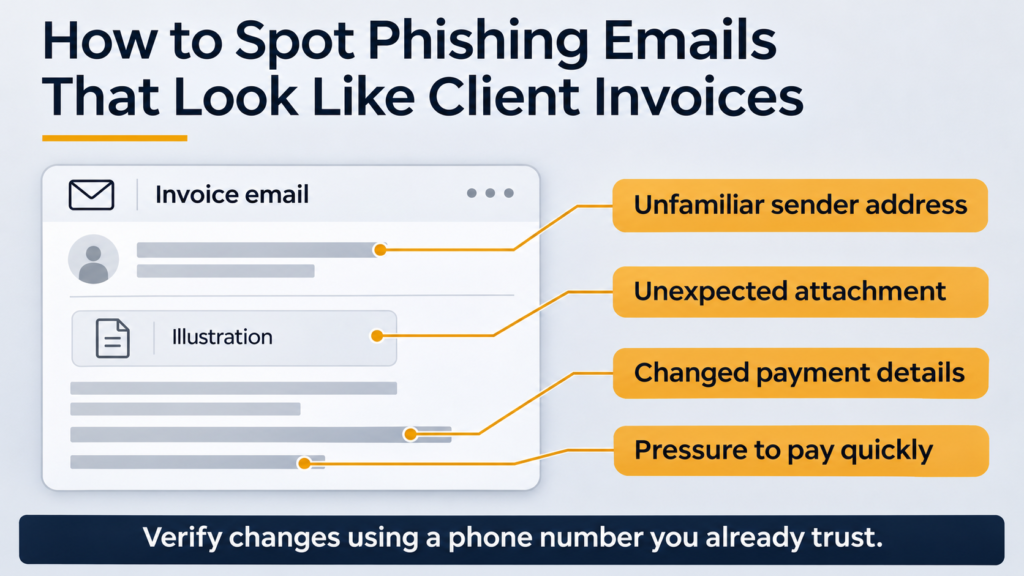

An invoice email uses a client’s name and mentions a project you recognize. The message says you need to review a document or use new payment details. Before doing either, open your own records and check whether you expected the invoice. If anything changed, verify it through a contact method you already trust.
Here’s how to spot phishing emails that look like client invoices, even when the sender appears familiar. Use the checks below whether the message asks you to open a file, sign in to view a document, or send money. The FTC describes fake invoices as a risk to both payments and business accounts. FTC guidance on fake invoices for small businesses
What invoice phishing looks like
Invoice phishing uses a billing message to prompt an action such as opening an attachment, entering credentials, or sending a payment. A related risk is business email compromise, where an email appears to come from a trusted source and requests a legitimate-looking action. The sender may be impersonating a contact or using a legitimate account that someone else accessed. A familiar name or an existing email thread can therefore provide a false sense of confidence. FBI guide to business email compromise
| What you see | What to check through a trusted source |
|---|---|
| An invoice for work you don’t recognize | Look for the approved order, contract, expense, or project in your records. |
| A routine invoice with new bank details | Pause payment and verify the change using the phone number already on file. |
| A request to sign in to view an invoice | Open the portal from your usual bookmark or approved app and look up the invoice there. |
| A familiar display name with an unfamiliar address or reply address | Compare the full addresses with your records and contact the person independently. |
| A deadline or request to skip the normal approval process | Ask your finance lead to review it and verify the request through a separate channel. |
A real contact can send a legitimate invoice from a new address or use a new billing portal. Treat a change as a reason to verify before acting.
How to verify an invoice email before opening or paying it
1. Match the invoice to your records
Check the project or order number, billed organization, amount, and due date against your accounting system, approved contract, or purchase order. If the email is the only place you can find the invoice, obtain it through the portal or verified contact first.
If someone says a client has an invoice for you to review, check that the direction of payment makes sense. For example, if you normally invoice that client for your work, a request for you to pay them deserves a separate explanation.
2. Check the address and the request
Expand the sender details to see the full address. Look for a mismatch between the name and address or an unexpected reply address. A match is one piece of evidence. It can’t tell you whether someone else has access to the sender’s account.
If the message asks you to sign in somewhere new, use the billing portal you already know or ask the verified contact how to access it. Leave unexpected attachments unopened while you confirm the request. FTC guidance on protecting yourself from phishing
3. Verify payment changes through a separate channel
Call the contact using a number from your contract, address book, or approved supplier records. Avoid using the number in the message under review. Ask whether the invoice and payment change are genuine. If your business uses a second approver for bank-detail changes, have that person check the recorded confirmation before releasing payment. FBI business email compromise guidance
A short call can be enough:
“I’m checking an invoice for [project or invoice reference]. Can you confirm whether your team sent it and whether you requested a change to the payment details?”
If you can’t reach the contact, leave the payment on hold and use your usual escalation process.
Worked example for a small agency
A fictional agency receives a printing invoice for an approved client project. The amount and project reference match the purchase order, but the payment details differ from the printer’s record in the accounting system.
The person reviewing the invoice pauses payment and calls the number in the approved supplier record. The printer confirms that it issued the invoice and says its payment details haven’t changed. The agency reports the message internally, keeps it available for review, and obtains a verified copy through its usual channel. Matching the amount checked one part of the invoice. The independent call resolved the payment discrepancy.
What to do if someone already acted on the email
| What happened | What to do |
|---|---|
| Received the email only | Use your organization’s phishing report button or tell IT or the person who manages your email. Follow their instructions for handling the original message. |
| Clicked a link or opened a file | Report it promptly. Tell IT what you opened and whether anything downloaded or ran. Follow their instructions for checking or containing the device. |
| Entered a password or approved an unexpected sign-in prompt | Contact IT or the account administrator immediately. Use a trusted device and the official account page to change the exposed password as directed. The administrator can review sessions, sign-ins, and mailbox rules, and revoke access where appropriate. Change any other accounts using the exposed password. |
| Sent a payment | Contact the bank or payment provider immediately through its official channel and ask whether it can stop or recall the payment. Notify the finance lead and preserve the invoice, message, and transaction reference for reporting. |
In the U.S., the FBI directs business email compromise reports to IC3. Businesses elsewhere can use their local fraud or cybercrime reporting channel. Contacting your bank quickly gives it a chance to act, but recovery depends on the payment and circumstances. FBI reporting and payment response guidance · Microsoft guidance for compromised email accounts
Copy-ready invoice verification checklist
- Match the invoice to an approved purchase or an expected billing arrangement.
- Check the amount, currency, project reference, and due date.
- Retrieve the invoice through a trusted portal or verified contact if needed.
- Confirm any change to the payment destination using a known contact method.
- Record who verified the change and who approved the payment.
- Report suspicious messages using the team’s agreed process.
Frequently asked questions
1. Can a real client email address send a phishing invoice?
Yes. Someone may have gained access to the account. If the email changes where you pay, asks you to sign in somewhere unexpected, or conflicts with your records, confirm the request outside the thread. FBI business email compromise guidance
2. Is an invoice PDF automatically safe?
The file type and appearance don’t verify who sent it or whether its instructions are genuine. If you weren’t expecting the attachment, obtain the invoice through a trusted portal or contact before opening it.
3. Does an urgent invoice always mean phishing?
No. Real invoices can be overdue. Check the deadline against your records and use your normal approval process. Verify any change to the payment details before sending money.
4. What should I do if I clicked but didn’t enter anything?
Report the click and tell IT whether a file downloaded, a sign-in page appeared, or the device behaved unexpectedly. The appropriate response depends on what happened and your organization’s incident process.
5. How can a solo business verify payment changes without a second approver?
Use a known contact method and record the confirmation before making the payment. Keep trusted contact details with your client and supplier records so the unusual email doesn’t supply its own verification channel.
Conclusion
When an invoice email asks you to do something unexpected, check the purchase in your records and verify the request through a channel you already trust. Apply the check every time payment details change, even on a familiar thread. If someone already sent money, contact the payment provider immediately.