
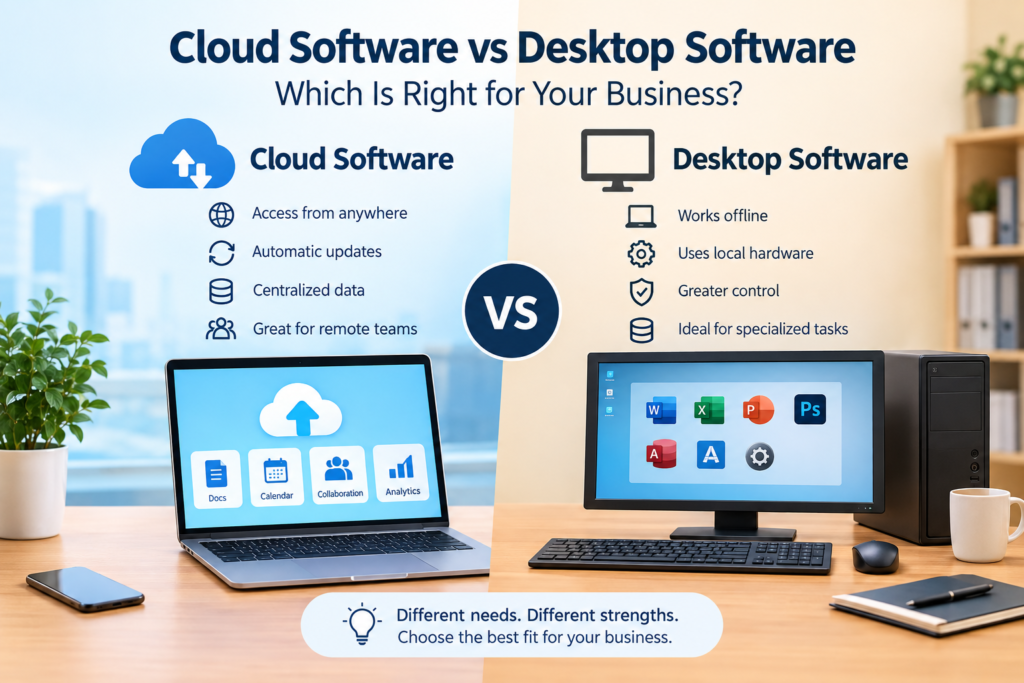

Choosing business software is no longer simply a question of finding an application with the right features. Businesses also need to consider where the software runs, how employees access it, how data is stored, how updates are managed, and what the total cost will be over time.
The main choice often comes down to cloud software vs desktop software. Cloud software is generally accessed through the internet, while desktop software is installed and run directly on a computer.
Neither approach is automatically right for every organization. The better option depends on factors such as business size, internet reliability, security requirements, budget, workflow, and how employees need to access the software.
This guide explains the differences between cloud and desktop software, including their advantages, limitations, costs, security considerations, and practical business use cases.
What Is Cloud Software?
Cloud software is an application that is hosted on remote infrastructure and accessed over a network, usually the internet. Depending on the product, users may access it through a web browser or a dedicated application.
Examples can include cloud-based accounting platforms, customer relationship management (CRM) systems, project management tools, collaboration platforms, and business analytics applications.
Instead of keeping all application data and processing on one employee’s computer, much of the infrastructure is managed by the software provider.
How Cloud Software Works
A typical cloud software setup involves:
- The software provider hosts the application and supporting infrastructure.
- Business data is stored on systems managed by the provider or its infrastructure partners.
- Users sign in through a browser or application.
- Updates and maintenance are generally handled by the provider.
- Authorized users can access the service from supported devices and locations.
The exact architecture varies between providers, so businesses should review the provider’s documentation before assuming how data, backups, or security are handled.
What Is Desktop Software?
Desktop software is installed directly on a computer and runs using that computer’s operating system and hardware.
Traditional accounting applications, graphic design programs, office applications, engineering tools, and specialized business systems may be available as desktop applications.
Depending on the product, the application and its data may be stored locally, although some desktop applications can also connect to online services.
How Desktop Software Works
With a traditional desktop application:
- The software is installed on a computer.
- The application uses local hardware and operating-system resources.
- Files or databases may be stored locally or on an organization’s internal network.
- Updates may need to be installed manually or through a desktop update mechanism.
- Access may be limited to computers where the software is installed.
The exact setup depends on the application and how the organization configures it.
Cloud Software vs Desktop Software: Key Differences
The most important differences relate to access, data storage, maintenance, connectivity, updates, costs, and control.
| Factor | Cloud Software | Desktop Software |
|---|---|---|
| Access | Usually available through the internet | Usually available on installed devices |
| Installation | Often minimal for browser-based applications | Usually requires installation |
| Updates | Generally managed by provider | Often managed by user or IT team |
| Data location | Typically hosted on remote infrastructure | Often stored locally or on an internal network |
| Internet dependency | Usually significant | Often less dependent on internet for core functions |
| Multiple-device access | Generally easier | May require separate installations or licenses |
| Maintenance | Mostly provider-managed | More responsibility for the organization |
| Customization | Depends on provider | Can offer greater local control in some cases |
| Backup responsibility | Often includes provider-managed options | Frequently requires organizational processes |
| Offline use | Depends on application | Often stronger for locally installed applications |
These are general differences rather than universal rules. Modern software can combine cloud and desktop features, so it is important to examine the specific product.
Accessibility and Remote Work
One of the major differences in the cloud software vs desktop software discussion is accessibility.
Cloud applications are generally designed to allow users to access their accounts from multiple supported locations and devices. This can be useful for businesses with remote employees, field teams, or staff working across different offices.
For example, a sales employee could use a cloud CRM from the office, while another authorized employee could access the same system from a different location.
Desktop software can also support remote access, synchronization, or network-based workflows, but these capabilities depend on the software and technical setup.
When Accessibility Matters Most
Cloud software may be particularly useful when:
- Employees work from different locations.
- Teams need access to shared information.
- Staff frequently travel.
- Multiple offices need to use the same system.
- Managers need access while away from the office.
For businesses where employees primarily work from one location, the accessibility advantage may be less important.
Installation and Maintenance
Desktop applications normally require installation on individual computers. Organizations may need to manage operating-system compatibility, software updates, configuration, licensing, and technical support.
Cloud applications generally reduce some of this local maintenance because the provider manages much of the underlying infrastructure.
However, this does not mean cloud software requires no IT management. Organizations may still need to manage user accounts, permissions, integrations, security settings, subscriptions, and data governance.
Updates
Cloud software is commonly updated by the provider. This can reduce the need for employees to manually install new versions.
This approach can also introduce a limitation: businesses may have less control over exactly when certain changes are introduced.
Desktop applications can provide greater control over upgrade timing in some environments, but delaying updates can also create maintenance and security responsibilities.
Internet Connectivity
Internet dependency is an important consideration when comparing cloud software vs desktop software.
Cloud applications generally require a reliable internet connection, particularly when the application and data are hosted remotely.
This can be challenging for businesses operating in locations where connectivity is slow, expensive, unstable, or unavailable.
Desktop applications may be more suitable for workflows that must continue when internet access is unavailable. However, some desktop applications rely on online licensing, synchronization, cloud storage, or connected services, so they are not necessarily completely offline.
A Practical Question to Ask
Before selecting cloud software, ask:
What happens if our internet connection goes down for several hours?
If losing access to the application would seriously interrupt essential operations, investigate whether the product provides offline functionality, local caching, backup procedures, or another continuity option.
Cost: Cloud vs Desktop Software
Cost is more complicated than simply comparing a subscription with a one-time purchase.
Cloud Software Costs
Cloud software commonly uses subscription pricing. Depending on the provider, businesses may pay monthly or annually based on factors such as:
- Number of users
- Features
- Storage
- Usage
- Service level
- Additional integrations
A subscription can make the initial cost easier to manage, but businesses should calculate the total cost over several years.
Desktop Software Costs
Desktop software may use:
- One-time licenses
- Annual maintenance
- Subscription licenses
- Upgrade fees
- Support contracts
- Additional licenses for other computers
Organizations may also need to account for hardware, IT support, backups, and installation costs.
Compare Total Cost of Ownership
Instead of asking only, “Which software is cheaper?”, consider:
Total cost = software + hardware + implementation + maintenance + support + training + backup + future upgrades
The actual calculation will vary significantly between products.
Security and Data Protection
Security should be considered carefully with both cloud and desktop software.
Cloud providers may operate dedicated infrastructure and security systems, but businesses still need to understand how their data is protected.
Important questions include:
- Where is business data stored?
- Is data encrypted during transmission and storage?
- How are user accounts protected?
- Is multi-factor authentication available?
- How frequently are backups performed?
- How long are backups retained?
- What happens if an account is compromised?
- How can data be exported?
- What happens to data after the subscription ends?
- Does the provider offer appropriate compliance documentation?
Desktop software also has security responsibilities. Organizations may need to manage device security, operating-system updates, antivirus protection, access permissions, backups, and physical security.
Cloud Does Not Automatically Mean More Secure
It is not accurate to assume that cloud software is automatically more secure than desktop software, or vice versa.
Security depends on the software architecture, provider practices, configuration, user behavior, access controls, infrastructure, and other factors.
Businesses should evaluate the specific product rather than relying on the deployment model alone.
Data Backup and Recovery
Data loss can be costly regardless of whether software is cloud-based or installed locally.
Cloud services may provide automated backup features, but businesses should confirm exactly what is included. A provider’s backup system may not replace an organization’s own data retention or recovery requirements.
With desktop software, the organization may have greater responsibility for creating and testing backups.
A useful backup strategy should consider:
- How often data is backed up
- Where backups are stored
- How long backups are retained
- Who can access them
- How quickly data can be restored
- Whether restoration procedures have been tested
Simply having a backup is not enough if the organization cannot successfully restore important data when needed.
Performance and Hardware Requirements
Cloud applications typically perform part of their processing on remote infrastructure, although the user’s device and internet connection still affect the experience.
This can be useful when employees use relatively modest computers for business applications.
Desktop applications generally use the local computer’s processor, memory, graphics capabilities, and storage. For specialized applications such as video editing, engineering, or advanced design, local hardware can be particularly important.
Businesses should therefore compare the actual system requirements rather than assuming one model will always perform better.
Customization and Control
Desktop applications can sometimes provide organizations with greater control over the local environment, files, configurations, and integrations.
This can be valuable for specialized workflows.
Cloud software may offer customization through settings, application programming interfaces (APIs), integrations, extensions, and different subscription plans. However, customization is ultimately limited by what the provider supports.
Organizations with highly specialized requirements should investigate:
- Available APIs
- Integration options
- Data export capabilities
- Custom fields
- Workflow automation
- User permissions
- Reporting capabilities
- Developer documentation
Collaboration and Teamwork
Cloud applications can make collaboration easier because users can often work with the same centrally managed system.
For example, a team could use a cloud project management platform to assign tasks, monitor deadlines, and share project information.
Desktop software can also support collaboration through shared networks, file servers, synchronization tools, or other technologies. However, the experience depends heavily on the application’s design.
For teams that frequently collaborate across locations, centralized online access may be an important consideration.
Cloud Software vs Desktop Software: Advantages and Disadvantages
Advantages of Cloud Software
Cloud software can offer several practical benefits:
- Easier access from multiple locations
- Centralized data management
- Provider-managed infrastructure
- Automatic or simplified updates
- Easier support for distributed teams
- Reduced need for some local infrastructure
- Potentially easier scalability for growing teams
Disadvantages of Cloud Software
Potential limitations include:
- Dependence on internet connectivity
- Recurring subscription costs
- Less control over infrastructure
- Dependence on the provider
- Potential vendor lock-in
- Changes to features or pricing
- Data residency and compliance considerations
Advantages of Desktop Software
Desktop applications may offer:
- Stronger offline functionality
- Direct use of local hardware
- Greater control over local files
- Potentially predictable licensing for some products
- Useful capabilities for specialized workloads
- Less dependence on continuous internet access
Disadvantages of Desktop Software
Possible limitations include:
- Installation requirements
- Device-specific access
- More local maintenance
- Manual updates for some products
- Greater responsibility for backups
- More complicated deployment across many computers
- Potential hardware compatibility issues
Which Businesses Should Consider Cloud Software?
Cloud software may be a practical option for businesses that:
- Have employees working remotely.
- Operate across multiple locations.
- Need frequent collaboration.
- Want centralized access to business information.
- Prefer provider-managed infrastructure.
- Need to add or remove users regularly.
- Have reliable internet connectivity.
For example, a growing consulting company with employees working from several cities may find a cloud-based CRM and project management system convenient for keeping customer and project information accessible to authorized staff.
Which Businesses Should Consider Desktop Software?
Desktop software may be appropriate for organizations that:
- Need reliable offline access.
- Work with specialized local applications.
- Have stable workflows centered around specific computers.
- Require extensive control over local data and systems.
- Operate in environments with limited internet connectivity.
- Need software that takes advantage of powerful local hardware.
For example, a design professional working with resource-intensive local applications may prioritize software that can take full advantage of the workstation’s hardware.
Can a Business Use Both?
Yes. Businesses do not necessarily have to choose one model for everything.
A company might use cloud software for:
- CRM
- Team collaboration
- Project management
- Online accounting
- Document sharing
At the same time, it could use desktop applications for:
- Graphic design
- Video production
- Specialized engineering
- Certain offline workflows
- Industry-specific applications
This hybrid approach can be practical when different business functions have different technical requirements.
How to Choose Between Cloud and Desktop Software
Before purchasing software, work through the following steps.
1. Identify the Business Problem
Start with the problem rather than the software category.
Ask what the business needs to accomplish and which processes currently create difficulties.
2. Assess Internet Reliability
Determine whether employees have reliable internet access during normal working hours.
If connectivity is unreliable, investigate offline capabilities and continuity options before choosing a cloud-dependent application.
3. Review Data Requirements
Identify what information the software will handle and whether there are specific privacy, retention, compliance, or data-location requirements.
4. Calculate the Long-Term Cost
Compare the expected costs over several years instead of comparing only the initial purchase price.
Include licenses, subscriptions, hardware, implementation, training, maintenance, support, and backups.
5. Consider the Number and Location of Users
A business with employees across multiple locations may have different requirements from a small office where everyone works on the same network.
6. Check Integration Requirements
Make sure the software can connect with the other systems the business already uses.
Check APIs, integrations, export formats, authentication options, and workflow compatibility.
7. Evaluate Security
Review the provider’s security documentation and your organization’s internal security requirements.
Do not rely solely on marketing descriptions.
8. Test Before Making a Major Commitment
If possible, use a trial or demonstration environment before deploying the software across the organization.
Test realistic workflows rather than only exploring the most attractive features.
Common Mistakes When Choosing Business Software
Businesses can make software decisions more difficult by focusing too narrowly on one factor.
Choosing Based Only on Price
A low purchase price does not necessarily mean a low total cost. Implementation, training, maintenance, and support can significantly affect the overall expense.
Ignoring Connectivity
Cloud software can become difficult to use when connectivity is unreliable. Internet requirements should be evaluated before implementation.
Assuming Cloud Means No IT Work
Cloud services reduce some infrastructure responsibilities, but businesses still need to manage accounts, permissions, integrations, security, and data governance.
Ignoring Data Portability
Before committing to a platform, find out whether you can export your data in a usable format.
Data portability can become important if the business changes providers in the future.
Buying More Features Than Necessary
A long feature list does not automatically mean a better solution.
Choose software based on actual business requirements rather than features that may never be used.
Frequently Asked Questions
Is cloud software better than desktop software?
There is no universal answer. Cloud software can be useful for remote access, centralized management, and distributed teams, while desktop software can be valuable for offline work, local processing, and specialized applications. The right choice depends on the organization’s requirements.
Is desktop software cheaper than cloud software?
Not necessarily. Desktop software may have a lower initial purchase cost in some cases, while cloud software commonly uses recurring subscriptions. Businesses should compare total ownership costs, including hardware, maintenance, support, upgrades, and training.
Does cloud software require an internet connection?
Most cloud applications require internet access for their primary functions, although some products provide limited offline capabilities. Check the specific provider’s documentation before making a decision.
Is cloud software more secure than desktop software?
Neither model is automatically more secure. Security depends on factors such as access controls, encryption, software design, infrastructure, updates, backups, configuration, and user practices.
Can desktop software be used by remote employees?
Yes, depending on the software and technical setup. Remote access, virtual desktops, network access, synchronization, or other solutions may allow employees to work remotely. The available options depend on the specific application.
Conclusion
The choice between cloud software vs desktop software should be based on the way a business actually operates.
Cloud software can be useful for organizations that value centralized access, collaboration, remote work, and provider-managed infrastructure. Desktop software can remain valuable when offline access, local processing, specialized functionality, or greater control over the local environment are important.
For many businesses, the decision does not have to be all-or-nothing. A combination of cloud and desktop applications can support different business functions.
Before choosing a platform, evaluate connectivity, security, data management, integrations, user requirements, total cost, and long-term flexibility. Most importantly, test the software against real business workflows before making a major commitment.