
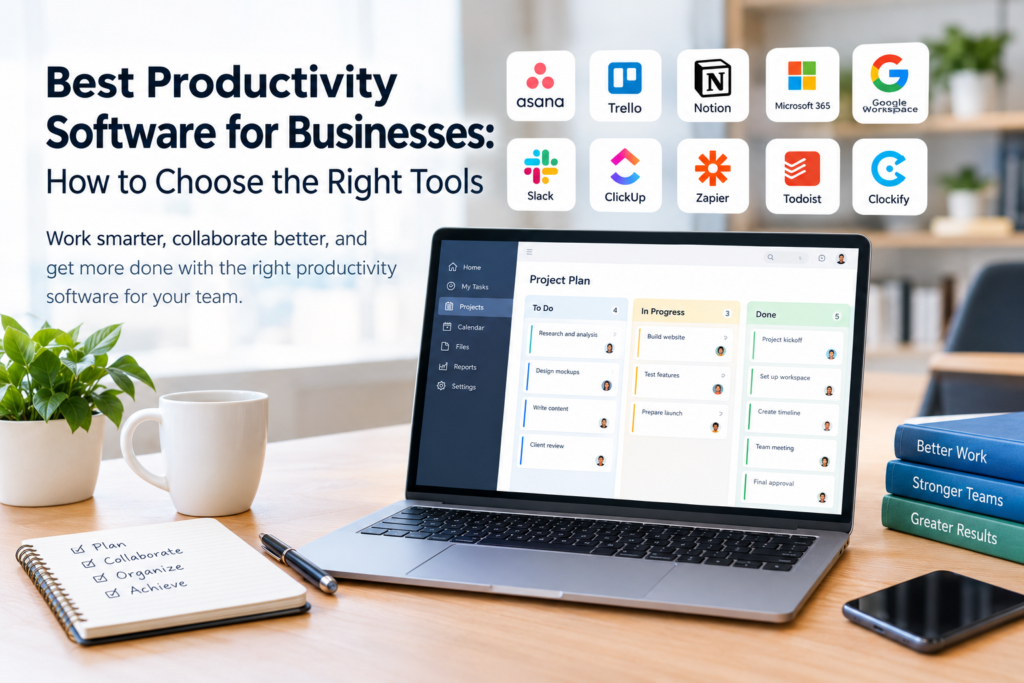

Running a business involves managing tasks, communicating with employees, organizing documents, tracking deadlines, and keeping projects on schedule. When these activities are spread across too many disconnected tools, important information can become difficult to find, and teams may spend unnecessary time coordinating their work.
The best productivity software helps businesses organize daily activities, collaborate more effectively, and maintain a clearer view of their responsibilities. Depending on the company’s needs, this software may include project management platforms, communication apps, document collaboration tools, scheduling systems, or business automation solutions.
However, not every business needs the same tools. A small marketing agency may need a project management platform and a shared content calendar, while a consulting company may prioritize document management, meetings, and client communication.
This guide explains the main types of productivity software, compares popular options, and provides practical advice for choosing a solution that supports your workflow without creating unnecessary complexity or expense.
What Is Productivity Software?
Productivity software consists of digital tools designed to help individuals and teams complete work, organize information, communicate, and manage business activities.
Some applications focus on a single task, such as taking notes or scheduling meetings. Others combine several functions in one platform, including project tracking, file sharing, collaboration, and reporting.
Common categories include:
- Project management software: Organizes projects, tasks, deadlines, and responsibilities.
- Team communication software: Supports workplace messaging, calls, and meetings.
- Document collaboration software: Allows people to create, edit, store, and share documents.
- Time management software: Helps users plan schedules and understand how work time is allocated.
- Automation software: Connects applications and automates repetitive workflows.
- Knowledge management software: Stores procedures, internal guides, and business information.
The right combination depends on your business size, working methods, budget, and security requirements.
Best Productivity Software for Businesses: Popular Options Compared
The following platforms serve different productivity needs. They are not ranked as universally best because their suitability depends on the tasks a business needs to complete.
1. Asana: Project and Task Management
Asana is a work management platform that helps teams organize projects, assign responsibilities, and track progress.
Its features can help businesses coordinate marketing campaigns, product launches, administrative work, and other projects involving multiple people.
Best for: Teams that need structured project planning and task ownership.
Potential benefits:
- Organize work into projects and tasks.
- Assign responsibilities and deadlines.
- Monitor progress across projects.
- Coordinate work between departments.
Limitations: Teams with simple workflows may find a dedicated project management platform more complicated than necessary. Available features and usage limits depend on the selected plan.
Official website: https://asana.com/
2. Trello: Visual Task Management
Trello uses boards, lists, and cards to represent tasks and their progress. Its visual approach makes it useful for organizing work into stages, such as planning, in progress, review, and completed.
A small content team, for example, could use a board to track blog articles from keyword research through publication.
Best for: Freelancers, small teams, and businesses that prefer visual workflows.
Potential benefits:
- Easy-to-understand task boards.
- Clear visibility into work status.
- Flexible organization for recurring activities.
- Support for workflow automation and integrations, depending on the plan.
Limitations: Complex projects with many dependencies, detailed reporting requirements, or extensive resource planning may require additional tools or a different platform.
Official website: https://trello.com/
3. ClickUp: An All-in-One Work Management Platform
ClickUp combines task management with features for documents, goals, collaboration, and project organization.
Businesses may use it to bring several types of work into one environment rather than managing separate applications for every activity.
Best for: Teams looking for a flexible workspace with multiple productivity features.
Potential benefits:
- Organize projects and individual tasks.
- Create documentation alongside project work.
- Customize views to suit different workflows.
- Track goals and work progress.
Limitations: The large number of features and customization options can require setup time. Teams should start with a simple configuration instead of enabling every available feature.
Official website: https://clickup.com/
4. Notion: Documentation and Knowledge Management
Notion combines notes, documents, databases, and project organization. It can serve as a central workspace for company procedures, meeting notes, editorial calendars, and internal knowledge.
For example, a digital marketing business could store its publishing guidelines, client onboarding checklist, and campaign planning documents in one workspace.
Best for: Businesses that need flexible documentation and an organized knowledge base.
Potential benefits:
- Build an internal company wiki.
- Create reusable templates.
- Organize notes and project information.
- Link documents to related tasks and databases.
Limitations: Highly customized workspaces can become difficult to maintain without clear naming conventions and ownership. Some advanced features may require a paid plan.
Official website: https://www.notion.so/
5. Microsoft 365: Documents, Email, and Collaboration
Microsoft 365 provides a collection of business applications that can include Word, Excel, PowerPoint, Outlook, and Teams, depending on the subscription.
It is particularly useful for organizations that rely on spreadsheets, formal reports, presentations, email, and shared documents.
Best for: Businesses that need office applications and workplace collaboration.
Potential benefits:
- Create professional documents and reports.
- Analyze information in spreadsheets.
- Collaborate on supported shared files.
- Coordinate email, calendars, and meetings.
Limitations: Subscription costs vary by plan, and some organizations may need training to use advanced features effectively. Administrators should also configure access permissions and security settings appropriately.
Official website: https://www.microsoft.com/microsoft-365
6. Google Workspace: Cloud-Based Business Collaboration
Google Workspace offers business applications that include Gmail, Google Drive, Docs, Sheets, Calendar, and Meet, depending on the plan.
Its cloud-based collaboration features can help distributed teams share documents and coordinate schedules.
Best for: Businesses that prioritize online document collaboration and shared calendars.
Potential benefits:
- Edit supported documents collaboratively.
- Store and share files through cloud storage.
- Coordinate schedules and meetings.
- Access work from supported devices with an internet connection.
Limitations: Some functions depend on internet access, subscription features, and administrator settings. Businesses should evaluate storage allowances, access controls, and offline capabilities before choosing a plan.
Official website: https://workspace.google.com/
7. Slack: Team Communication
Slack is a workplace communication platform that organizes conversations into channels and direct messages. Teams can use channels for specific projects, departments, or business activities.
For example, a company might maintain separate channels for customer support, marketing campaigns, and internal announcements.
Best for: Teams that need organized workplace messaging and application integrations.
Potential benefits:
- Keep project discussions organized.
- Share files and updates.
- Search conversations for information.
- Connect communication with supported business applications.
Limitations: Too many notifications and channels can interrupt focused work. Teams should establish communication rules and avoid using chat as the only location for important decisions or formal records.
Official website: https://slack.com/
8. Zapier: Workflow Automation
Zapier connects supported applications so that information can move between them automatically when specified conditions are met.
For instance, a business could configure a workflow to create a task when a new form submission arrives, subject to the connected apps and available plan features.
Best for: Businesses that want to reduce repetitive administrative tasks across applications.
Potential benefits:
- Connect compatible applications.
- Automate recurring data transfers.
- Trigger actions when defined events occur.
- Reduce some manual copying and updating.
Limitations: Automation can fail because of changed permissions, incorrect configurations, unavailable services, or unexpected data. Businesses should test workflows, monitor errors, and protect sensitive information. Usage limits and costs vary by plan.
Official website: https://zapier.com/
9. Todoist: Personal and Team Task Organization
Todoist helps users capture tasks, organize priorities, set due dates, and manage recurring responsibilities.
It can be useful for business owners who need a straightforward way to track daily work without maintaining a complex project management system.
Best for: Individuals and small teams managing everyday tasks.
Potential benefits:
- Record tasks quickly.
- Organize responsibilities by project.
- Set priorities and deadlines.
- Track recurring activities.
Limitations: Businesses requiring advanced project dependencies, comprehensive resource planning, or complex portfolio reporting may need a more specialized platform.
Official website: https://todoist.com/
10. Clockify: Time Tracking
Clockify provides time-tracking features that help individuals and teams record time spent on activities and projects.
This can support workload reviews, internal planning, and client billing when the business has an appropriate process for recording and verifying hours.
Best for: Freelancers, consultants, agencies, and businesses that need time records.
Potential benefits:
- Track time against projects.
- Review recorded work hours.
- Understand how time is allocated.
- Support time-based billing workflows.
Limitations: Time tracking requires consistent use to produce useful records. Recorded hours should be reviewed before they are used for billing, payroll, or business decisions. Available functions depend on the plan.
Official website: https://clockify.me/
How to Choose the Best Productivity Software for Your Business
Choosing the right software starts with understanding your actual workflow. A platform with many features is not automatically better than a simple tool that your team uses consistently.
1. Identify Your Main Productivity Problem
Start by identifying where work becomes delayed, disorganized, or unnecessarily repetitive.
Ask questions such as:
- Are employees missing deadlines?
- Is project information difficult to locate?
- Do team members communicate through too many separate channels?
- Are employees entering the same information into multiple systems?
- Is it difficult to see who is responsible for each task?
Write down your three most important problems. Use them to guide your software selection.
For example, if the main challenge is tracking blog production, a visual task board may be sufficient. If the challenge is coordinating projects across several departments, a more comprehensive work management platform may be appropriate.
2. Match Features to Your Workflow
Create a list of essential features before comparing vendors.
A business managing several client projects might require:
- Task assignment and due dates.
- Project status tracking.
- File attachments.
- Team collaboration.
- Progress reports.
- Access controls.
A freelancer may need only task lists, a calendar, and time tracking.
Distinguish essential features from optional ones. This helps prevent paying for capabilities your team will rarely use.
3. Evaluate Ease of Use
Software should make work easier, not create a new administrative burden.
During a trial or demonstration, ask team members to complete realistic tasks. For example, create a project, assign work, attach a document, update its status, and find a completed task.
Observe how easily users can complete these activities.
Consider whether the interface is understandable, whether employees need training, and whether the tool works well on the devices they use.
4. Compare Pricing and Total Cost
The advertised subscription price is only one part of the cost.
Consider the following expenses:
- Monthly or annual subscriptions.
- Additional users or premium features.
- Training and onboarding.
- Data migration from existing systems.
- Integration or automation costs.
- Administration and ongoing maintenance.
For example, a free plan may be sufficient for a small team with basic requirements. A growing organization may need paid access to advanced permissions, reporting, or integrations.
Check each vendor’s official pricing page before purchasing because prices, plan names, and feature limits can change.
5. Check Integrations and Compatibility
Productivity software works best when it fits the tools your business already uses.
Check whether it integrates with your email provider, calendars, document storage, customer relationship management system, accounting software, or other essential applications.
Also consider whether you can export your data in a usable format if you later change providers.
Avoid introducing a new application unless it provides a clear benefit or solves a specific problem.
6. Review Security and Privacy
Business productivity tools may contain customer information, internal documents, employee records, or confidential plans.
Before selecting a platform, review:
- User permissions and access controls.
- Multi-factor authentication availability.
- Data storage and retention policies.
- Backup and recovery options.
- Administrative controls and audit capabilities.
- Data export and account deletion procedures.
For regulated or sensitive information, check whether the service meets your organization’s legal and contractual obligations. Do not upload confidential information to a tool until its use has been approved under your data protection policies.
7. Test the Software Before Rolling It Out
Choose a small team or one project for an initial trial.
During the test, measure practical indicators such as:
- Whether tasks are updated on time.
- Whether team members can find information easily.
- Whether duplicate data entry decreases.
- Whether project responsibilities are clearer.
- Whether the tool fits the team’s normal working habits.
Gather feedback from users and adjust the setup before expanding to the entire business.
Benefits of Productivity Software
When selected and implemented appropriately, productivity software can support several aspects of business operations.
Better Task Organization
Task lists, deadlines, and assignments give employees a clearer understanding of what needs to be done and who is responsible.
This is particularly helpful when several people contribute to the same project.
Improved Team Collaboration
Shared documents, project boards, and organized communication help team members coordinate their work and find relevant updates.
These tools can be particularly useful for remote teams or businesses operating across different locations.
More Consistent Workflows
Templates and recurring tasks help teams follow repeatable processes for activities such as client onboarding, monthly reporting, and content publishing.
Standardized workflows can also make it easier to identify missing steps.
Less Repetitive Administration
Automation can reduce selected manual activities, such as transferring form responses into another application or creating tasks from predefined triggers.
However, automated processes still require testing, monitoring, and occasional maintenance.
Greater Visibility Into Projects
Project dashboards and status reports can help managers identify overdue tasks, review workloads, and understand progress.
The quality of these insights depends on accurate and timely information from the people using the system.
Common Mistakes to Avoid When Selecting Productivity Tools
Even useful software can create problems when introduced without a clear plan.
Buying Too Many Applications
Using separate tools for every activity can create fragmented information, repeated subscriptions, and unnecessary switching between applications.
Begin with the fewest tools that can meet your essential requirements. Add another application only when there is a clear reason.
Choosing Features Over Practical Value
Advanced dashboards and customization options may look appealing, but they are not useful if employees struggle to use them.
Prioritize the features that solve your current problems rather than selecting a platform solely because it offers the largest feature list.
Ignoring Employee Training
Even an intuitive application requires clear expectations.
Explain where tasks should be recorded, how updates should be communicated, and which system is the official source of project information.
Provide simple instructions and allow employees time to adapt.
Failing to Review Results
Installing software does not automatically improve productivity.
Review the workflow after implementation. If employees are duplicating information, ignoring notifications, or maintaining separate spreadsheets, identify the cause and simplify the process.
Overlooking Data Portability
Before committing to a platform, understand how your business can retrieve its information if it changes tools.
Check export formats, file attachments, account closure procedures, and any restrictions that apply to your selected plan.
A Practical Way to Implement Productivity Software
Use this step-by-step process to introduce a new tool without unnecessarily disrupting daily work.
Step 1: Document the existing process. Identify how work currently moves from planning to completion and where delays occur.
Step 2: Select one priority workflow. Start with a process such as project tracking, meeting follow-ups, or content scheduling.
Step 3: Choose a suitable tool. Compare two or three relevant platforms against your essential requirements, total cost, security, and ease of use.
Step 4: Create a simple setup. Establish project names, task categories, responsibilities, deadlines, and notification rules.
Step 5: Train the initial users. Demonstrate how to complete everyday tasks and explain where official information should be stored.
Step 6: Run a short pilot. Use the tool on real work and collect feedback about difficulties and missing features.
Step 7: Review and improve. Evaluate the results, resolve practical issues, and expand the rollout only when the process is working reliably.
This approach helps businesses avoid spending time configuring features that may not be needed.
Best Productivity Software by Business Type
Different working environments call for different combinations of tools.
| Business type | Useful starting options | Primary need |
|---|---|---|
| Freelancers | Todoist, Clockify | Task organization and time records |
| Small marketing agencies | Trello, Asana, Google Workspace | Campaign tracking and collaboration |
| Growing teams | ClickUp, Asana, Microsoft 365 | Project coordination and reporting |
| Remote teams | Slack, Google Workspace | Communication and shared documents |
| Documentation-focused teams | Notion, Microsoft 365 | Knowledge management and documents |
| Businesses with repetitive workflows | Zapier plus existing apps | Workflow automation |
These are starting points, not universal recommendations. A business should compare current plan features, integration requirements, security, and pricing before making a decision.
How Much Does Productivity Software Cost?
Productivity software ranges from free tools with basic functionality to paid subscriptions designed for larger teams.
The total cost depends on the vendor, number of users, selected features, billing arrangement, and any additional services required.
Free plans can be suitable for individuals and small teams with straightforward needs. Paid plans may be appropriate when a business needs more storage, advanced reporting, administrative controls, or integrations.
To compare options fairly:
- Calculate the expected monthly or annual cost for all users.
- Identify which required features are available at that price.
- Check limits on storage, automation, projects, or usage.
- Include onboarding, training, and migration expenses.
- Review cancellation terms and data export options.
Do not assume that a more expensive application will produce better results. The most appropriate choice is the one that meets your requirements at a reasonable total cost.
Frequently Asked Questions
1. What is the best productivity software for a small business?
The best option depends on the work involved. Trello may suit businesses that prefer visual task boards, Todoist can help organize everyday responsibilities, and Google Workspace can support document collaboration. Businesses with more complex projects may prefer Asana or ClickUp.
2. Is free productivity software good enough for business use?
Yes, a free plan may be sufficient when a business needs basic task management, document collaboration, or personal organization. Before relying on it, review user limits, storage, security features, support, integrations, and export options.
3. What is the difference between project management and productivity software?
Productivity software is a broad category covering tools that support tasks, communication, documents, scheduling, and other work activities. Project management software is a specific category focused on organizing projects, responsibilities, timelines, and progress.
4. Can productivity software help remote teams?
Yes. Shared documents, messaging platforms, project boards, and online calendars can help remote employees coordinate work across locations. Clear communication practices and consistent updates are still necessary for these tools to be effective.
5. How do I know whether productivity software is working?
Compare the workflow before and after implementation. Review indicators such as overdue tasks, time spent on repetitive administration, duplicate data entry, information accessibility, and employee feedback. Use measures relevant to your business rather than relying on the number of features or tasks recorded.
Conclusion
The best productivity software is not necessarily the platform with the most features. It is the tool, or combination of tools, that helps your business organize work, communicate clearly, and manage responsibilities without adding unnecessary complexity.
Start by identifying your biggest workflow challenges, then compare suitable platforms such as Asana, Trello, ClickUp, Notion, Microsoft 365, and Google Workspace. Consider cost, ease of use, integration, security, and data portability before making a decision.
Test your preferred solution with a small team, collect feedback, and measure whether it improves the way work gets done. By selecting tools based on real business needs, you can build a more organized and sustainable productivity system.