
Imagine a customer who wants your monthly newsletter but is tired of seeing three sale emails in a week. If the footer only gives them one way to change what arrives in their inbox, they may unsubscribe from everything. An email preference center gives that customer a clear way to turn off promotions and keep the newsletter.
To build an email preference center subscribers can use, start with choices your team can honor on every send. A short form with two reliable options is enough for many small businesses. The work behind the page matters as much as the page itself. A change only helps if the next campaign respects it.
What is an email preference center?
An email preference center is a page where subscribers can view and change the marketing emails they receive from you. A preference center might let readers choose topics, switch to a monthly digest, or unsubscribe from all marketing emails.
A signup form records what someone wants when they join. A preference center gives them a way to revise that choice later. You can link to both Manage email preferences and Unsubscribe from your email footer so subscribers can go directly to the action they want.
How to build an email preference center in six steps
1. Choose options you can support
List what your team sent over the past month or two. Group the emails by what readers receive, such as practical guides, special offers, or event announcements. Give each option a short description so subscribers know what checking the box means.
| Choice | What the subscriber sees | What your team needs |
|---|---|---|
| Practical guides | Tutorials and checklists for small businesses | A topic field and a saved audience filter |
| Special offers | Sales and discount announcements | An offers field applied to promotional sends |
| Monthly digest | One roundup of selected content each month | A monthly campaign and a rule that excludes digest readers from regular content sends |
| Unsubscribe from all marketing emails | Stop receiving marketing emails from this business | A global suppression status respected by every marketing send |
If your team sends one monthly newsletter, start with topic choices or a simple subscription setting. Add a weekly or monthly frequency selector when you have a separate send schedule and someone responsible for it. Use a specific promise such as “one email per month” only when your team can deliver it.
2. Write labels that explain what subscribers will get
Use checkboxes when subscribers can select more than one topic and radio buttons when they must choose one frequency. Show saved choices when the page opens. Explain what the frequency setting covers, especially if offers follow a different schedule.
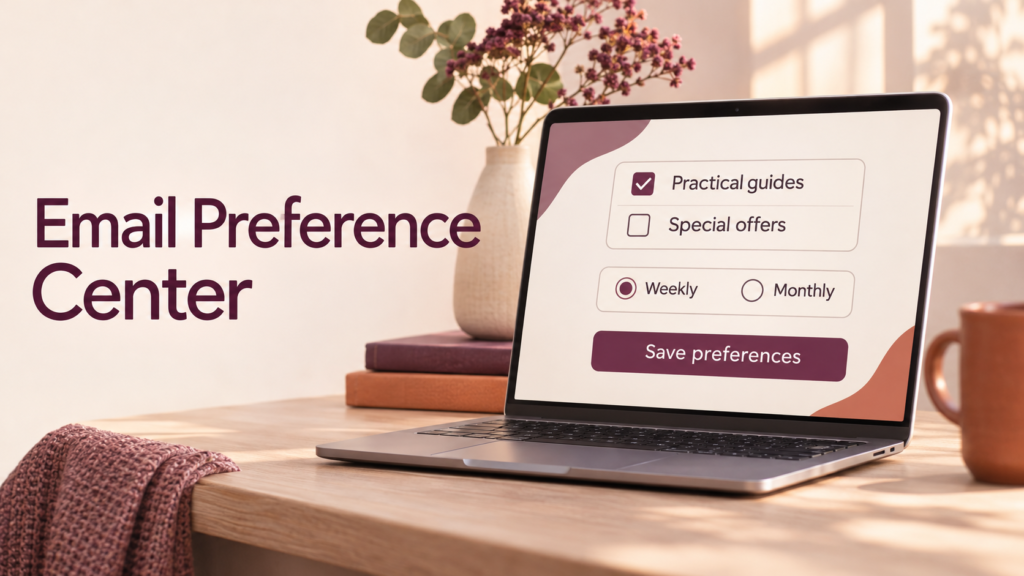
Here’s a sample form for a small publisher that sends practical guides and occasional promotions.
Manage your email preferences
What would you like to receive?
- ☐ Practical guides for running and marketing a small business
- ☐ Occasional offers on tools and services
How often would you like practical guides?
- ◯ Weekly roundup
- ◯ Monthly roundup
This schedule applies to practical guides. If you select occasional offers, we’ll send those separately.
Save my preferences
Unsubscribe from all marketing emails
Display the frequency choice only when the subscriber selects practical guides, or make it clear that frequency has no effect when guides are turned off. Decide what saving with every topic cleared does. If it stops all marketing emails, say so before saving and show that outcome in the confirmation. Make errors visible next to the relevant fields, and test that a subscriber can complete the form with a keyboard.
3. Connect each preference to your sending rules
Start by checking whether your email platform offers a hosted preference page connected to subscriber records. It can simplify the setup if it supports the choices you need and saves changes directly to the fields used in campaigns. For an existing list, map each subscriber’s current choices and unsubscribe status before enabling new fields. Leave newly introduced topics unselected where readers have given no indication they want them.
For example, Mailchimp’s hosted preference page uses audience groups for subscriber choices. Its update process sends a separate email with a link to the form. Check your provider’s official documentation for current setup steps, feature restrictions, and any additional costs. Mailchimp’s preferences center guide
Next, translate each form option into a send rule. A weekly guides campaign should require three things: the subscriber is eligible to receive marketing, practical guides are selected, and the weekly roundup is selected. The monthly campaign uses the same topic requirement with the monthly setting. An offers campaign checks the offers preference separately. Global unsubscribe overrides all topic and frequency choices.
Save those audience filters so campaign builders can reuse them. Apply the same eligibility rules to automated marketing emails, too. If you use more than one sending system, verify that each one respects the subscriber’s marketing status. In particular, test that a contact import or CRM sync preserves an existing unsubscribe.
4. Make the page easy to open and confirm changes
Add Manage email preferences and Unsubscribe as separate, plainly labeled links in every marketing email footer. Use the preference link generated for the recipient by your email platform where available. For a preference page visitors can reach from your website, verify that they control the email address before displaying or changing saved settings.
Give subscribers a confirmation that tells them what to expect. For example, “Preferences saved. You’ll receive the monthly guides roundup. Special offers are turned off.” If a link expires, offer a clear way to request a fresh one. For people who want to leave, provide a direct unsubscribe path without requiring them to sign in or answer a survey.
5. Test what the next campaign will actually send
A success message confirms what the page displayed. To verify that the change took effect, save preferences on a test contact and check both the stored values and the audience for the next send.
| Test | Expected result |
|---|---|
| Open the page on a phone from a live campaign sent only to test contacts | The page shows the contact’s saved choices, and the controls are easy to use |
| Switch guides from weekly to monthly | The contact leaves the weekly audience and enters the monthly audience |
| Turn off offers while keeping guides | The contact is excluded from offers and remains eligible for the chosen guides schedule |
| Clear every topic | The form explains the outcome, and the next send reflects it |
| Unsubscribe, then run a contact sync | The contact stays suppressed across marketing campaigns and automations |
| Open an invalid or expired link | The page offers a recovery path without exposing subscriber details |
Use a live send to a test-only audience if your platform leaves personalized links blank in ordinary previews or test emails. Also test a change after a campaign is scheduled. Some workflows prepare the recipient list before send time. If your test contact still appears after opting out, determine when eligibility is checked and configure your sending workflow so it applies the latest suppression status before sending.
6. Review how people use it
For the first month, track preference-page visits, successful saves, the options people choose, and unsubscribes from marketing campaigns. Use counts alongside rates so a change on a small list stays in perspective. If the form gets visits but few saves, check for confusing labels, mobile issues, or failures during submission.
If many readers switch from weekly to monthly, confirm that the monthly digest arrives as promised. Then compare how the two groups respond to their respective emails. People choose their own groups, so differences in clicks or unsubscribes may reflect who chose each schedule as well as the schedule itself.
Frequently asked questions
Is an email preference center the same as an unsubscribe page?
A preference center lets people change individual topics or frequency. An unsubscribe page lets them stop marketing emails altogether. Give both actions clear links so each is easy to find.
How many choices should I offer?
Start with two or three choices if those reflect what you actually send. A local service business might offer maintenance tips and special offers. A publisher might offer a weekly roundup and a monthly digest. Add another choice when you have a clear reason for it and a dependable way to honor it.
Can I let people pause marketing emails temporarily?
Yes, if your sending system can reliably store the pause end date and exclude paused contacts from scheduled campaigns and automations. Tell subscribers when emails will resume and let them unsubscribe during the pause. Test the restart with a test contact before offering it.
Can I add a preference center to an existing email list?
Yes. Map existing topic choices to the new fields and preserve each contact’s current subscription status. If you lack reliable records of a topic preference, leave the new option unselected and let eligible subscribers choose it themselves.
Will unsubscribing stop order confirmations and password resets?
A marketing unsubscribe should stop promotional messages. Keep essential service emails, such as receipts and password resets, on a separate sending workflow so you can test how each behaves. Keep those messages focused on the transaction or account action.
Conclusion
Build your first version around one choice people are likely to use. If subscribers want to keep your guides while turning off offers, give them that choice and verify that the next promotional send excludes them. Add frequency controls when you have the schedule and sending rules to honor them.