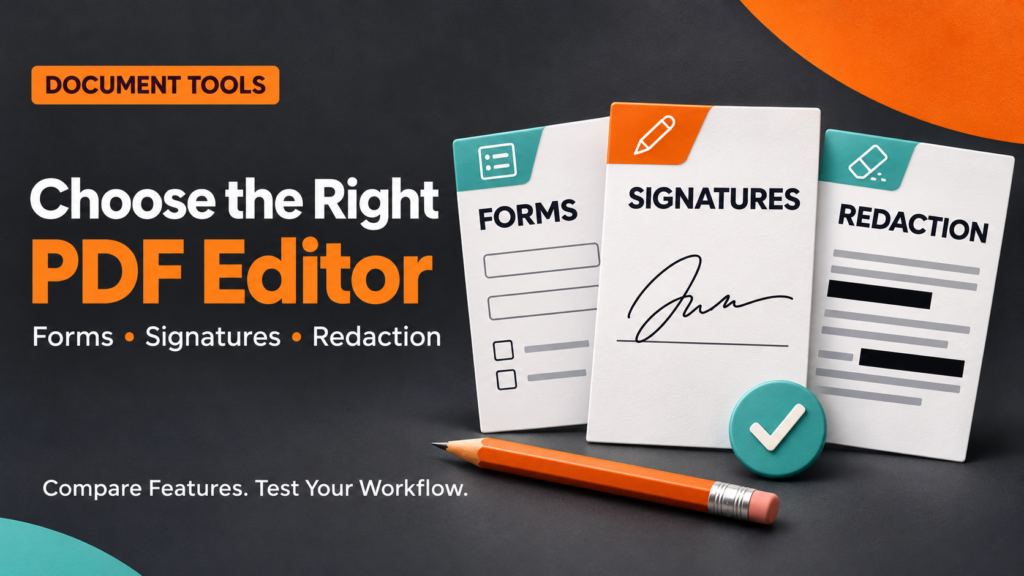

Two PDF applications can display the same document perfectly while offering very different editing capabilities. One might fill existing forms but not create them. Another might insert a signature image without supporting a tracked signing process. A drawing tool might cover confidential text without removing it.
Understanding how to choose a PDF editor for forms, signatures, and redaction starts with these distinctions.
This guide explains what to compare, how to check subscription limits, and how to test shortlisted software using non-sensitive sample documents. The goal is to choose a tool that completes your actual workflow reliably.
Start With the Tasks You Need to Complete
Write down what happens to your documents from creation to delivery.
For example:
- Create an application form.
- Send it to someone who uses a free PDF reader.
- Collect completed fields.
- Request signatures.
- Remove private information from a separate disclosure copy.
- Store the final documents securely.
This workflow may require several capabilities that vendors place in different plans.
| Task | Capability to verify |
|---|---|
| Complete an existing form | Form filling and saving |
| Build a reusable form | Interactive field creation |
| Sign your own document | Appropriate self-signing tools |
| Collect signatures from others | Signature requests and tracking |
| Verify certificate-based signatures | Digital-signature validation |
| Remove confidential content | Permanent redaction |
| Process scanned pages | OCR and image-aware editing |
| Remove hidden information | Inspection and sanitization tools |
Mark each capability as essential, useful, or unnecessary before comparing products.
PDF Reader vs. PDF Editor: What Is the Difference?
A PDF reader primarily opens and displays files. It may also support comments, existing form fields, and basic signing.
A PDF editor can offer deeper changes, such as modifying content, organizing pages, creating fields, or applying redaction.
These labels are broad. A product called an “editor” may still reserve particular features for a higher tier or separate service.
Compare the exact plan, operating system, and application—not just the product name.
How to Choose a PDF Editor for Forms, Signatures, and Redaction
1. Distinguish Filling Forms From Creating Forms
Typing into an existing field is different from building a form someone else can complete.
If you create forms, look for:
- Text fields and multiline responses.
- Checkboxes and radio-button groups.
- Dropdown lists.
- Date and number formatting.
- Field labels and instructions.
- Keyboard navigation and tab order.
- Required-field settings.
- Calculations, where needed.
Adobe’s documentation, for example, describes converting scanned forms and documents from other applications into fillable PDFs. Automatic field detection can assist, but the resulting form still needs testing. Adobe Acrobat
Use clear field names and labels. A form that looks tidy can still be difficult to navigate or interpret.
2. Test Forms in the Applications Recipients Use
Do not assume that a form working in the editor will behave identically everywhere.
Open it in the PDF reader, browser, and mobile application your recipients are likely to use.
Check whether they can:
- Enter information.
- Move between fields.
- Select only one option in a radio-button group.
- Save their responses.
- Close and reopen the file.
- Print a readable copy.
Test calculations and validation separately. A “required” field setting should not be treated as a complete submission-control system across every viewer.
Ask whether your existing forms use specialized formats or scripting that the shortlisted editor supports.
3. Define Which Signature Workflow You Need
“Supports signatures” can describe several different functions.
| Signature capability | What it provides | What to investigate |
|---|---|---|
| Typed, drawn, or image-based signature | A visible signature added to a document | Whether it satisfies the intended workflow |
| Electronic-signature request | A process for inviting and tracking signers | Authentication, signing order, records, and limits |
| Certificate-based digital signature | Cryptographic signing associated with a digital ID | Certificate trust and validation support |
Adobe documents digital signatures as a type of electronic signature that uses a certificate-based digital ID. Adobe Acrobat Sign
A visible signature image does not provide the same technical evidence as a certificate-based signature.
For signature requests, check:
- Whether recipients need an account.
- Mobile signing usability.
- Multiple signers and signing order.
- Reminders and expiry settings.
- Available identity-verification methods.
- Downloadable completed files and activity records.
- The number of included transactions.
Confirm the requirements of the document’s recipient or your organization. Software functionality alone does not establish legal suitability for every document or jurisdiction.
4. Require Actual Redaction
Redaction removes selected information from the output document.
Drawing a black rectangle over text is an annotation. The underlying content may remain available through copying, searching, or removing the shape.
Look for a dedicated redaction workflow that supports the content you handle:
- Text.
- Images and scanned regions.
- Repeated words or identifiers.
- Multiple pages.
- Hidden content inspection.
Adobe’s documented text-redaction process separates marking content from applying the redactions. The marks are not the completed removal step. Adobe Acrobat
Keep an access-controlled original and create a separate release copy. Apply the redactions, save the result, and inspect that final file.
5. Check Hidden Information and OCR Layers
A PDF can contain more information than the visible page suggests.
Depending on its construction, it may include comments, metadata, attachments, form values, layers, or searchable text behind scanned images.
A useful editor should help you inspect and remove information that does not belong in the shared copy. Adobe documents sanitization as a separate tool for removing sensitive or hidden content. Adobe Acrobat
For scanned documents, test both image-region redaction and the OCR text layer.
Search-based redaction depends on finding the correct text. Recognition errors can cause matches to be missed, so visually review the pages as well.
6. Confirm Platform Support and Data Handling
Check the features available on your actual devices.
A Windows application, Mac application, web version, and mobile version may differ even when sold under one subscription.
Ask:
- Can the essential work be completed offline?
- Which actions upload documents to a server?
- Where are uploaded files processed and retained?
- Can cloud or AI features be disabled?
- What administrative controls are available?
- How are accounts and licenses removed when staff leave?
Use non-sensitive samples during trials until the service’s handling of documents has been approved for your business.
7. Compare the Complete Plan Cost
Separate editing licenses from signature-service allowances and other charges.
For example, Foxit’s current pricing comparison distinguishes editor features from additional e-signature capabilities and envelope allowances in its plans. This illustrates why “signing included” needs closer inspection. Check the current plan details before purchasing. Foxit
Your comparison should cover:
| Cost item | Question to ask |
|---|---|
| User licenses | How many people need paid editing access? |
| Signature transactions | What counts as an envelope or transaction? |
| Overages | What happens after the allowance is used? |
| OCR or automated tools | Are there page, file, or credit limits? |
| Platform access | Are desktop and mobile applications included? |
| Billing commitment | Is monthly billing tied to an annual contract? |
| Renewal | What price applies after any introductory period? |
| Perpetual licensing | Which updates and support are included? |
Request a written quote if the published plan does not clearly cover your workflow.
A Practical PDF Editor Trial Checklist
Prepare dummy documents containing no real customer information.
Form Test
Create a one-page form with:
- A name field.
- A multiline address.
- Two checkboxes.
- A radio-button group.
- A date field.
- A calculated total, if needed.
Complete it in another reader, save it, reopen it, and print it. Confirm that responses remain present and readable.
Signature Test
Send a sample document to two test recipients.
Check the signing order, mobile experience, notifications, completed-file download, and available evidence of the signing process.
If certificate signatures are required, test with an appropriate certificate and the receiving application’s validation tools.
Redaction Test
Create a dummy PDF containing a made-up identifier in:
- Ordinary page text.
- A scanned image with OCR.
- A comment.
- Document metadata.
Apply the appropriate redaction and sanitization steps. Save a new file and reopen it.
Then:
- Search for the identifier.
- Try selecting and copying the affected areas.
- Export text if available.
- Inspect comments, attachments, and properties.
- Review every page visually.
These checks help detect mistakes but are not a universal guarantee. Sensitive releases may require an additional review by someone trained in document disclosure.
Worked Example: A Small Consulting Team
Consider a fictional consulting firm with five employees.
It needs to create client intake forms, request signatures on proposals, and remove personal information from project examples.
The team initially considers buying five identical premium subscriptions. Its workflow review finds:
- Two employees create and redact documents.
- Three mainly read and comment.
- One administrator sends signature requests.
- Clients should be able to complete forms without buying software.
The firm trials suitable plans with dummy documents. It checks whether fewer editor seats, combined with an appropriate signing service, cover the work.
The lesson is to license actual responsibilities. Every employee may not need the same paid features, while the person handling redaction must have the correct tools.
Common Buying Mistakes
Choosing by editing appearance alone. Replacing a paragraph does not test forms, signing, or permanent removal.
Treating a signature image as every signing solution. Match the method to the recipient’s requirements.
Confusing flattening with redaction. Flattening is not a substitute for a verified removal workflow.
Testing only inside the vendor’s application. Recipients may use different software.
Editing after signing. Changes can affect signature validation or require a fresh signing process. Finalize content before collecting signatures.
Assuming a searchable PDF is fully accessible. Accessibility can also require tags, reading order, field descriptions, and further checks.
Frequently Asked Questions
1. Do I need a paid editor just to fill a PDF form?
Not necessarily. A reader may be sufficient for supported existing forms. Test whether your chosen application saves responses correctly.
2. Is drawing a black box over text safe redaction?
No. A covering shape may leave the underlying content intact. Use a dedicated redaction tool, apply the removal, and verify the saved output.
3. Can one application handle forms, signatures, and redaction?
Some can, but features may depend on the plan, platform, or a connected signing service. Verify each requirement separately.
4. Should I choose a desktop or online PDF editor?
Choose based on features, document sensitivity, connectivity, and approved data handling. Check whether a desktop product also uses cloud processing for particular actions.
5. What is the best way to compare PDF editors?
Use the same non-sensitive sample files and task checklist in each trial. Record whether essential tasks work, what extra services are required, and the total cost.
Conclusion
Choose a PDF editor by testing the documents your business creates, signs, and shares. Confirm that forms work for recipients, signature tools meet the workflow, and redaction removes information from the final file.
Compare the exact plan and platform after those essential checks. A successful trial provides a stronger basis for buying than a long feature list alone.