
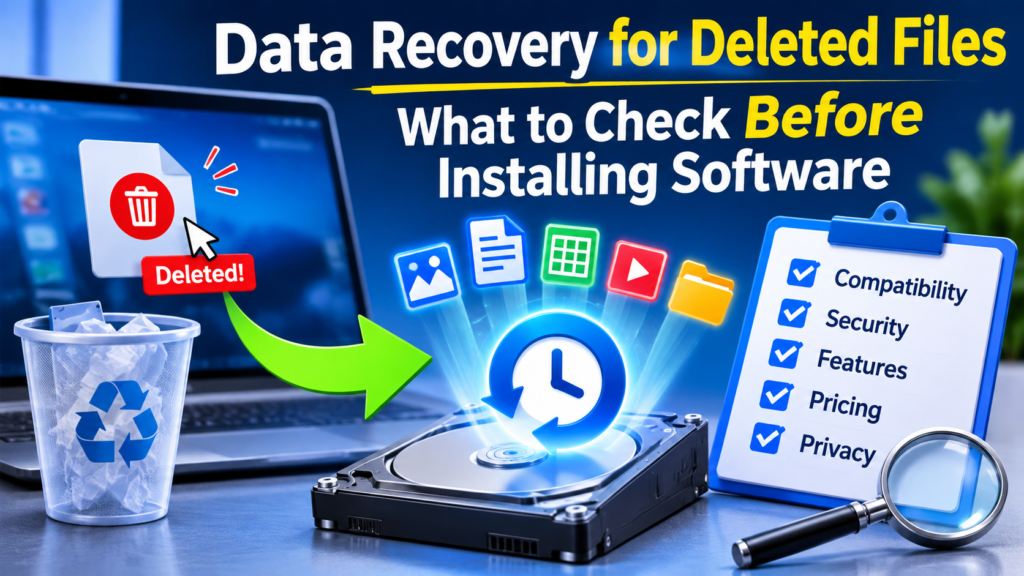

Accidentally deleting an important document, photograph, video, or business file can be stressful. The situation becomes even more concerning when the file is not in the Recycle Bin or Trash. Fortunately, data recovery for deleted files may be possible in many situations, depending on how the files were deleted, the storage device being used, and whether new data has overwritten the deleted information.
Data recovery software can help scan storage devices and identify files that may still be recoverable. However, installing the wrong program or using a recovery tool incorrectly can reduce the chances of getting your files back.
Before downloading any recovery application, it is important to understand how deleted files work, what software can realistically recover, and which security and compatibility factors to check.
This guide explains what to do immediately after losing files and how to evaluate data recovery software before installing it.
1. Understand What Happens When You Delete a File
Deleting a file does not always mean that its contents disappear immediately from your storage device.
On many traditional hard drives, deleting a file usually removes its directory reference or marks the space it occupies as available for reuse. The underlying data may remain on the drive until new information overwrites it.
For example, if you delete a 500 MB video from a hard drive, the operating system may mark the space occupied by that video as available. The actual video data may remain there temporarily.
This is why recovery software can sometimes locate deleted files.
However, recovery is not guaranteed. Several factors affect the outcome:
- Whether new files have been saved to the storage device.
- Whether the storage device is a hard disk drive (HDD) or solid-state drive (SSD).
- Whether the file was permanently deleted or the storage device was formatted.
- Whether the file system is damaged.
- Whether the storage device has physical problems.
- Whether encryption or other security features affect access to the data.
Understanding these factors helps you choose the right recovery approach instead of installing software immediately.
2. Stop Using the Storage Device Immediately
One of the most important steps after accidentally deleting files is to stop using the affected storage device as much as possible.
When you continue downloading files, installing applications, editing documents, or saving new information, the operating system may reuse storage space previously occupied by deleted files.
This can permanently overwrite the information you want to recover.
For example, imagine you accidentally delete an important work folder from your laptop. You then download a large application and install it on the same drive. Some of the new application data could occupy storage space that previously contained parts of your deleted folder.
To protect your recovery chances:
- Stop downloading files to the affected drive.
- Avoid installing recovery software on that same drive.
- Do not copy new documents or videos onto it.
- Avoid running unnecessary disk-cleaning applications.
- Do not format the storage device.
- If possible, disconnect an external drive safely and leave it unused.
If the deleted files are particularly important, consider professional recovery assistance before attempting complicated recovery procedures.
3. Check the Recycle Bin, Trash, and Backup Locations First
Before installing recovery software, check whether the deleted files are available through normal operating-system features or backups.
This is usually safer, easier, and less expensive than using third-party recovery tools.
Check the Windows Recycle Bin
On Windows computers:
- Open the Recycle Bin from the desktop.
- Search for the deleted file or folder.
- Check the original file name and deletion date.
- Right-click the file.
- Select Restore.
The restored file normally returns to its original location.
Check the macOS Trash
On a Mac:
- Open Trash from the Dock.
- Locate the deleted file.
- Right-click the file.
- Select Put Back.
Check Cloud Storage
If you use cloud storage, check its deleted-file or recovery section.
For example:
- Microsoft OneDrive provides a Recycle Bin for deleted files.
- Google Drive provides a Trash section.
- Dropbox provides deleted-file recovery options depending on the account and retention period.
You should also check whether the service has version history or file restoration features.
Check External Backups
Look for copies stored on:
- External hard drives.
- USB flash drives.
- Network storage devices.
- Backup applications.
- Another computer.
- Business file-sharing platforms.
Practical tip: If you find the file in a cloud backup or Recycle Bin, restore it to a different safe location where possible. Avoid writing recovered files back to the affected storage device.
4. Identify the Storage Device Before Choosing Recovery Software
Not every recovery application works equally well with every storage device.
Before installing software, identify where the deleted files were originally stored.
| Storage device | What to consider |
|---|---|
| HDD | Deleted data may remain until overwritten, making recovery possible in some cases. |
| SSD | TRIM and other storage-management functions can make deleted data difficult or impossible to recover. |
| USB flash drive | Recovery depends on the file system, device condition, and whether data has been overwritten. |
| SD card | Recovery tools may support common camera and removable-storage formats. |
| External hard drive | Check connection problems, file-system damage, and the condition of the drive. |
| Memory card | Avoid taking additional photographs or recording videos after deletion. |
Why HDD and SSD Recovery Are Different
Traditional hard drives store data magnetically on physical disks. Deleted information may remain available until the relevant storage areas are overwritten.
SSDs work differently. They use flash memory and may support a feature called TRIM, which allows the operating system to inform the drive that certain data blocks are no longer needed.
When TRIM is active, deleted data may become unavailable for recovery much sooner.
This means that a recovery program that works well with an HDD may not achieve the same results with an SSD.
5. Check Software Compatibility Before Downloading
One of the first things to verify is whether the recovery application supports your computer and storage device.
Do not assume that every recovery program works on every operating system.
Check the following details:
Operating System Support
Confirm whether the software supports:
- Windows 10 or Windows 11.
- macOS versions compatible with your computer.
- Linux distributions, if required.
Also check whether the application supports your operating-system architecture.
File System Support
Storage devices use different file systems to organize information.
Common examples include:
- NTFS: Frequently used by Windows.
- FAT32: Common on older removable storage devices.
- exFAT: Often used for USB drives and SD cards.
- APFS: Used by modern Apple devices.
- HFS+: Used by older macOS systems.
- ext4: Common on Linux systems.
Choose software that explicitly supports the file system used by your storage device.
Device Support
Check whether the software can scan the specific device where your files were deleted.
For example, if you lost photographs from an SD card, confirm that the application supports removable memory cards and the relevant file system.
6. Evaluate the Software’s Recovery Features
Not all recovery applications provide the same features.
Some tools focus on recovering recently deleted files, while others support formatted drives, damaged partitions, and different file systems.
Before installation, examine the following capabilities.
Deleted File Recovery
The software should be able to search for files deleted through normal file-management operations.
Deep Scanning
A deep scan examines storage more extensively than a basic scan. It may identify files that are not found during a quick scan.
However, deep scanning can take considerably longer, particularly on large storage devices.
File Preview
A preview feature allows you to inspect recoverable files before restoring them.
This is useful when several files have similar names or when you want to check whether a photograph or document is still readable.
File Type Support
Check whether the application supports the file types you need.
| File category | Examples |
|---|---|
| Documents | DOCX, PDF, XLSX, PPTX |
| Images | JPG, PNG, GIF, TIFF |
| Videos | MP4, MOV, AVI |
| Audio | MP3, WAV, AAC |
| Archives | ZIP, RAR, 7Z |
Support varies between applications. A file appearing in scan results does not necessarily mean that it can be restored successfully.
Partition Recovery
If an entire partition has disappeared or become inaccessible, a tool with partition recovery capabilities may be more suitable than a basic deleted-file recovery application.
7. Verify the Software Developer and Download Source
Data recovery software may request access to your storage devices and files. Therefore, downloading an application from an untrusted website creates unnecessary security risks.
Some websites distribute modified installers, unwanted applications, fake recovery tools, or programs containing malware.
Before downloading anything, check the following:
- Is the developer clearly identified?
- Does the software have an official website?
- Is the download page using a secure HTTPS connection?
- Is there a privacy policy?
- Are the terms of service available?
- Does the developer provide support documentation?
- Are the installation requirements clearly explained?
- Can you find independent reviews of the application?
Avoid downloading recovery software from suspicious advertisements, unknown file-sharing websites, or unofficial download mirrors.
Also check whether the installer offers additional applications or browser extensions that you do not need.
Important: A professional-looking website does not automatically prove that software is safe. Verify the developer and download source before installing the program.
8. Understand Free and Paid Recovery Limitations
Many recovery applications advertise free scanning but require payment to restore files.
This is not necessarily a problem, but you should understand the limitations before spending money.
A free version may include:
- Basic deleted-file scanning.
- Limited recovery capacity.
- File previews.
- Limited file-type support.
- Restrictions on advanced scanning.
A paid version may offer:
- Larger recovery limits.
- Advanced scanning options.
- Partition recovery.
- Technical support.
- Additional file-system support.
However, paying for software does not guarantee successful recovery.
Example: Comparing Recovery Software Costs
Imagine you are comparing three hypothetical recovery applications.
| Feature | Software A | Software B | Software C |
|---|---|---|---|
| Free recovery limit | 500 MB | 2 GB | Scan only |
| Deep scan | Yes | Yes | Yes |
| File preview | Yes | Yes | Yes |
| Partition recovery | No | Yes | Yes |
| One-time price | $39 | $59 | $49 |
If you only need to recover a small document, Software A may be sufficient. If you need advanced partition recovery, Software B or C may be more suitable, depending on their compatibility and other features.
These figures are illustrative examples, not current product prices.
Before purchasing, confirm whether the license is a one-time payment or a recurring subscription. Also check the refund policy and whether the license covers one computer or multiple devices.
9. Check Privacy and Data Security Policies
Deleted files may contain personal information, financial records, business documents, or confidential photographs.
Therefore, privacy should be an important part of your software evaluation.
Before installing a recovery application, check:
Data collection: Does the application collect device information, usage statistics, or file-related information?
Cloud processing: Does the software scan files locally or upload information to an online service?
Privacy policy: Does the developer explain how personal information is collected, stored, and used?
Permissions: Does the application request permissions that are necessary for its recovery functions?
Data handling: Does the developer explain how customer information is protected?
For sensitive business or personal information, prioritize a reputable tool that performs recovery locally and clearly explains its privacy practices.
Avoid uploading confidential files to unfamiliar online recovery services.
10. Understand the Risks of Installing Recovery Software on the Affected Drive
Installing recovery software on the same drive where files were deleted can reduce the chances of successful recovery.
For example, if you accidentally delete a business report from your laptop’s C: drive and then install recovery software on that same drive, the installation may write new data to storage areas that previously contained the report.
A safer approach is to:
- Use another computer if practical.
- Download the recovery application onto a separate storage device.
- Connect the affected drive as a secondary device, if appropriate.
- Run the recovery scan without saving new information to the affected drive.
- Restore recovered files to a different storage device.
For advanced situations, creating a sector-by-sector image of the affected drive before attempting recovery can help preserve its current condition. This is particularly useful when working with damaged or unstable storage media, but it should be performed carefully.
If the drive is physically failing, professional assistance is generally safer than repeatedly scanning it.
11. Know When You Should Avoid DIY Recovery
Recovery software is not suitable for every data-loss situation.
Sometimes the storage device has physical damage or serious hardware problems.
Consider professional data recovery assistance if:
- The hard drive makes clicking, grinding, or unusual noises.
- The computer cannot detect the storage device.
- The drive repeatedly disconnects.
- The storage device has suffered water or physical damage.
- Important files disappeared after a serious hardware failure.
- The drive contains critical business or legal information.
- The storage device is encrypted and you cannot access the required credentials.
Do not repeatedly power on a physically damaged hard drive or attempt to open it yourself.
For important data, a professional recovery service may offer a safer approach because physical recovery requires specialized equipment and controlled working conditions.
12. A Practical Checklist Before Installing Data Recovery Software
Use this checklist before downloading or installing any recovery application.
| Check | What you should confirm |
|---|---|
| Deleted file location | You know which drive or device contained the file. |
| Recycle Bin or Trash | You have checked normal deletion locations. |
| Backups | You have checked cloud and external backups. |
| Device type | You know whether it is an HDD, SSD, USB drive, or memory card. |
| Operating system | The application supports your computer. |
| File system | The software supports the storage device’s file system. |
| Recovery features | It supports the type of file recovery you need. |
| Developer | The software comes from a reputable developer. |
| Download source | You are downloading from an official or trusted source. |
| Privacy | You understand how the application handles your data. |
| Pricing | You understand free limits, subscriptions, and license terms. |
| Recovery destination | You have a separate drive for restored files. |
| Device condition | You have considered whether professional recovery is necessary. |
Completing these checks can help you avoid unnecessary software installations and protect your chances of recovering deleted information.
13. Common Mistakes to Avoid During File Recovery
Even when recovery software is suitable, mistakes during the recovery process can create additional problems.
Installing Multiple Recovery Applications
Installing several recovery tools on the affected drive can write additional data and complicate the recovery process.
Start by evaluating one suitable application and use a separate device for installation where possible.
Saving Recovered Files to the Same Drive
Recovered files should be saved to a different physical storage device whenever possible.
For example, if you are recovering files from an internal laptop drive, save them to an external hard drive or another safe location.
Assuming Every Scanned File Is Recoverable
Recovery software may display deleted files that are incomplete, corrupted, or partially overwritten.
Use the preview feature when available and verify restored files before relying on them.
Ignoring SSD Limitations
Some users assume that deleted files can always be recovered from an SSD. However, TRIM and other storage-management functions can make recovery difficult or impossible.
Choosing Software Based Only on Advertising
Marketing claims such as “recover everything” or “100% recovery guaranteed” should be treated cautiously.
Evaluate compatibility, technical features, security, independent reviews, and realistic recovery limitations instead.
14. How to Reduce the Risk of Losing Important Files Again
Recovering deleted files is useful, but preventing data loss is a better long-term strategy.
Individuals and businesses should establish a consistent backup routine.
Follow the 3-2-1 Backup Rule
The 3-2-1 backup rule recommends keeping:
- Three copies of important data.
- Two copies on different types of storage media.
- One copy stored off-site or in a separate location.
For example, a small business might keep its working documents on a computer, a second copy on an external hard drive, and another copy in a secure cloud storage service.
Enable Automatic Backups
Use available backup features to reduce dependence on manual copying.
Examples include:
- Windows File History or other Windows backup options.
- macOS Time Machine.
- Cloud backup services.
- Business backup applications.
Check that backups are completing successfully rather than assuming that automatic backup is working.
Test Your Backups
A backup is only useful if you can restore the information.
Periodically restore a few sample files to confirm that the backup is complete and accessible.
Organize Important Documents
Use clear folders and consistent file names to reduce accidental deletion.
For business records, consider restricting deletion permissions to authorized staff and maintaining appropriate document-retention procedures.
Frequently Asked Questions
1. Can permanently deleted files be recovered?
Sometimes. Permanently deleted files may remain on a storage device until the relevant data is overwritten or removed through storage-management processes. Recovery depends on the device type, file system, deletion method, and storage activity. Success is not guaranteed.
2. Is free data recovery software safe?
Some free recovery applications are legitimate, but free software is not automatically safe. Check the developer, official download source, privacy policy, permissions, and independent reviews before installation.
3. Can I recover deleted files from an SSD?
Recovery may be possible in some circumstances, but SSD recovery is more complicated than traditional hard-drive recovery. TRIM and other storage-management functions can make deleted information unavailable.
4. Should I install recovery software on the same drive?
It is generally better to avoid installing recovery software on the affected drive. Installation can write new data and potentially overwrite information you want to recover. Use another computer or separate storage device where practical.
5. Can recovery software restore corrupted files?
Some applications can recover files from damaged file systems or partially corrupted storage devices. However, recovering a file does not guarantee that its contents will be usable. Severe corruption or physical damage may require professional assistance.
6. How long does data recovery take?
Recovery time depends on storage capacity, device condition, scanning method, connection speed, and the number of files. A quick scan may take minutes, while a deep scan of a large storage device can take several hours or longer.
7. Can I recover deleted photos from an SD card?
Yes, sometimes. Stop using the card immediately, avoid taking additional photographs, and check whether a backup exists. If necessary, use a reputable recovery application that supports the card’s file system. Save recovered photographs to another device.
8. Does formatting a drive permanently delete everything?
Not always. Some formatting operations remove file-system references without immediately overwriting all underlying data. However, a full format, secure erase, encryption-related processes, or SSD TRIM can make recovery much more difficult or impossible.
9. Is professional data recovery better than software?
It depends on the situation. Software may be suitable for accidental deletion and some logical file-system problems. Professional services are more appropriate for physical damage, failing drives, or highly important information where additional DIY attempts could create risks.
10. Does paid recovery software guarantee that my files will return?
No. Paid software may provide additional features and support, but it cannot guarantee recovery. Files that have been overwritten, securely erased, or made inaccessible through certain storage-management processes may not be recoverable.
Conclusion
Choosing the right data recovery application requires more than comparing prices or downloading the first tool that appears in search results. Before installing anything, understand what happened to your files, stop using the affected storage device, check available backups, and confirm that the software supports your device and file system.
Pay particular attention to developer reputation, privacy policies, recovery limitations, and where restored files will be saved. Remember that SSDs, physically damaged drives, and overwritten files present additional recovery challenges.
Most importantly, establish a reliable backup routine so that accidental deletion does not become a permanent loss. A combination of careful software selection, safe recovery practices, and regular backups provides a more dependable approach to protecting important information.