
Copying information between apps can become a regular part of the working day. You add a request to a spreadsheet, create a matching task, and copy the same details into its description.
No-code automation can handle that transfer using rules you configure through a visual interface.
If you want to learn how to build your first no-code automation, start with one predictable task. Choose a clear event, connect it to one useful action, and test whether the result matches what you would do manually.
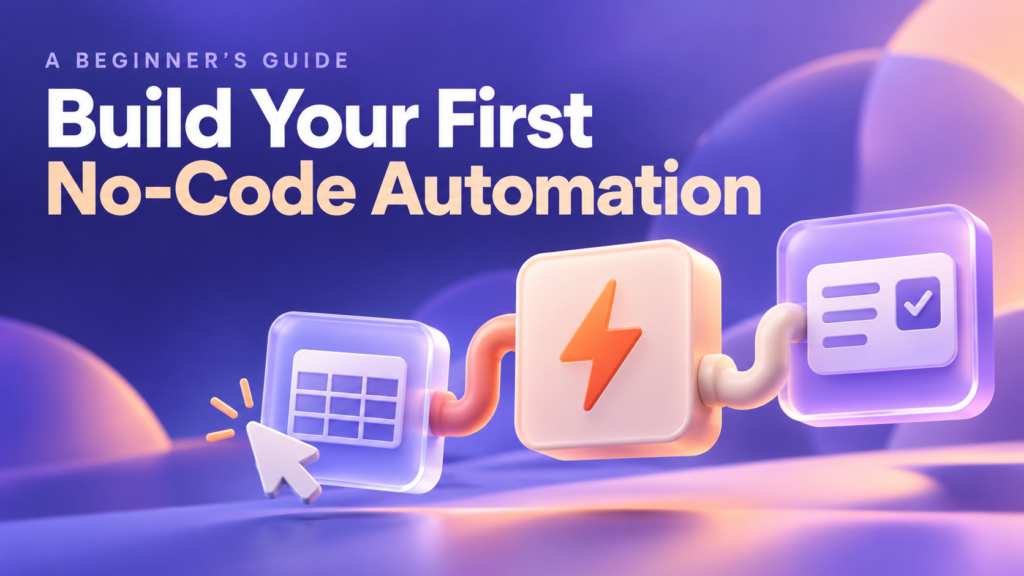
This guide walks through a practical example: creating a Trello task card when a new row is added to Google Sheets. It also explains how to check costs, avoid common mistakes, and maintain the workflow after it goes live.
What Is No-Code Automation?
No-code automation uses visual tools and app connections to carry out a process without requiring you to write the underlying software code.
A basic workflow follows a simple rule:
When a particular event happens, perform a particular action.
For example:
- When a new spreadsheet row appears, create a task.
- When a form is submitted, add the response to a tracking system.
- When a scheduled time arrives, prepare an internal reminder.
The available events and actions depend on the apps, their integrations, your account permissions, and your subscription plan.
No-code tools simplify the setup, but you still need to decide what should happen and check that it happens correctly.
Understand the Basic Building Blocks
| Term | Meaning | Example |
|---|---|---|
| Trigger | The event that starts a workflow | A new spreadsheet row |
| Action | The task the workflow performs | Create a task card |
| Field mapping | Connecting incoming information to destination fields | Use the spreadsheet’s Task Title as the card name |
| Filter | A condition that determines whether processing continues | Continue only when a required value exists |
| Run | One execution of the workflow | Processing one new request |
| Run history | A record of executions and their results | A successful card creation or an error |
Some workflows receive events promptly through an app connection. Others check for new information periodically. Do not assume every automation runs immediately.
Choose a Suitable First Task
Your first automation should be easy to explain and easy to verify.
Look for a process that:
- Happens repeatedly.
- Uses a consistent source of information.
- Follows clear rules.
- Produces a result you can inspect.
- Can be corrected without much difficulty.
Creating an internal task from a spreadsheet entry is a useful starting point. You can see the source row, inspect the resulting task, and correct mistakes.
Processes involving judgment, sensitive records, payments, or irreversible changes need more careful design and review.
Write the Rule Before Opening a Tool
Describe the workflow in one sentence:
When a complete new request is added to my tracking spreadsheet, create a card in my task board’s Inbox list.
This gives you a clear scope. Start with that transfer before adding reminders, routing rules, or additional systems.
What You Need for the Example
This walkthrough uses:
- Google Sheets as the source.
- Trello as the destination.
- Zapier to connect them.
- A test spreadsheet and a private test board.
- Permission to connect the relevant accounts.
Zapier documents a Google Sheets–Trello integration that creates a card from a new spreadsheet row. Check the current integration details and plan requirements before setting it up.
The workflow pattern can also be applied in other automation platforms where equivalent integrations are available. Menu labels and setup options will differ.
How to Build Your First No-Code Automation
Step 1: Prepare a Clean Source Spreadsheet
Create a test spreadsheet with a clearly named worksheet, such as Automation Test Requests.
Use a single header row with these columns:
| Request ID | Task Title | Details |
|---|---|---|
| TEST-001 | Review the newsletter draft | Check the introduction and confirm the links work |
Keep each request on one row. Use clear, unique column names and avoid merged cells within the data table.
The Request ID gives you a reference for tracing a card back to its source. It does not automatically prevent duplicate processing.
For this first version, add complete rows in one operation, such as pasting all values together. If people type into a live row gradually, a new-row trigger might detect it before every field is ready.
Step 2: Prepare the Destination Board
Create a private Trello test board and add a list called Inbox.
Check that the connected Trello account can create cards there.
Using a separate test board makes the results easy to inspect and prevents test cards from interrupting normal work.
Step 3: Create the Workflow and Select the Trigger
In Zapier, create a new workflow, called a Zap.
Select:
- Trigger app: Google Sheets.
- Trigger event: New Spreadsheet Row.
- Source: Your test spreadsheet and worksheet.
Choose the event carefully. A “new or updated row” event can behave differently from an event that watches only for new rows.
Connect your Google account through the platform’s sign-in process and review the permissions requested.
Step 4: Test the Trigger
Run the trigger test and inspect the returned sample.
Confirm that it contains:
- The correct request ID.
- The complete task title.
- The expected details.
- Information from the intended worksheet.
If the platform cannot find suitable sample data, add a fresh, complete test row and test again. Zapier’s trigger documentation recommends creating a new event in the source app when test data is unavailable.
Do not continue with an unrelated sample. The next step depends on the fields returned here.
Step 5: Add the Create Card Action
Select Trello as the action app and choose Create Card.
Connect the appropriate Trello account, then select your test board and its Inbox list.
Check these destinations carefully, especially if your account has access to several boards.
Step 6: Map the Fields
Field mapping tells the automation where incoming information belongs.
Use this arrangement:
| Trello field | Value to configure |
|---|---|
| Board | Select the test board |
| List | Select Inbox |
| Card name | Insert the Task Title field from Google Sheets |
| Description | Insert Request ID and Details, with clear labels |
A card description could look like this:
Request ID: TEST-001
Details: Check the introduction and confirm the links work.
Use the editor’s field picker to insert values from the trigger. If you manually type “Review the newsletter draft” into the card name, that fixed text could appear on every card.
After testing, inspect the actual Trello card to confirm the values were transferred correctly.
Step 7: Test the Action
Run the action test and open the resulting card in Trello.
Verify that:
- It appears on the correct board and list.
- Its title matches the source row.
- Its description contains the right request ID and details.
- No unnecessary information was included.
Action tests can make real changes. Zapier states that testing an action performs it in the connected app, which is why a test board is useful.
Retesting may create additional test cards. Review and remove those deliberately rather than assuming they are live-workflow duplicates.
Step 8: Publish and Test With Fresh Data
Once the setup works, publish or enable the workflow.
Add a new complete row with a different request ID, such as TEST-002. Allow time for the configured trigger to detect it.
Then check both the run history and the destination board.
This live test matters because retrieving a sample in the editor does not prove that a newly arriving record will be processed correctly.
Do not assume older rows will automatically be imported. Historical processing depends on the integration and any separate import or replay options.
Step 9: Document the Working Setup
Record a few practical details:
- Workflow name and purpose.
- Source spreadsheet and worksheet.
- Destination board and list.
- Required fields.
- Person responsible for maintenance.
- What to do if a run fails.
A short description is enough. It helps someone understand the workflow without rebuilding it from memory.
Handle Incomplete Records Before Expanding
The simple example assumes every new row is complete when added.
If that does not match your working process, change the design before relying on it. Options might include using a form that submits a complete record or a supported update trigger that responds to a “Ready” status.
Filters can stop incomplete records from continuing, but a filter alone does not guarantee the record will run again after someone fills in the missing information.
Any revised design needs fresh testing, including checks for repeated updates and duplicate cards.
Understand the Cost Before You Scale
Automation platforms can charge using different units, such as tasks, credits, or workflow executions. These terms are not interchangeable.
For example, Make distinguishes credits used to track consumption from operations that describe activity during scenario execution. Check its current documentation when estimating usage.
Before choosing a plan, check:
- Whether both app connections are included.
- How usage is counted.
- Whether tests and retries consume allowance.
- How often the trigger checks for new data.
- Whether filters or additional steps require another plan.
- What happens when the allowance is exhausted.
For a hypothetical workload of 200 new requests each month, estimate usage using the provider’s actual billing rules. Do not automatically equate 200 requests with 200 billable units.
Common Problems and How to Investigate Them
| Problem | What to check |
|---|---|
| No card appears | Workflow status, source worksheet, trigger timing, permissions, and run history |
| Card title is identical every time | Whether fixed text was entered instead of a mapped field |
| Details are missing | Sample data, field mapping, and whether the row was complete when detected |
| Cards appear in the wrong place | Selected Trello account, board, and list |
| Duplicate cards appear | Repeated tests, overlapping workflows, manual replays, or an update trigger |
| Workflow stops after working previously | Connection status, usage limits, app errors, or changed fields |
Read the error message before changing settings. Identify which step failed and inspect the data it received.
If you replay a failed run, check whether any earlier actions already succeeded. Repeating a workflow can repeat completed actions.
Keep the Automation Useful and Maintainable
A working automation still needs occasional attention.
Review run history during early use, enable relevant failure notifications, and assign an owner. Retest after changing spreadsheet headers, destination fields, or connected account permissions.
Keep the transferred data limited to what the task needs. Use approved accounts and access settings appropriate for the information involved.
Only add more steps when the original transfer is reliable. Each additional action introduces another result to verify and another possible source of cost or failure.
Frequently Asked Questions
1. Do I need programming skills to build a no-code automation?
Usually, no programming is required for supported workflows. You do need to understand the process, configure app connections, map fields, and investigate errors. More complex requirements may need formulas, API knowledge, or technical support.
2. Can I build my first automation for free?
Possibly. Check whether a current free plan supports your apps, workflow structure, and expected usage. Also confirm whether features available during a trial remain available afterward.
3. Will the automation run immediately?
That depends on the trigger, app connection, and plan. Some integrations receive events promptly; others check periodically. Review the trigger’s documented behavior and test the actual delay.
4. What should I do when an automation fails?
Inspect the run history to find the failed step. Check its error message, input data, permissions, and account limits. Correct the cause before retrying, and check for completed actions to avoid duplicates.
5. Does no-code automation require AI?
No. A rule-based workflow that transfers spreadsheet information into a task card does not need AI. AI can be added for suitable tasks, but it introduces separate considerations such as output accuracy, data handling, and cost.
Conclusion
Start your first no-code automation with a small, predictable transfer between apps. Prepare clean input data, map fields carefully, and verify the result with both editor tests and a fresh live record.
Once the workflow is dependable, you can consider additional steps. A useful first automation is one you understand, can monitor, and can correct when something changes.