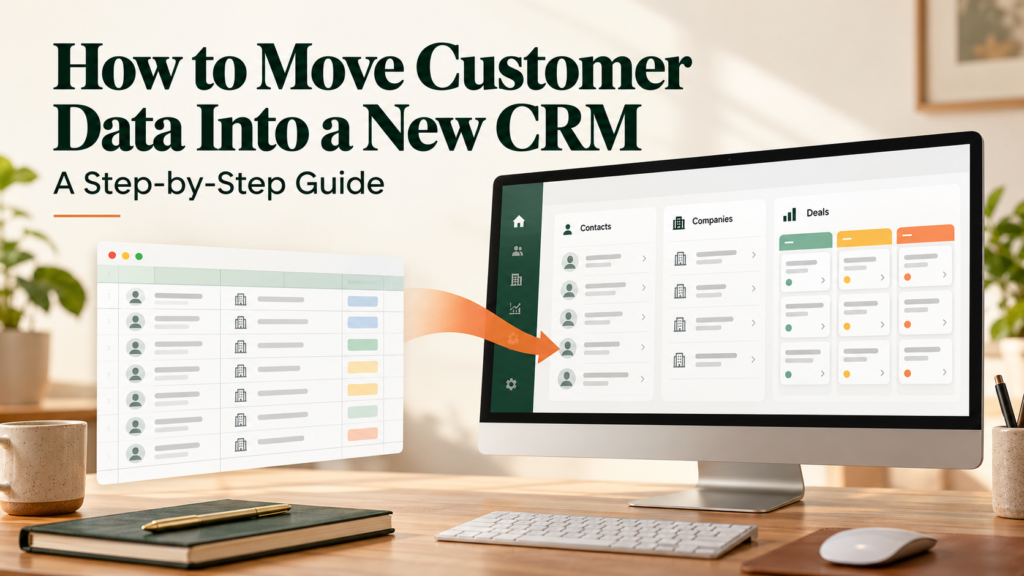

Moving to a new customer relationship management system should make customer information easier to find and use. However, transferring names and email addresses is only part of the job.
Your business may also need to move company records, open deals, customer notes, tasks, and communication preferences. If those details arrive incomplete or disconnected, your team could struggle to follow up with customers or understand previous conversations.
Learning how to move customer data into a new CRM starts with deciding what to transfer, preparing the records, and testing how they behave in the destination system. This guide explains the process, including practical checks to help you identify problems before your team starts using the new platform.
What Is CRM Data Migration?
CRM data migration is the process of transferring customer information from an existing system into a different CRM.
The source might be another CRM, a spreadsheet, a customer database, or several business applications.
Depending on your business needs, the information could include:
- Contacts: Names, email addresses, phone numbers, and job titles.
- Companies: Business names, domains, addresses, and account details.
- Deals: Opportunities, values, expected closing dates, and sales stages.
- Activities: Calls, meetings, notes, tasks, and communication history.
- Relationships: Connections between contacts, companies, deals, and support records.
- Communication preferences: Subscription status, opt-outs, and supporting records where available.
A successful migration preserves the meaning and relationships of the information, as well as the individual field values.
For example, moving a deal without its associated company or responsible salesperson may make the record less useful.
Choose a Migration Method That Fits Your Data
Before preparing files, check how the new CRM accepts information.
| Method | Suitable situation | Main limitation |
|---|---|---|
| CSV import | Straightforward contact, company, or deal records | Complex relationships and historical activities may need separate handling |
| Native migration tool | Supported transfers between specific platforms | Coverage varies by source, destination, and subscription |
| Third-party migration service | Transfers involving several record types or transformations | Adds cost and requires access to customer data |
| Custom API migration | Complex structures, large datasets, or specialized requirements | Requires technical work, testing, and maintenance |
Do not assume that a tool transfers everything simply because it supports your old CRM.
Check whether it can move attachments, notes, activities, custom fields, relationships, and original dates. Review current official documentation for supported record types, limits, permissions, and subscription requirements.
How to Move Customer Data Into a New CRM in 10 Steps
1. Define What Needs to Move
Start with a clear inventory of the information your team uses.
Ask sales, customer service, marketing, and operations staff which records they need to perform their work. Separate essential information from records that can be archived or excluded under your retention rules.
A simple migration inventory might look like this:
| Data category | Proposed action | Reason |
|---|---|---|
| Active customers | Transfer | Needed for ongoing service |
| Open deals | Transfer | Needed for sales follow-up |
| Duplicate contacts | Review and merge | Prevent conflicting records |
| Historical notes | Assess import support | May contain useful customer context |
| Obsolete test records | Exclude after review | No operational value |
| Opt-outs and suppression records | Preserve appropriately | Prevent unwanted communications |
Assign one person to coordinate decisions and ask the relevant teams to approve the scope.
2. Back Up the Source Data
Create a backup before cleaning, merging, or importing records.
Include the records being transferred, their identifiers, and any related files that require separate exports. Keep an untouched copy of the original export so you can compare it with later versions.
A contact CSV alone may not preserve attachments, relationships, settings, or activity history.
Salesforce’s migration guidance recommends backing up existing CRM data and testing records, relationships, workflows, and reports before going live. Salesforce
Store backups in an approved location with restricted access. Check that the files open correctly and contain the expected information.
3. Clean and Standardize Customer Records
Work on a copy of the export.
Look for:
- Duplicate records.
- Missing required information.
- Extra spaces or inconsistent capitalization.
- Invalid or incomplete email addresses.
- Inconsistent country names and phone formats.
- Dates that could be interpreted differently.
- Outdated owners, categories, or sales stages.
Standardize values according to an agreed rule. For example, if the destination field uses a country dropdown, convert source values to the options that field accepts.
Preserve phone numbers and identifiers as text where necessary. Spreadsheet software can remove leading zeros or change long numbers.
Do not guess missing information. Leave it blank where permitted, flag it for review, or obtain it from a reliable business record.
4. Decide How Records Will Be Identified
The migration tool needs a way to recognize records and connect related information.
Keep the old system’s record IDs in a dedicated source identifier field where supported. Maintain a mapping between those identifiers and any new IDs created during migration.
Do not assume an old CRM’s internal ID belongs in the new CRM’s native record ID field.
Matching rules vary. For example, HubSpot supports identifiers such as email, company domain, and Record ID in relevant import scenarios, with specific rules about how they are used. knowledge.hubspot.com
Email addresses also require judgment: people can share an inbox or change addresses. Review uncertain matches before merging records.
5. Map Old Fields to New Fields
Field mapping specifies where each source value should go.
Create a mapping sheet before uploading your files:
| Source field | Destination field | Preparation needed |
|---|---|---|
| Customer number | Legacy customer ID | Preserve as text |
| Contact name | First name and last name | Review how names should be separated |
| Business | Company name | Standardize spelling |
| Mobile | Phone number | Preserve country code |
| Account manager | Record owner | Match to an active user |
| Opportunity status | Deal stage | Translate into the new pipeline |
| Marketing preference | Relevant subscription field | Confirm meaning and import behavior |
Check field types as well as labels. A text field, date field, dropdown, and checkbox accept different kinds of values.
Pay particular attention to blank cells. Depending on the tool and settings, a blank value might be ignored or might clear existing information. Test this behavior before updating live records.
6. Prepare the Destination CRM
Set up the structure that imported records will use.
This can include:
- User accounts and record owners.
- Custom fields and dropdown options.
- Sales pipelines and stages.
- Required fields and validation rules.
- Access permissions.
- Duplicate detection settings.
Review automations before importing. Depending on platform behavior, newly imported records could trigger emails, tasks, notifications, or integrations.
Control those workflows during the transfer and test their behavior before enabling normal operations.
Handle communication preferences separately from ordinary contact details. An imported email address does not, by itself, establish permission to send marketing messages. Preserve opt-outs and check how the destination platform represents subscription status.
7. Run a Representative Test Import
Start with a manageable sample that covers different record types and potential problems.
Include examples such as:
- A company with several contacts.
- A contact without an email address.
- A customer with an opt-out.
- A deal linked to a company and contact.
- An international phone number.
- A record with special characters.
- An existing destination record that needs updating.
Salesforce recommends testing a small CSV file first to check whether the source data has been prepared correctly. Salesforce Help
After the test, inspect records inside the CRM. Confirm that fields, owners, relationships, permissions, and communication preferences behave as expected.
Correct the underlying mapping or formatting problem before repeating the test.
8. Schedule the Final Transfer
Choose when the new CRM will become the team’s working system.
If staff continue editing the old system after the initial export, those changes need to be captured. Two common approaches are:
- An editing pause: Temporarily stop changes while the final transfer runs.
- A final update transfer: Move records first, then transfer changes made since the initial export.
The second approach requires reliable change tracking and matching rules.
Tell staff when to stop using the old system, where to record urgent updates, and when to begin working in the new CRM.
9. Import Records and Review Errors
Import records in the order required by the destination tool.
For separate imports, parent records often need to exist before dependent records can be linked. For example, companies may need to be created before their associated deals. Some tools support creating relationships within a combined import, so follow the relevant documentation.
Keep the import logs and record:
- Rows submitted.
- Records created.
- Records updated.
- Records rejected or skipped.
- Reasons for failures.
Fix rejected rows and retry them using the correct matching identifiers. Reimporting the entire file without checking matching behavior can create duplicates or overwrite valid information.
10. Validate the Results and Approve the Switch
A completed import does not prove the migration is correct.
Compare the destination against the approved, cleaned dataset—not just the original export. Record totals may legitimately differ if you merged duplicates or excluded obsolete records.
Check:
- Counts by record type, owner, and status.
- Missing required fields.
- Contact-to-company and deal relationships.
- Open deal values by currency and pipeline.
- Notes, tasks, and attachments where included.
- Access permissions.
- Opt-outs and subscription settings.
- Reports and integrations.
Ask staff to complete everyday tasks, such as finding a customer’s previous note or updating an open deal.
Agree on acceptance criteria before launch. For example, your team might require every open deal to have an owner, all rejected rows to be resolved or documented, and no unexplained differences in pipeline totals.
A Simple CRM Migration Example
Consider a small service business moving from spreadsheets into its first CRM.
Its files contain customer contacts, company details, and open opportunities. Several company names are spelled differently, and some contacts appear more than once.
A practical process would be to:
- Preserve the original files.
- Assign stable identifiers to companies and contacts.
- Review duplicates and standardize company names.
- Create owner accounts and sales stages in the CRM.
- Map spreadsheet columns to destination fields.
- Test a sample containing companies, contacts, and linked deals.
- Import the approved dataset.
- Compare counts, relationships, and open opportunity values.
The key is preserving connections. Each opportunity should remain linked to the correct company and relevant customer contacts.
Common CRM Migration Mistakes
| Mistake | Better approach |
|---|---|
| Moving every record without review | Define scope and retention decisions first |
| Matching records by name alone | Use supported identifiers and review uncertain matches |
| Assuming all history will transfer | Confirm support for each activity and attachment type |
| Importing into active workflows without testing | Review automation triggers before loading data |
| Treating a successful upload as final approval | Reconcile results and test everyday tasks |
| Closing the old account immediately | Confirm acceptance, archive access, and unresolved issues first |
What Can Increase Migration Costs?
The import itself may be only one part of the work.
Costs can include staff time for cleaning records, paid migration tools, custom development, temporary overlap between subscriptions, attachment storage, training, and correcting errors.
Complex relationships, inconsistent source data, and unsupported historical records can add work.
Before purchasing a migration service, confirm which record types it covers, how it handles failed records, and what assistance is included after the transfer.
Plan for Recovery Before You Start
Decide what your team will do if validation reveals a serious problem.
Keep source backups, mapping documents, import logs, and identifiers for migrated records. Where available, label imported batches so they can be located for review.
Do not assume that deleting an import will restore the previous state. Imported updates may have overwritten existing values, and triggered workflows may have created additional activity.
Define who can pause the launch, how affected records will be recovered, and how changes made during the transition will be preserved.
Frequently Asked Questions
1. Can I move customer data into a CRM using Excel?
Often, yes. Many CRM import tools accept CSV files that you can prepare in Excel. Check the destination’s supported format, encoding, required fields, and import limits. Relationships, attachments, and historical activities may need a different method.
2. How long does a CRM migration take?
It depends on data quality, record types, relationships, tool support, and testing requirements. A simple contact list requires less preparation than a migration involving several pipelines, historical activities, and integrations. Use a representative test to estimate the remaining work.
3. How do I prevent duplicate customer records?
Clean existing duplicates, choose supported matching identifiers, and test how the importer handles both new and existing records. Use those same identifiers when retrying failed imports. Avoid merging people solely because they share a name.
4. Can I transfer customer emails, notes, and attachments?
Possibly, but support varies by platform and migration method. Check each category separately. If an item cannot be transferred, consider an approved, searchable archive that preserves access to necessary historical information.
5. When should I close the old CRM account?
Close it after the new system passes validation, staff can complete essential tasks, and necessary historical records remain accessible. Confirm export completeness, retention requirements, and account cancellation terms before ending access.
Conclusion
Moving customer data into a new CRM works best when preparation and verification receive as much attention as the import.
Define what needs to move, preserve the source data, clean records, and map fields carefully. Then test a representative sample and validate the final results against clear acceptance criteria.
Before completing the switch, make sure your team can use the customer information—and the relationships between records—to carry out its daily work.