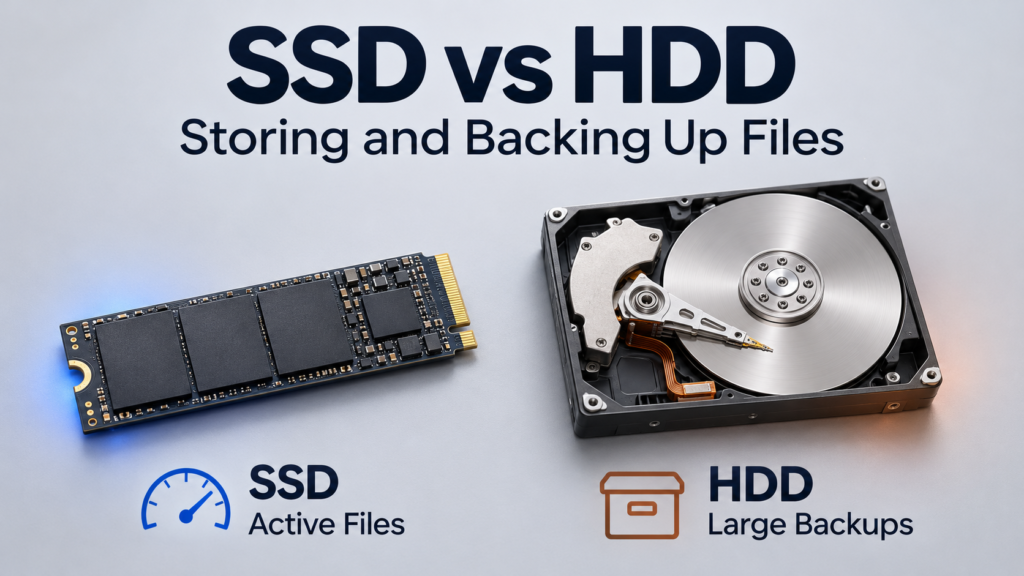

If you open, edit, or move large files throughout the day, an SSD is usually the better working drive. If you need an affordable backup for several terabytes of photos, videos, or business records, an HDD usually offers more capacity for the money. An external SSD can also be a good backup drive if you travel with it or need to restore files quickly. Actual speeds and prices vary by drive. Seagate’s drive technology comparison · IEEE mass data storage overview
When deciding between an SSD and an HDD for storing and backing up files, start by identifying which drive will hold your working files and which will hold another copy. If you move a folder off your computer and it exists only on the new drive, you’ve moved your storage. Make a second copy before relying on it as part of a backup plan. CISA guide to data backup options
SSD vs HDD for file storage at a glance
An SSD stores data in flash memory. An HDD reads and writes data on spinning platters with moving parts. For everyday use, the main differences are how quickly you can access files, how much capacity your budget buys, and how you’ll handle the drive. Seagate’s overview of SSD and HDD technology
| Consideration | SSD | HDD |
|---|---|---|
| Everyday speed | Usually faster for opening files, working with many small files, and transferring large projects | Often sufficient for scheduled backups and files you open occasionally |
| Capacity for the money | Typically higher cost per terabyte | Typically lower cost per terabyte, especially for large collections |
| Portability | No moving parts, which makes it a practical choice for travel | Moving parts make it more sensitive to bumps, especially during use |
| Noise | No mechanical drive noise | Spinning platters and head movements can be audible |
| Common use | Active projects, portable storage, and backups that need quick access | Large local backups, media collections, and archives with separate copies |
Both types of drive can fail. Choose the drive around the work it needs to do, then plan how you would recover if it stopped working.
When an SSD makes more sense
You work directly from the drive
Choose an SSD if you regularly open large project folders, edit video, use large photo catalogs, or move work between computers. Faster access is particularly useful when an app reads many small files or you open several assets in quick succession.
For an external SSD, compare the speed your computer’s port and cable support with the drive’s capabilities. A fast drive connected through a slower port can still be limited by that connection. If your typical task is moving hundreds of gigabytes at once, pay attention to sustained transfer speeds, which can differ from the peak speed on the box. Seagate’s storage technology overview
You travel with the drive or need a quick restore
A portable SSD is a practical option for someone who backs up work while moving between locations. It can also shorten a local restore if the connection and destination drive can keep up. If speed is the reason you’re paying more, estimate how much data you would have to restore to resume work. Recovering two folders and recovering a full project archive are different tasks.
When an HDD makes more sense
You need a large backup that can run in the background
An HDD is often the first drive to price if a backup runs overnight and you need several terabytes for project history. Spending less per terabyte can let you keep older versions longer or buy a second backup drive within the same budget. Check that your backup jobs can finish in the time available and test how long a restore takes. IEEE mass data storage overview · CISA backup and recovery guidance
Your archive contains projects you rarely reopen
An HDD is a reasonable place to store completed projects if capacity matters more than quick access. If you remove those projects from your working drive, back up the archive separately. Open a sample of archived files periodically and check that you can still recover them. A drive you rarely use can still become unreliable or difficult to connect to a newer computer.
How much backup capacity should you buy?
Check how much space is occupied by the files and devices you actually want to back up. Include any external drive that holds original files. Then estimate file growth until your next planned upgrade and allow room for previous versions. The space needed for versions depends on how often files change, how long you keep versions, and how your backup software stores them.
Worked example for a small business
A designer keeps client files on a laptop and estimates the following for the coming year.
| What the backup must hold | Estimated space |
|---|---|
| Files already included in the backup | 700 GB |
| New files expected over the next year | 200 GB |
| Allowance for older versions | 300 GB |
| Estimated backup space needed | 1,200 GB, or 1.2 TB |
A 1 TB drive falls below the estimate. A 2 TB drive gives this business room to start. If the designer adds several large video projects or retains more versions, the estimate should go up. After the first full backup, check how much space the software actually uses and revise your estimate as older versions accumulate.
Follow guidance specific to your backup software when it applies. Apple recommends a Time Machine disk with at least twice your Mac’s storage capacity. For a Mac with a 1 TB internal drive, Apple’s target is at least 2 TB for the Time Machine disk. Apple Time Machine backup guidance
What to check before buying an external drive
- Cost per terabyte. Divide the total price by the advertised capacity in TB. Compare the total cost of buying enough storage for your expected usage.
- Connections and power. Check the connector, compatible cable, and transfer speed your computer supports. Some desktop external drives also require a wall outlet.
- Operating system and backup software. Check the drive format your backup app expects and whether you need to read the drive on more than one operating system.
- Device warranty. Check its length and terms. Budget and plan for recovery separately, because replacing a failed device cannot restore the only copy of a file.
A practical setup for protecting important files
A small business can keep active files on an SSD, run automatic backups to an external HDD, and keep another copy offsite. The offsite copy might be an encrypted drive stored at another location or a cloud backup that lets you recover older versions. This follows the 3-2-1 rule: three copies of important data, two types of storage media, and one copy offsite. CISA guide to data backup options
Keep an offline copy where practical so a problem on the computer can’t immediately reach every backup. Test a restore by recovering a sample folder to a separate location and opening several files. Check that you can recover an older version too if version history matters to your work. CISA ransomware guidance on offline backups and restore testing
Frequently asked questions
1. Which lasts longer, an SSD or an HDD?
There is no single lifespan that applies to all drives. Workload, temperature, physical handling, and the specific model can affect reliability. SSDs have no moving parts, but their flash has finite write endurance. Keep multiple copies whether you buy an SSD or an HDD. Seagate’s comparison of drive technologies
2. Can I leave an SSD unplugged for years as my archive?
Use more than one copy for long-term storage. Unpowered SSD data retention can depend on the drive, its wear, and storage conditions. Whatever media you choose, keep a schedule to check files and move the archive when needed. Dell’s guidance on prolonged SSD power-off
3. Is a USB flash drive enough for backup?
It can hold an extra copy of a few documents. For regular backups, choose a device with enough capacity for all the files and versions you want. Use your backup software to run the job, and check that the resulting files or backup set can be restored.
4. Can I use one external drive for extra files and backups?
You may be able to use the same device for both tasks if your backup software and drive setup support it. Files stored only on that drive still need another copy, and two partitions on one device share the risk of that device failing. Apple recommends dedicating a Time Machine disk to Time Machine backups. Apple Time Machine backup guidance
5. Does cloud sync replace a backup?
Check what happens when a file is deleted or changed on one device. A sync service may copy those changes to the cloud and to other devices. Version history can help if it covers the files and time period you need. Test how you would restore a missing folder before relying on the service for recovery.
Conclusion
Choose an SSD if your work benefits from faster access or you often carry the drive. Price an HDD first if your main goal is to back up a large collection within a budget. Size the backup for current files, growth, and older versions. Then run a restore so you know which copy you would use if your working drive failed.